Part 1 — Understand BigWave · Chapter 1.4
Who Does What in BigWave
Two settings decide what a person sees in BigWave. Their access level says what kind of user they are. Their role says what that user is allowed to do.
Access levels
Every login has one or more access levels:
- Internal (company). Your office staff. They see the full application, within the limits of their role.
- Technician. Field workers. They see their own assignments and the work orders behind them.
- Customer. A login attached to one of your customers. It opens the customer portal, which shows only that customer’s work.
- Site. A customer login limited to one site. Give one to a store manager who should see their own location and nothing else.
- Partner. A login attached to a partner company. It shows the projects and assignments you share with that partner. Partner technicians see their assignments the same way your own technicians do.
An internal login can also carry the Admin flag. Admins get the Setup screen, the Admin menu and Actions › Workflows.
Roles
A role is a set of permissions. You manage roles under Setup › Security Roles.

Click View / Edit on a role to open its permissions. The list covers every screen and panel in BigWave. For each one you choose whether the role can Show, Modify, Add or Delete. A panel the role can’t show drops out of the left panel for everyone with that role. Roles can also hide single custom fields, so a work order can carry a margin figure that technicians never see.
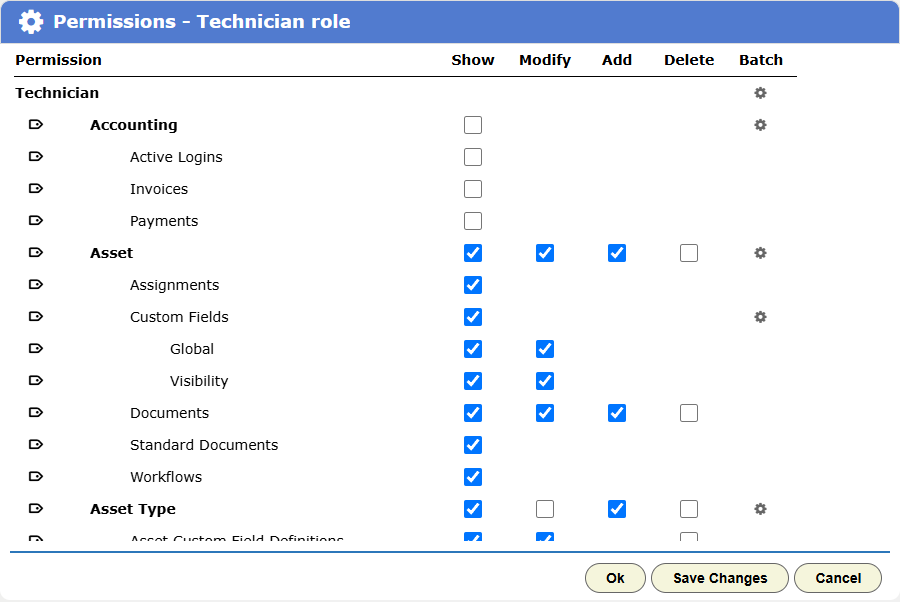
Create the roles your people need today. You can split a role later when a real person needs different access. Beacon runs six: Internal User, Customer, Technician, Partner, Estimator and Project Manager. Copy Role Permissions starts a new role from an existing one.
The people at Beacon
Marcus (owner, internal + admin). He sees everything: all four groups on the home page, Setup and Accounting. He spends most of his time in All Work Orders, project setup and project reports.
Priya (office manager and dispatcher, internal). She has the same home page without the admin extras. Her day runs from the Global group: All Work Orders, the Resource Calendar and Create Work Order.
Grace (accountant, internal). Her role removes the setup screens and keeps the money. She works in the Quote / Invoice panels on work orders, payment history, the Accounting screen and exports.
Steve (senior electrician, technician). He logs in and lands on Assignments, a calendar of his jobs. Each job opens the work order, where he adds comments, photos, time and materials. His own record also holds his documents, his work history and his Out Of Office dates. Chapter 3.3 covers his day in detail.

Harbor Grill’s facilities manager (customer login). They log into the portal and see only Harbor Grill: its sites, its work orders and their statuses, its documents. They raise service requests from Create Work Order. Project options control more of what customers see. Chapters 9 and 14 cover them.

Residential (the Okafors): most homeowners never get a portal login. They get quotes and invoices by email, and they approve a quote with one click on a link in the email (chapter 2.9). You can still give a homeowner a login if they ask for one.
Setting people up
Chapter 2.2 shows how to create users and technicians and what to do when someone leaves. Before you start, decide two things for each person:
- Their access level, which decides whose records they can see.
- Their role, which decides which screens and actions they get.
That ends Part 1. Part 2 sets up BigWave for your business.