Part 2 — Set Up Your Company · Chapter 2.9
Alerts & Notifications
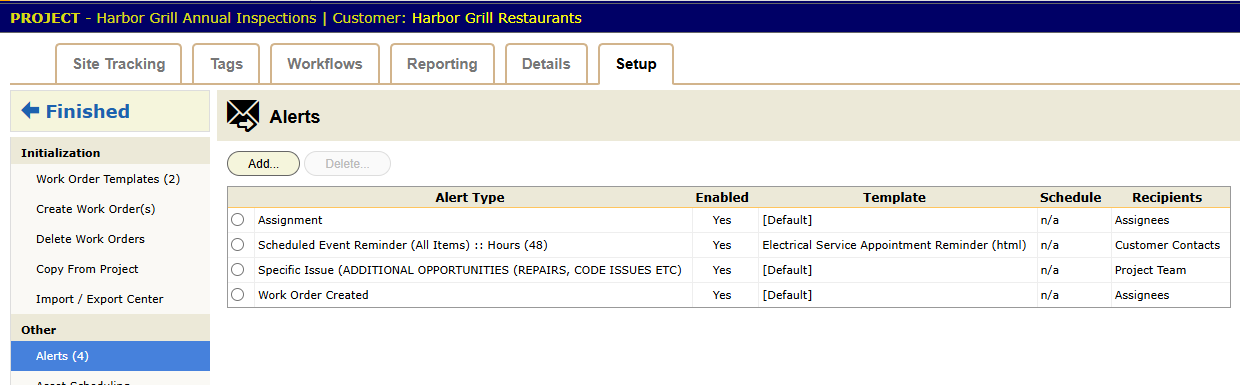
An alert is an email BigWave sends when something happens on a work order. You set alerts up per project, in Project Setup › Alerts. Each alert has three parts:
- A trigger: the event that sends it.
- Recipients: who gets it.
- The email: a subject line and a body, from the default template or your own Custom HTML.
Good alerts replace the “any update?” phone calls, both from customers and inside the office.
The triggers
An alert can fire on a work order in the project when:
- the work order is created
- someone adds a comment
- the status changes, either any change or a change to one status you pick
- someone adds a document
- a custom field value changes
- a technician gets an assignment, or completes one
- someone logs an issue, of any type or one type you pick (chapter 3.8)
- a deliverable is completed
- a schedule date changes, or a scheduled date is missed
- a visit is coming up (Scheduled Event Reminder), a set number of hours before the scheduled start. This alert also adds the Scheduled Reminder Report to the project’s Reporting section.
An alert can also apply only to work orders made from one work order template.
Timers
Timers fire when time passes and nothing happens:
- Timer - Schedule Item Overdue
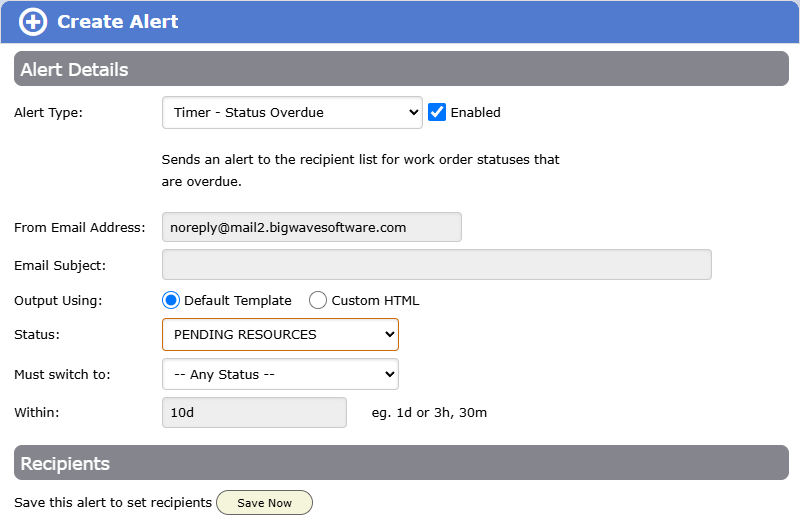
- Timer - Status Overdue: you pick a status and how long a work order may stay in it.
- Timer - Timecard Overdue
Timers back up the one-status-one-owner rule from chapter 2.3. If a work order sits in Awaiting Parts for ten days, the owner gets an email.
An Alert Schedule limits when an alert sends: which days of the week, and up to four times a day.
Recipients
Save the alert first, then add recipients. Each recipient line is one of these:
- the project team, or one role on it
- one named person, or a typed email address
- the work order’s assignees
- the customer’s contacts, or the site’s contacts
- a department or a region
- delivery partners
The same trigger can exist twice with different recipients and different wording. When a Harbor Grill job reaches Complete, one alert tells Priya to invoice it. A second alert tells Harbor Grill their site is done.
Choosing your alerts
Start with the calls and screen checks your team makes every day. Each one can become an alert.
Commercial (Harbor Grill): the inspection project has four alerts:
- Status Report Submitted emails Marcus.
- A Timer - Status Overdue on PO Received emails Priya.
- The signed report deliverable, once complete, emails the Harbor Grill facilities manager in a branded template.
- A missed schedule date emails Priya the same day, because the contract sets the inspection window.
Some rules that keep alerts read:
- Send each alert to the one person who acts on it, not the whole team.
- Pick a specific status in place of any status change. Any-change alerts send too much email.
- Where the rule is “nothing should sit here long”, use a timer.
Status action buttons
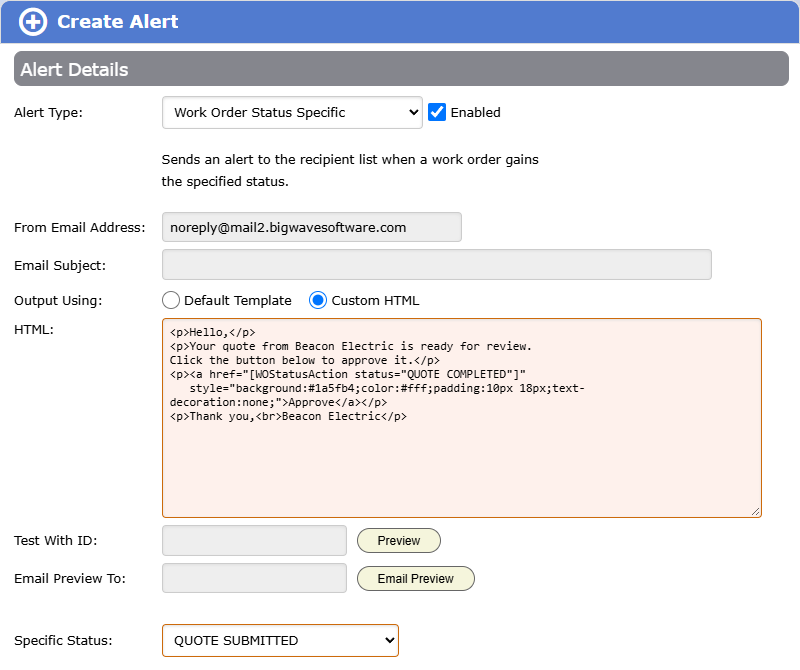
An alert email can include a status action button. The recipient clicks it and a confirmation page opens. When they confirm, the work order moves to the status the button names. They do not need to log in.
The main use is quote approval. The quote email to the Okafors has an Approve button that moves the work order to Approved. That status change can fire the next alert, “quote approved, schedule it”, to Priya. Chapter 3.4 builds the whole flow.
The button can target any status, for example a Confirm appointment button or a Reject button. The confirm step is there because some email security tools open every link in a message. One click alone changes nothing.
To add a button, set the alert’s output to Custom HTML and place the status action token in a link. Chapter 5.3 has the syntax.
Checklist
- List the phone calls and check-ins your team makes each day. Each is a candidate alert.
- Give each alert one owner.
- Put a Timer - Status Overdue on the two statuses where work stalls most.
- Give customer alerts Custom HTML with your branding before you turn them on.
- After a month, ask the team which alerts they ignore, and delete those.