Part 2 — Set Up Your Company · Chapter 2.6
Custom Fields & Tags
Custom fields hold the facts that are special to your business, such as panel amperage, permit numbers or gate codes. BigWave does not have these fields until you add them. After you add them, they show in grid views, go out in exports and merge into documents. They can also send alerts, and they import in bulk during a rollout.
Where custom fields live
Each field belongs to one type of record. Where you define the field sets where it shows.
| Record | Where you define it | Example |
|---|---|---|
| Work order | Project Setup › Custom Fields for one project, or Setup › Custom Fields for all projects | Permit Number, Panel Amperage |
| Site | The customer’s Custom Fields panel for that customer’s sites, or Setup › Custom Fields for all sites | Gate Code, Store Manager |
| Customer, project, technician, partner | Setup › Custom Fields | Referral Source, License Expiration |
| Asset | The asset type (chapter 3.6) | Breaker Count |
To open the global list, click Actions, then Setup, then Custom Fields under Global Items. Pick the record type in Custom Field Type.
Use the same rule as chapter 2.1. Define a field globally when every project needs it. Define it on the project when only one line of work needs it.
A work order can also show its site’s fields. Then a technician on an inspection job sees the gate code on the work order. Each project sets this in Project Options, with Show site custom fields in work orders: all site fields, global fields only, or none.
Setting up a field
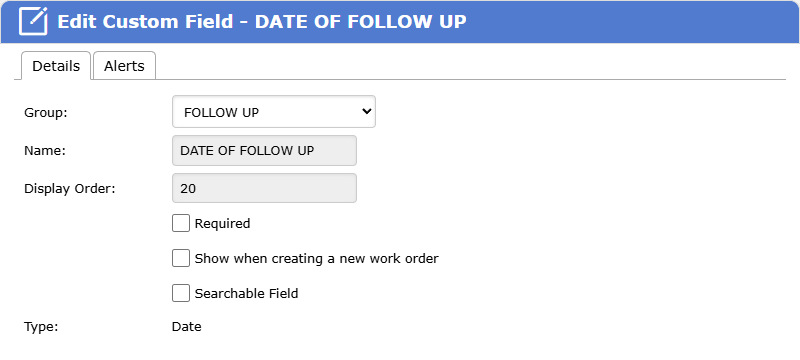
Click Add… on the Fields tab. The dialog asks for:
- Name and Group. Each group becomes its own section in the left panel, such as Custom Fields: Site Access. Groups make a long list of fields easy to scan.
- The data type: Checkbox, Numeric, Decimal, Date, Date/Time, Small Text, Large Text, Selection or Web Link. A Selection field holds a list of values that you type in.
- Required, if the field must have a value.
Who can see a field is set in the Fields grid. Tick the Customer, Partner and Technician columns on the field’s row.
Date and date/time fields also have an Alerts tab in the dialog. An alert can go out a set number of days, weeks or months before or after the date. Chapter 2.9 covers alerts.
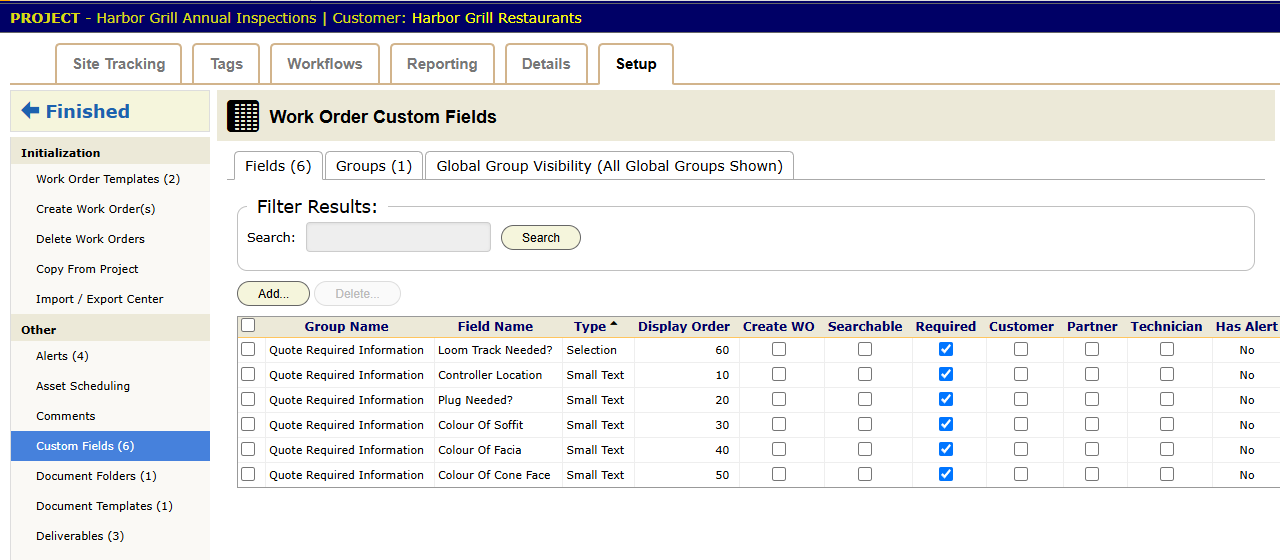
Use Selection in place of free text for anything you will filter or count. A free-text Panel Brand field soon holds “Square D”, “SquareD” and “Sq. D”, and a grid view cannot group them.
What to capture
Before you add a field, ask who reads it and where. Add the field if a document template, an alert or a grid view uses it. Every field you add is one more thing to fill in on each work order.
Commercial (Harbor Grill): an inspection project like this one might carry a PO Number field that must have a value before invoicing (chapter 3.5). It might add Panel Count, and Inspection Result, a Selection field with Pass, Fail and Corrections that feeds the close-out report. The sites might carry Gate Code and Manager Cell.
Residential Service has one field: Job Source, a Selection with Referral, Web and Repeat. Marcus reads that report each month. Keep the shared service projects this lean.
Importing fields and values
You can import field definitions from a spreadsheet. This helps when a large customer gives you their list of required data on day one.
You can also import field values for work orders or sites, through the Import / Export Center. That is how three hundred sites arrive with their gate codes filled in. See chapter 3.8.
Tags
A tag is a label on a work order. It holds no value. A work order can have any number of tags.
Tags come in two kinds:
- Global tags work in every project. Set them up in Setup › Tags, under Global Items.
- Project tags work in one project. Set them up in Project Setup › Statuses / Tags.
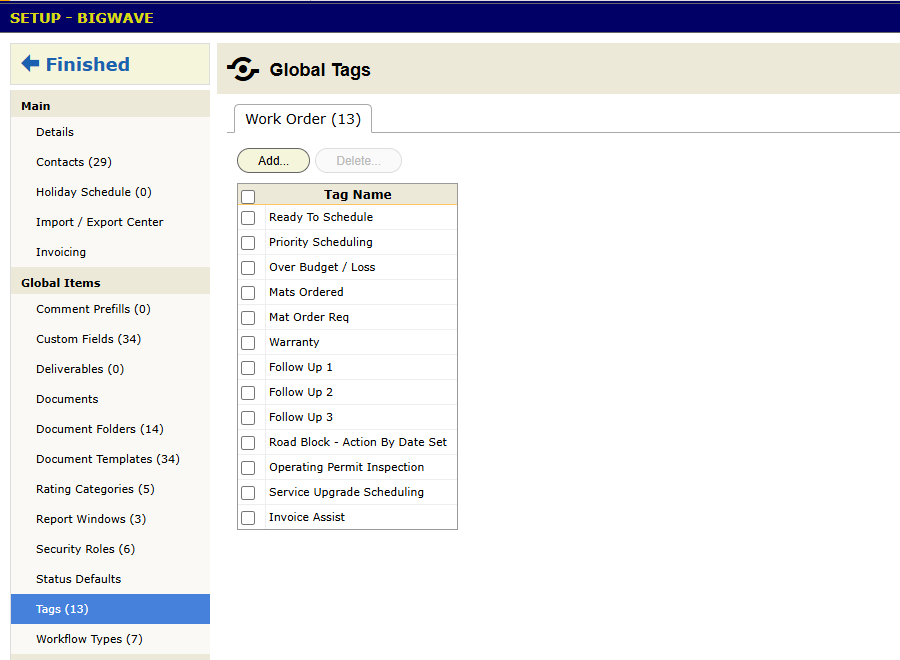
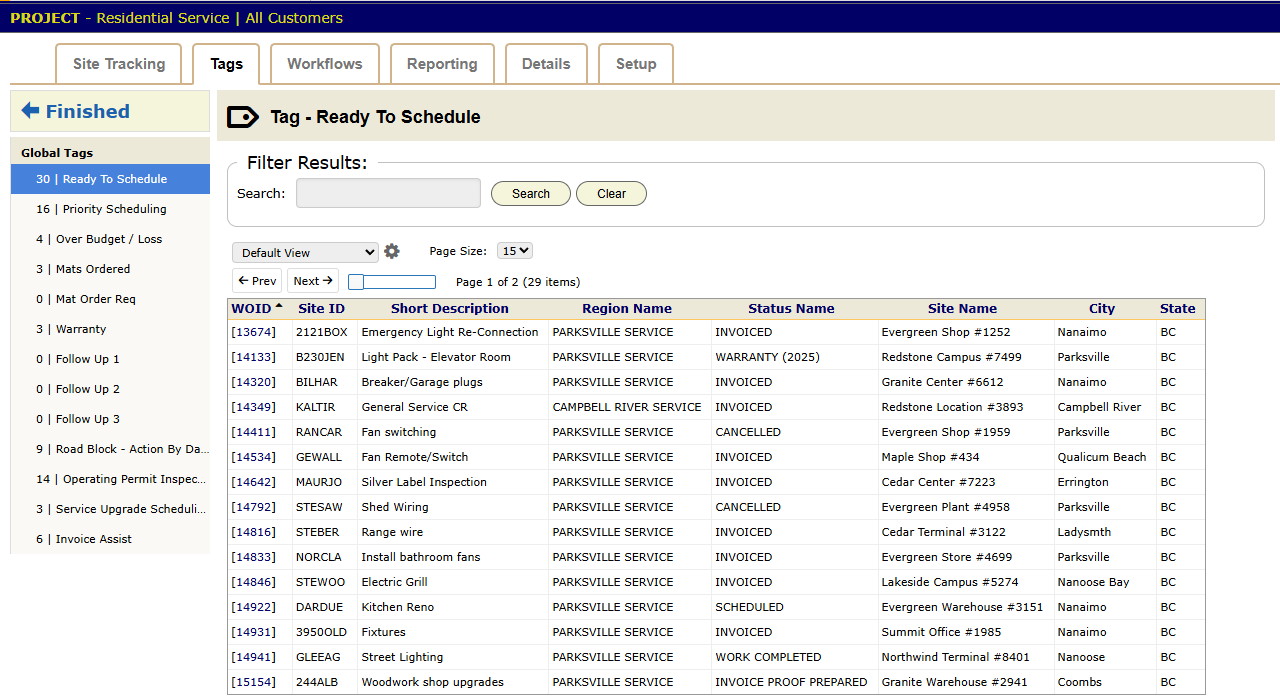
A project’s Tags tab counts its work orders by tag. Global tags show under Global Tags. When the project has its own tags, they show in a second group, Work Order Tags. Grids can also filter by tag.
Which one to use:
- Use a tag to mark jobs you want to find as a group, such as Warranty, Callback or Night Work.
- Use a status for a step in the work order’s flow.
- Use a custom field for a fact with a value. Permit Number cannot be a tag.
Checklist
- Next to each field you plan to add, write who reads it and where. If nobody reads it, do not add it.
- Use Selection fields for anything you filter on.
- Put fields in groups from the start. Fields with no group go into one long General section.
- Keep the shared service projects lean. Add fields only to the projects that need them.
- Review your fields each year. Remove the ones nobody reads.