Part 4 — Report Details · Chapter 4.16
Quotes Approved by Role
This chapter explains the Quotes Approved by Role report. The rules every report shares are in chapter 4.1.
What it shows
How many quotes the customer approved in each month, quarter or year, split by the person who holds a work order role you pick. For example, pick Project Manager to see how much confirmed work each project manager brought in.
Quotes Sent by Role (chapter 4.9) counts the quotes that went out. This report counts the ones that came back with a yes.
What you need to do to make it work
-
Map your quote statuses. An administrator opens Reports > Setup > Milestone Mapping and maps the status that means the quote went out to Quote Sent, and each status that means the customer said yes to Quote Approved. Both are needed. An approval counts only after a quote went out.
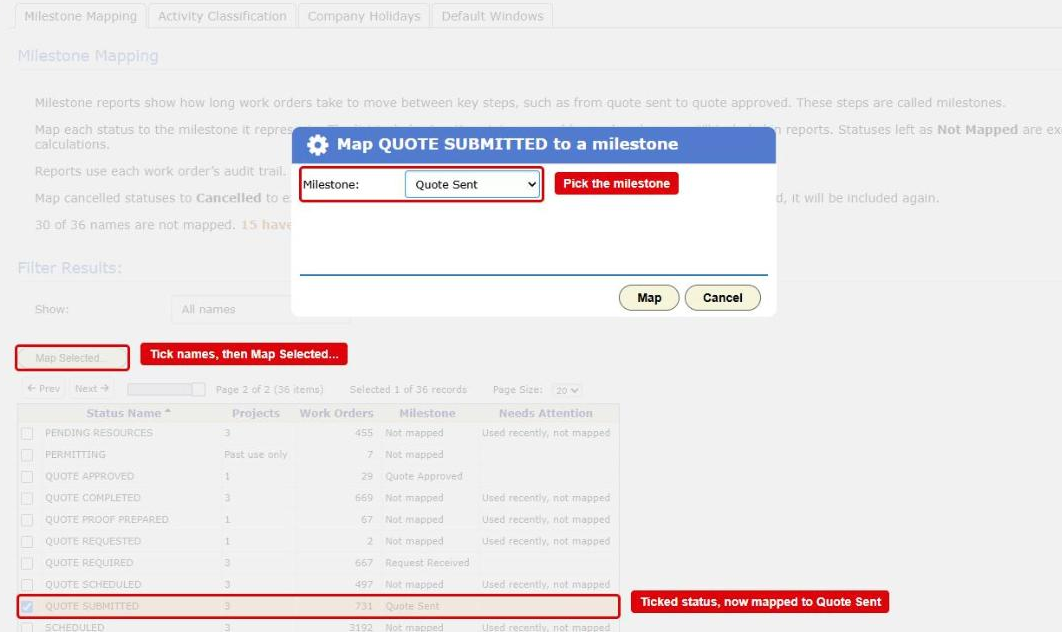
The Milestone Mapping tab in Reporting Setup with the Map dialog open. The Map Selected... button, a ticked status and the Milestone list are boxed in red -
Set up your work order roles. An administrator names the roles in Actions > Setup > Details, on the Work Order Roles tab, and picks the people who can hold each one. The Role list on the report offers the active roles.
-
Put a person in the role on each work order. Open the work order’s Details panel and press Edit. On the Accounting tab of the dialog, pick the person under Work Order Roles and press Ok. You can also pick them on the Create Work Order form. A work order with nobody in the role counts under Unassigned.
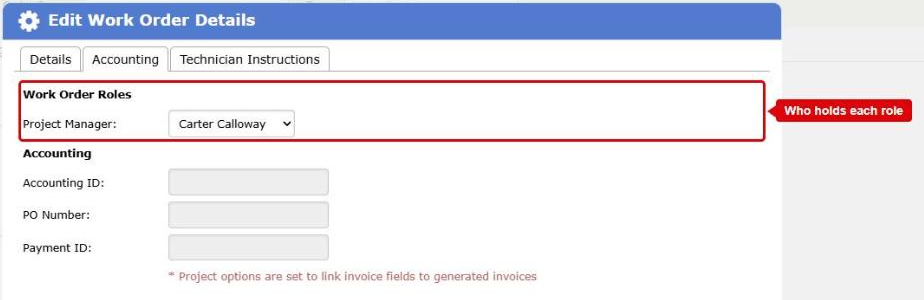
The Accounting tab of the Edit Work Order Details dialog. The Work Order Roles list, with a Project Manager picked, is boxed in red
Before you run it
- Pick Quotes Approved by Role in Report.
- Pick a role in Role.
Until you pick a role, the report shows nothing.
Where the data comes from
- The status changes on your work orders, from the audit log.
- Each work order’s role assignments: who holds each role on it now.
How it is worked out
- For each work order, BigWave finds the first time it reached Quote Approved at or after its first Quote Sent.
- The work order counts as 1 in the period of that day.
- It counts under the person who holds the role you picked on that work order now.
What counts
- Each work order counts once, in the period it was first approved.
- The person is who holds the role now, not who held it when the customer said yes. If you reassign a work order, its approval moves to the new person.
- A work order that never reached Quote Sent does not count, even if it reached an approved status.
- A deleted or cancelled work order does not count.
- Projects narrows the report to the work orders in the projects you tick.
Which date puts it in a period
The day the work order first reached Quote Approved after its quote went out, on your company’s calendar.
Options
- Role picks whose approvals the chart splits by.
- Show Top keeps the people with the most approvals over the whole date range.
- Show trend draws an orange line through the average of each period and the two before it.
Checking a figure
Double-click a part of a column, or press Chart Data, then View records on a row. The grid lists each work order behind that figure. Click a work order number to open it in a new tab.