Part 4 — Report Details · Chapter 4.14
Request to Quote
This chapter explains the Request to Quote report. The rules every report shares are in chapter 4.1.
What it shows
The average number of days from a customer’s request to the quote going out, in each month, quarter or year. It measures how fast the office turns a request into a price.
What you need to do to make it work
-
Map your quote-sent status. An administrator opens Reports > Setup > Milestone Mapping, ticks the status that means the quote went out, such as QUOTE SUBMITTED, presses Map Selected… and picks Quote Sent. Until then, no work order has sent a quote, and the report is empty.
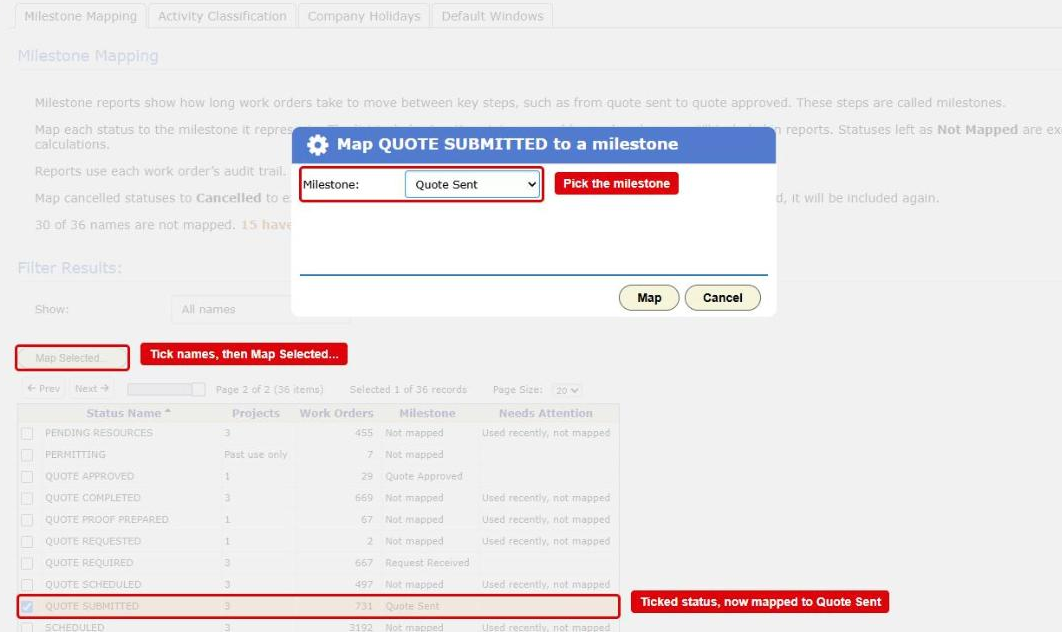
The Milestone Mapping tab in Reporting Setup with the Map dialog open. The Map Selected... button, a ticked status and the Milestone list are boxed in red -
Enter the Request Received date when the request came in earlier than the work order. By default the clock starts when the work order was made. If the customer called on Monday and the office made the work order on Wednesday, the report misses two days. To fix it, enter the real date:
- On a new work order, fill in Request Received on the Create Work Order form.
- On an existing work order, open its Details panel and press Edit at the top right. On the Details tab of the dialog, fill in Request Received and press Ok.
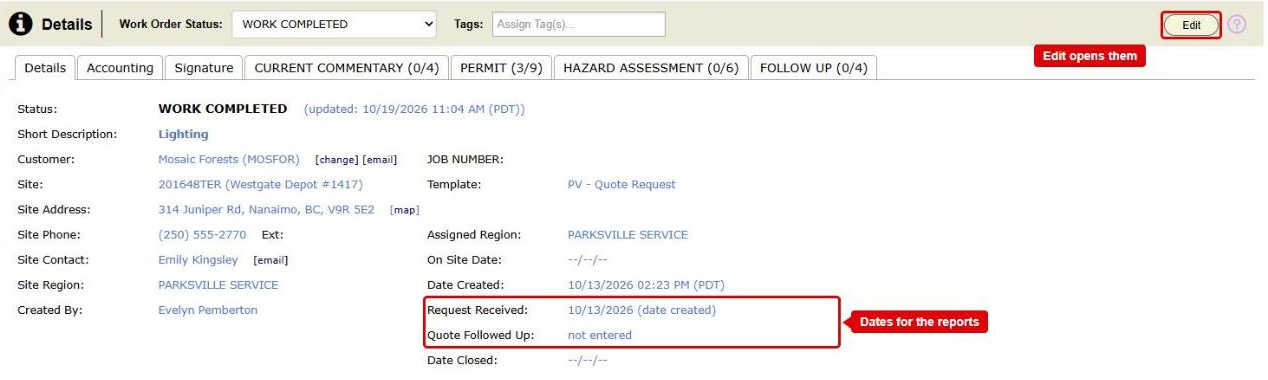
The Details panel of a work order. The Request Received and Quote Followed Up dates are boxed in red, and so is the Edit button that changes them 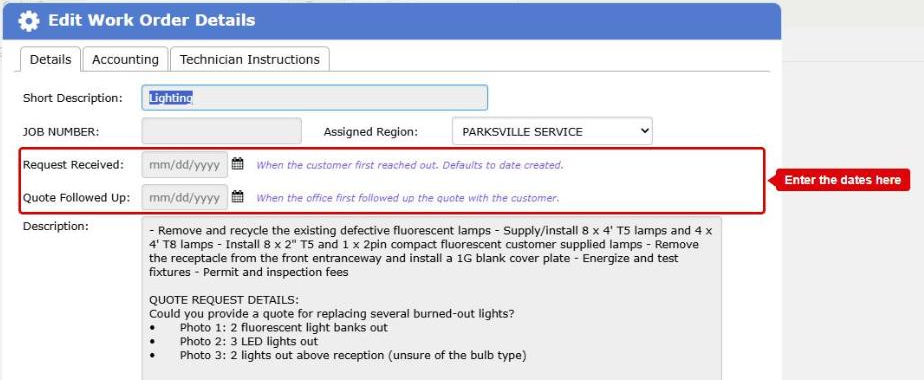
The Edit Work Order Details dialog on its Details tab. The Request Received and Quote Followed Up date fields are boxed in red The Details panel shows “(date created)” beside the date while nobody has entered one. Clear the field to go back to the date created.
-
Enter your holidays. This report counts business days unless you pick otherwise, so it skips weekends and company holidays. An administrator enters holidays in Actions > Setup > Holiday Schedule (chapter 2.1). A holiday not entered counts as a working day.
Where the data comes from
- The status changes on your work orders, from the audit log.
- The Request Received dates entered on your work orders.
- The day each work order was made.
How it is worked out
For each work order:
- BigWave finds when the request came in. That is the earliest of the Request Received date and any status mapped to Request Received. With neither, it is the moment the work order was made.
- It finds the first time the work order reached Quote Sent after that.
- The days between the two are the work order’s figure.
A Request Received date has no time. It counts from the start of that day on your company’s calendar.
Each period shows the average of its work orders. Chart Data also shows the median.
What counts
A work order counts when all of these are true:
- It reached Quote Sent.
- It and its project are not deleted, and it is not cancelled.
- Its project is one you ticked in Projects.
A work order that never sent a quote is in no period at all.
Work orders left out
A work order whose quote went out before its request came in is left out, with the reason “reached Quote Sent only before Request Received”. This happens when someone enters a Request Received date after the quote date by mistake. View records lists them on the Left Out of Report tab.
Which date puts it in a period
The day the work order first reached Quote Sent, on your company’s calendar.
Options
- Count picks Business days or Calendar days. Business days is the default for this report.
- Group By offers Company, Customer, Region, Technician and Project.
Checking a figure
Press Chart Data, then View records on a row. Each work order shows where its request date came from:
- “entered by hand”, with the date and who entered it
- “work order created … no request date entered”, when nobody entered one
- the status, when a status mapped to Request Received came first
It also shows when the quote went out, and the days between. Click a work order number to open it in a new tab.