Part 2 — Set Up Your Company · Chapter 2.3
Statuses & Workflow Design
Every work order has exactly one status. That status decides whose lists the job shows up on, which alerts go out, and when the job is ready to bill. Customers see it in the portal too.
How statuses work
Each project has its own status list. You edit it in the project under Project Setup › Statuses / Tags. Your inspection project can have Report Submitted while residential service has Awaiting Parts, and neither list sees the other’s statuses.
New projects copy their first list from Setup › Status Defaults. Pick Work Order in Choose Type to see the work order defaults. The same panel holds status defaults for assets and supplier purchase orders. Get the work order defaults right before you create projects, and each new project starts close to finished.
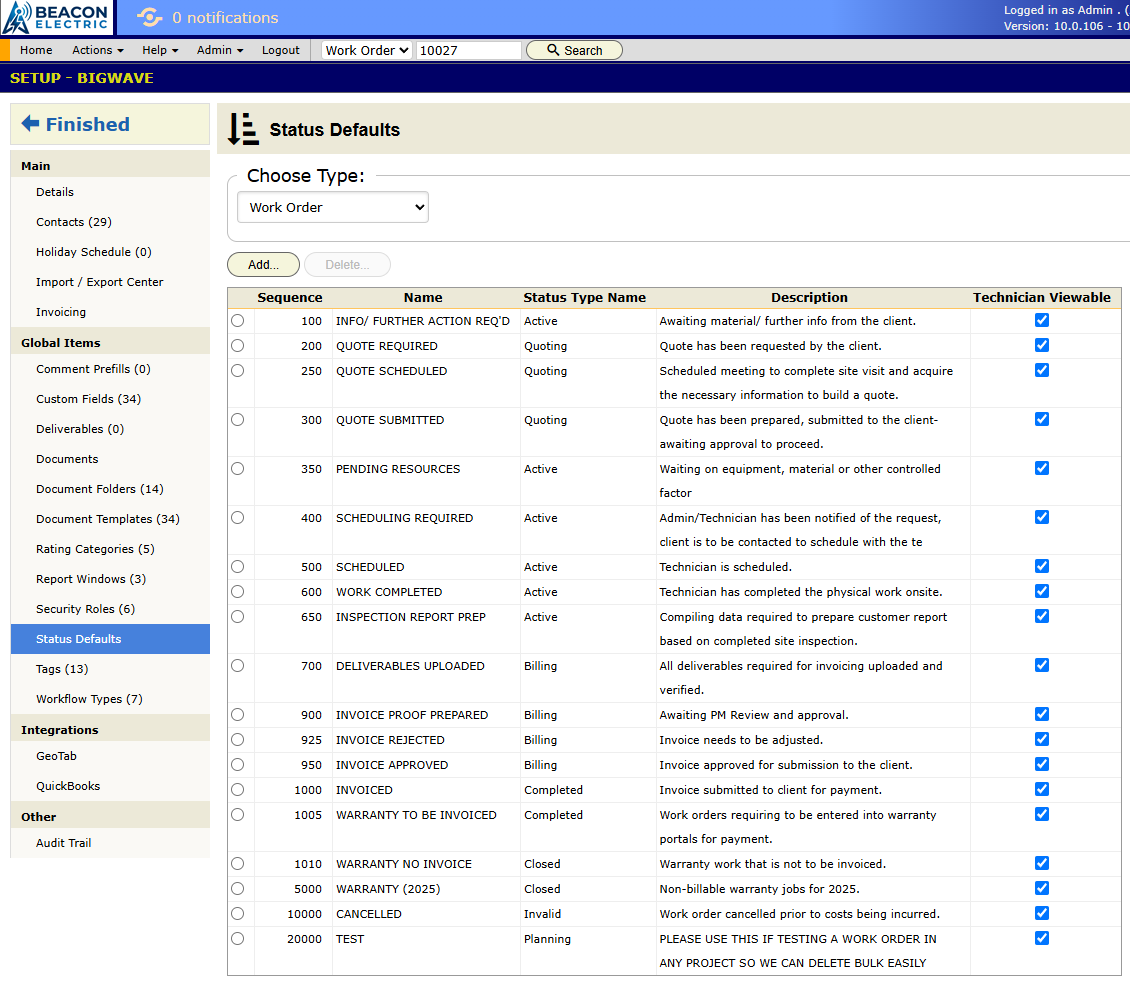
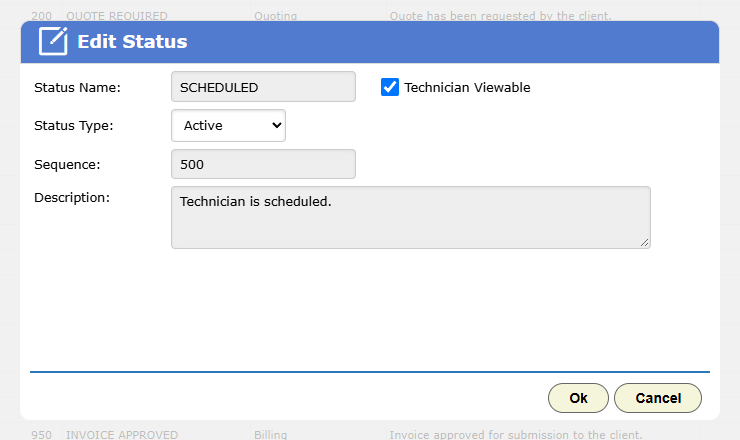
Each status has these settings:
- Status Name. The word everyone sees.
- Status Type. The stage the status belongs to: Planning, Quoting, Active, Completed, Billing, Closed or Invalid. BigWave uses it to tell open work from finished work. Use Invalid for a status such as CANCELLED, where the job will never be done.
- Sequence. Where the status sits in the list.
- Technician Viewable. Whether technicians see the status.
- Description. A note on what the status means.
To delete a status that work orders still use, BigWave asks you to pick a new status for them first.
Design before you build
Draw each line of work on paper first. These rules help:
Give every wait its own status. Jobs lose money while they wait, in places like Awaiting Parts or Awaiting Customer Approval. If a job can sit somewhere for a week, give that place a status. Only a status can be filtered, counted or watched by an overdue timer.
Give every status an owner. Someone must be responsible for moving jobs out of each status. In Progress belongs to the technician. Ready to Invoice belongs to Grace.
Start small. Most service work runs on six to ten statuses. If two statuses always change together, merge them. If nobody can explain the difference between two, merge them. Use tags (chapter 2.6) for facts about a job that aren’t steps, such as warranty work.
Use plain names. Waiting on customer signature tells the reader more than Pending 2.
Beacon’s two lists
Residential (the Okafors): the Residential Service project runs New, Quoted, Approved, Scheduled, In Progress, Complete, Invoiced, Paid.
Commercial (Harbor Grill): the inspection project runs Inspection Due, Scheduled, In Progress, Report Submitted, PO Received, Invoiced, Paid. Harbor Grill pays only after it has the signed report and has issued a purchase order. Report Submitted and PO Received show which sites are stuck at each of those steps.
What a status change sets off
- Alerts (chapter 2.9). An alert can fire on any status change or when a job reaches one status. A Timer - Status Overdue alert fires when a job stays in a status too long, so the owner gets a reminder.
- Billing (chapter 3.5). A status that means “done, ready to bill” gives Grace a list to invoice from.
- The portal. Customer logins see each work order’s current status (chapter 2.10).
- Site tracking. Each project’s Site Tracking screen counts work orders in each status, so you can see how far a rollout has got (chapter 3.8).
- Emailed approvals. A quote email can carry an Approve button. When the customer clicks it, the work order moves to your approved status. The button finds that status by its name, so choose names with care. See chapters 13 and 18.
Workflows
A status tracks the job itself. A workflow tracks a separate request attached to a record, with its own steps and its own responsible people. Examples are a permit request on a work order or the onboarding of a new technician.
A workflow type is the template for one kind of request. It holds the steps, the custom fields and the opening text. You define it globally under Setup › Workflow Types, or inside one project. Workflow types can attach to work orders, projects, technicians and assets.
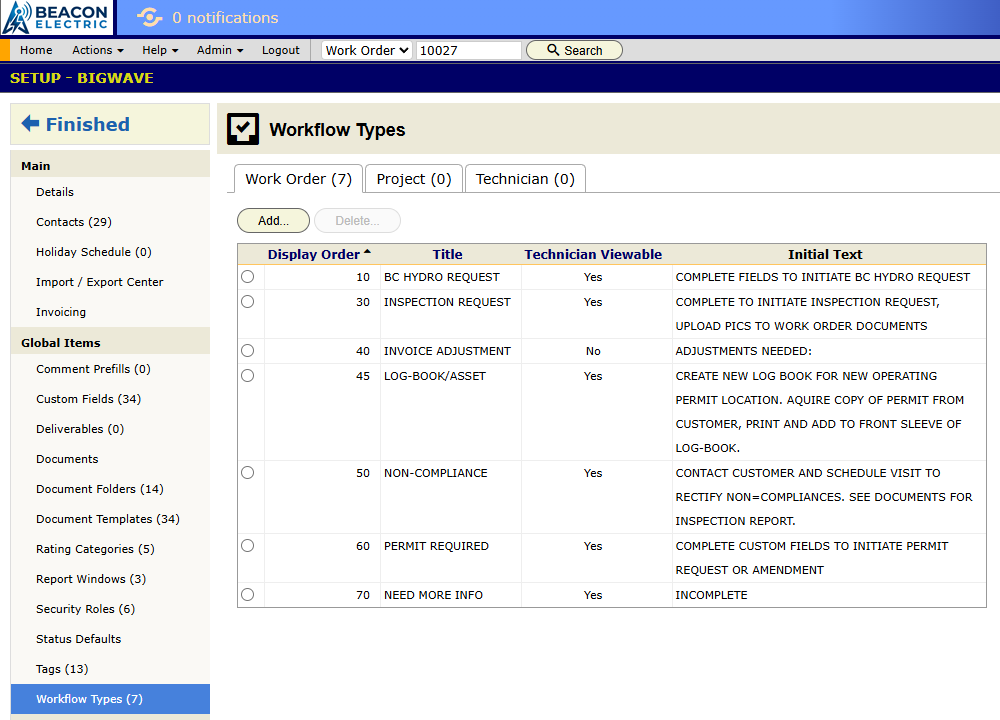
Each step of a workflow sends it to one of three queues:
- The originator, the person who raised it.
- A department. Anyone in that department can pick it up.
- The project team.
The Workflows group on the home page lists each workflow type with its counts. Attention Required lists the active workflows waiting on you.
Start with statuses alone. Add your first workflow type when you find a process that people track in their email instead of in BigWave.
Checklist
- Draw each line of work as boxes, each with an owner, before you open BigWave.
- Enter the statuses your projects share in Status Defaults.
- Adjust each project’s own list when you create the project (chapter 2.5).
- Set up one Timer - Status Overdue alert on the status where jobs stall most (chapter 2.9).
- Review the list every quarter. Delete statuses no job ever uses. Look into the ones where jobs pile up.