Part 3 — Run Your Operation · Chapter 3.2
Scheduling & Dispatch
Dispatch answers two questions, and BigWave records them separately:
- When does the job happen? That is a schedule entry on the work order.
- Who does it? That is an assignment of a technician, or of an assignable asset such as a bucket truck, to the schedule entry.
Because they are separate, you can schedule a job for Tuesday before you know which technician is free on Tuesday.
This chapter is about people and calendars. Recurring maintenance work orders that BigWave creates on its own come from asset scheduling, in chapter 3.6.
Schedule entries
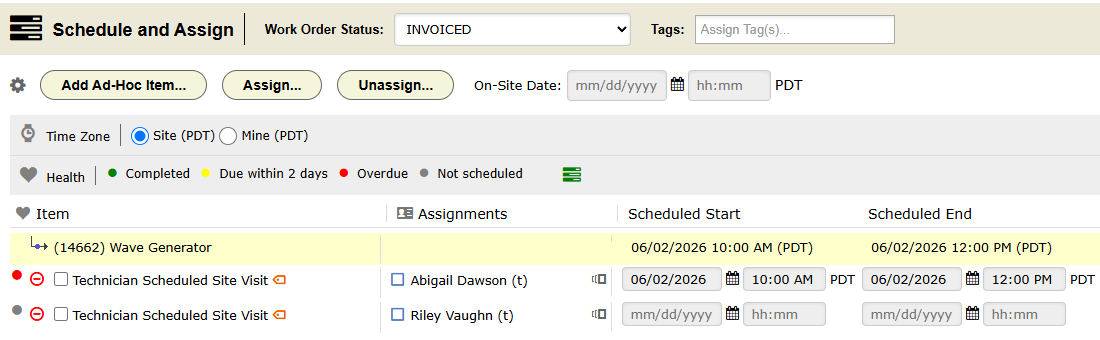
Open Schedule and Assign on a work order to see its schedule entries. Each entry has a scheduled start and end. BigWave also records the actual start and end, so you can report on jobs that ran late.
A work order can have more than one entry. A panel upgrade that takes two visits is one work order with two schedule entries.
Some projects schedule below the work order. The project’s Scheduling Level can be Work Order, Activity or Task, and entries then sit at that level. Most service work stays at Work Order. Large rollouts sometimes go finer. You set the level in Project Options (chapter 2.5).
Assignments
On a schedule entry you assign resources:
- your own technicians
- partner technicians
- assets whose type is marked assignable, such as a bucket truck
The assignment puts the job on the technician’s Assignments panel. It also fires the project’s assignment alert, if there is one (chapter 2.9).
The Resource Calendar
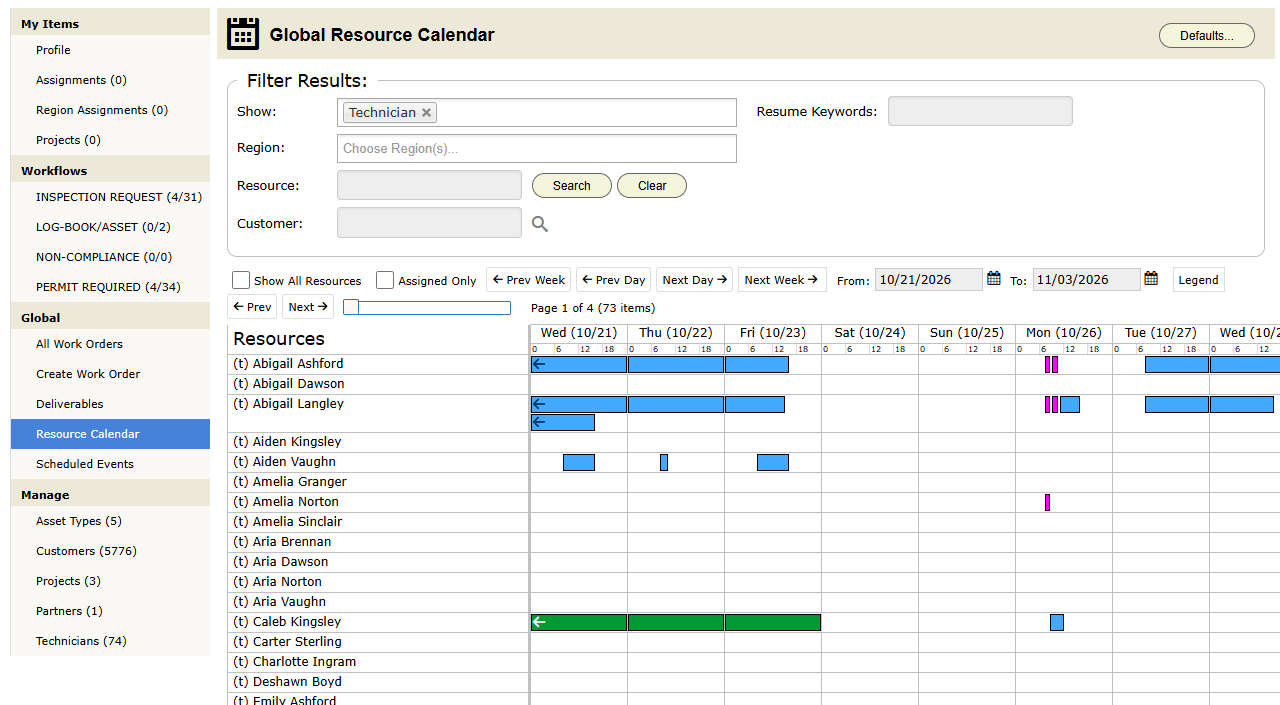
Home › Global › Resource Calendar is the dispatch board. Technicians run down the left side. Days run across the top. Set the span with From and To, for example two weeks. Each assignment is a block on the board, so double bookings are easy to see. Drag a block to move it to another time or another technician.
Out-of-office time from chapter 2.2 and the company holiday schedule from chapter 2.1 show on the board as colored blocks. Legend tells you what each color means.
Admins set the calendar’s starting view with Defaults… in the panel header. A monitor view of the calendar is also available for a screen on the office wall.
Scheduled Events
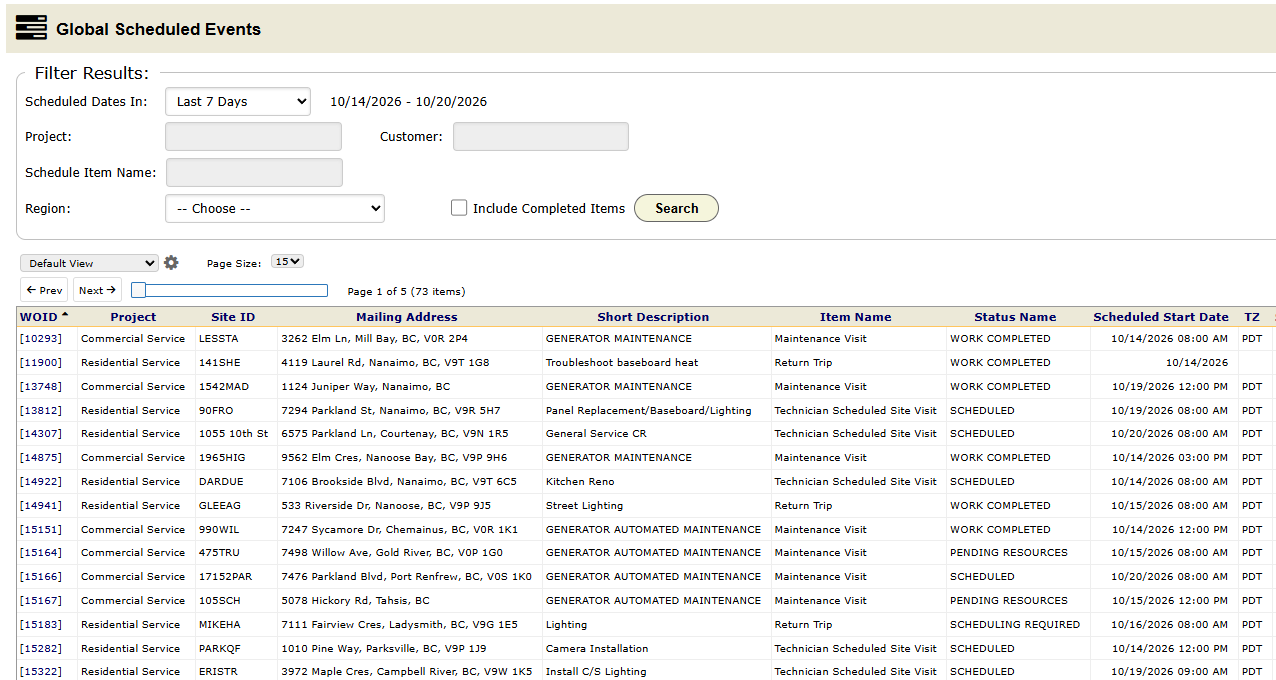
The Resource Calendar shows what each person is doing. Home › Global › Scheduled Events lists schedule entries across all projects, one row per entry, with the work order, site, status and scheduled start. It is a grid you can filter and save views of (chapter 1.3).
Scheduled Dates In picks the date window. It opens on Last 7 Days, so you first see what was scheduled in the past week. Pick another window from the list, or pick custom dates and set your own range. Other filters are Project, Customer, Schedule Item Name, Region and Include Completed Items.
Each project has two more reports in its Reporting section:
- Scheduled Events for that project only.
- Missed Schedule Dates for entries whose time passed before the work was done.
Use these reports with the schedule alerts from chapter 2.9 to catch work that slips.
Priya’s day
Commercial (Harbor Grill): each Harbor Grill site needs an inspection inside the contract window. The work orders were created in bulk (chapter 3.8). Each month Priya filters Scheduled Events by the inspection project and sets custom dates for the coming month. She checks the list against the sites that are due and schedules the ones that are missing. The missed-date alert catches anything that slips.
Residential (the Okafors): the phone rings. Priya creates the work order from the customer record and adds a schedule entry for Thursday morning while the customer is still on the line. On the Resource Calendar she sees Steve is free on Thursday and assigns him.
Habits
- Schedule a job when you create it, if you know the date. An unscheduled work order does not show on any calendar or schedule report.
- Record actual start and end times. Without them, you cannot report on late jobs.
- Dispatch from the Resource Calendar. It shows time off and double bookings.
- Check Missed Schedule Dates each week on every active project. It should be empty.