Part 4 — Report Details · Chapter 4.10
Quote Follow-Up
This chapter explains the Quote Follow-Up report. The rules every report shares are in chapter 4.1.
What it shows
Of the quotes sent in each month, quarter or year, the share that someone followed up within a set number of days. A figure of 60% means 6 quotes in 10 got a follow-up in time.
What you need to do to make it work
-
Map your quote-sent status. An administrator opens Reports > Setup > Milestone Mapping, ticks the status that means the quote went out, presses Map Selected… and picks Quote Sent. Until then, the report is empty.
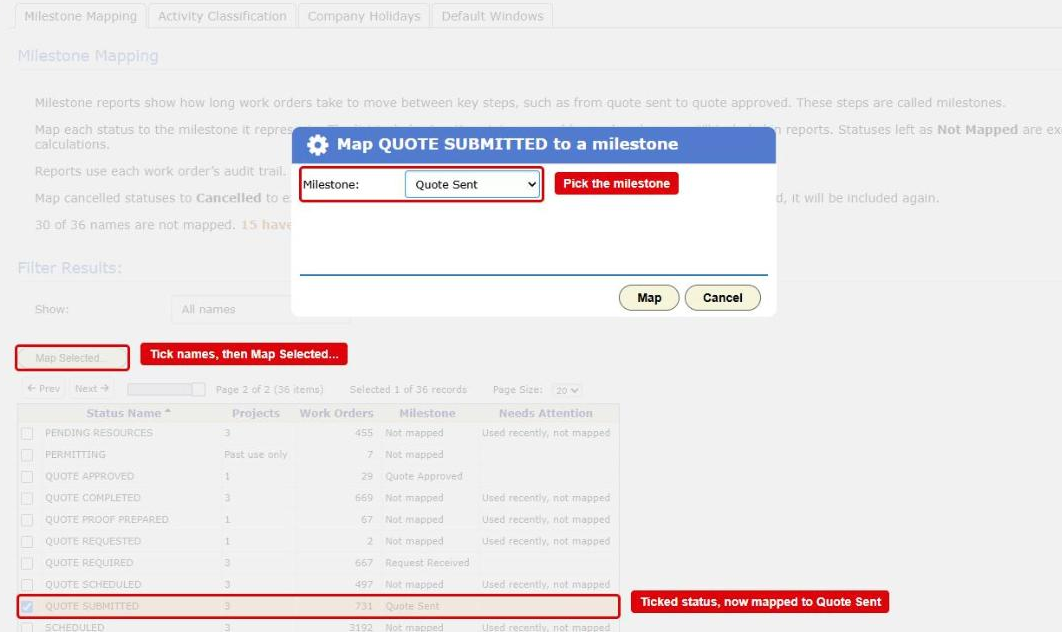
The Milestone Mapping tab in Reporting Setup with the Map dialog open. The Map Selected... button, a ticked status and the Milestone list are boxed in red -
Enter the Quote Followed Up date every time someone follows up a quote. This is the step that makes the report work, and nothing fills it in for you. A quote with no date counts as never followed up.
- Open the work order and its Details panel.
- Press Edit at the top right.
- On the Details tab of the dialog, enter the day of the call or email in Quote Followed Up.
- Press Ok.
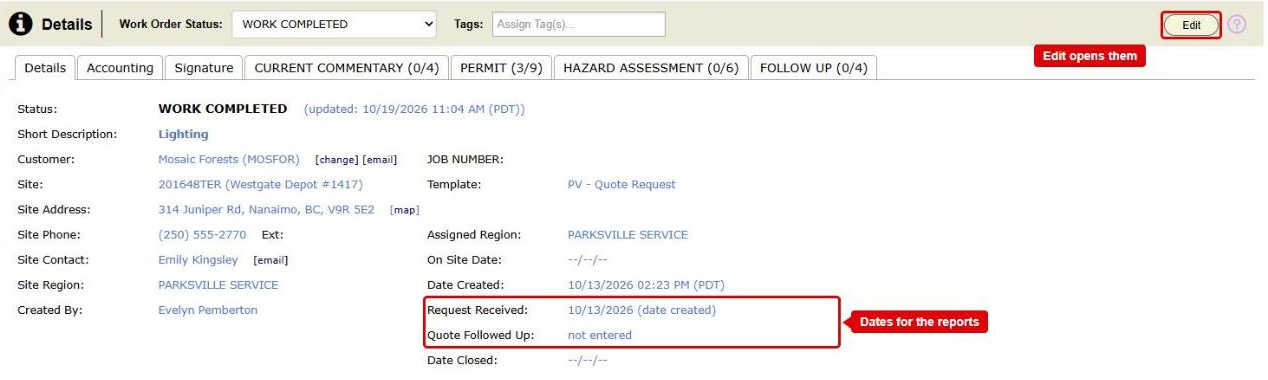
The Details panel of a work order. The Request Received and Quote Followed Up dates are boxed in red, and so is the Edit button that changes them 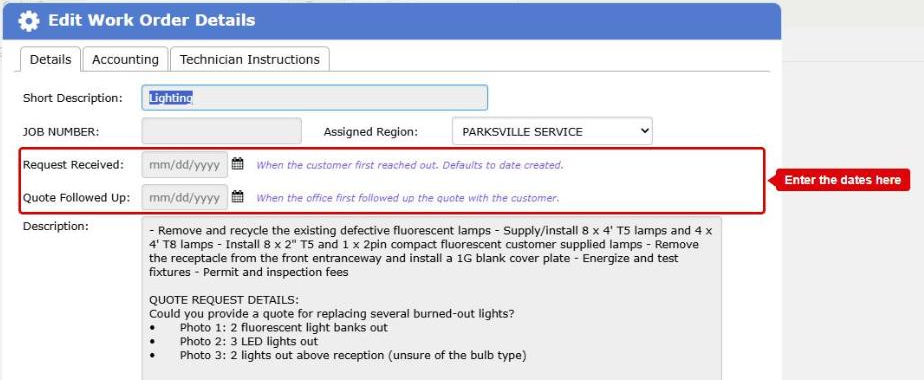
The Edit Work Order Details dialog on its Details tab. The Request Received and Quote Followed Up date fields are boxed in red If your workflow already has a follow-up status, an administrator can map it to Quote Followed Up instead. Then moving the work order to that status counts as the follow-up.
-
Optional: set your default window. An administrator can change how many days Follow-Up Window starts at, in Reports > Setup > Default Windows. The default is 7.
Where the data comes from
- The status changes on your work orders, from the audit log.
- The Quote Followed Up dates entered on your work orders.
How it is worked out
For each work order:
- BigWave finds the first time it reached a status mapped to Quote Sent. That is the day the quote went out.
- It finds the first follow-up on or after that day.
- The quote counts as followed up if that follow-up is within the window. A follow-up on the last day of the window counts.
The figure is the number followed up in time, as a share of all the quotes sent in the period.
The report counts whole days on your company’s calendar. A follow-up is usually entered as a date with no time.
What counts
- Each work order counts once, in the period it first reached Quote Sent.
- A quote with its window still open is left out. If no one has followed it up yet but there is still time, the report does not count it as a miss. Without this rule, the current month would always look bad. A line under the chart counts these quotes, for example “12 quotes left out: sent in the last 7 days and not followed up yet.”
- A follow-up before the quote went out does not count.
- A deleted or cancelled work order does not count.
- Projects narrows the report to the work orders in the projects you tick.
Which date puts it in a period
The day the work order first reached a status mapped to Quote Sent, on your company’s calendar.
Options
- Follow-Up Window (days) sets how many days a follow-up may take. The default is 7. An administrator can change the default in Reports > Setup > Default Windows.
- Group By splits the figure by Customer, Region, Technician or Project. The groups stand side by side, because shares do not add up.
Checking a figure
Double-click a column, or press Chart Data, then View records on a row. The grid lists each quote:
- Quote Sent: when the quote went out, and who changed the status.
- Quote Followed Up: the follow-up and how many days it took. It can also read “no follow-up”, or “not yet; window still open”.
Quotes with no follow-up come first. They are the ones to chase.