Part 3 — Run Your Operation · Chapter 3.1
The Life of a Work Order
Part 2 set BigWave up. Part 3 is daily work, and most daily work happens on the work order screen. Each work order is one job. Everything you set up in Part 2 shows up on it: statuses, templates, custom fields, rates and deliverables. This chapter explains what each part of that screen is for.
Creating work orders
There are four ways to create a work order:
- Home › Global › Create Work Order. Pick the project, customer and site, then describe the job.
- From a customer or site. The same form opens with the customer or site filled in. Use this while the customer is on the phone.
- Project Setup › Create Work Order(s). This creates many work orders at once, one per site you choose, usually from a template. See chapters 9 and 22.
- From the portal. A customer logs in and requests service (chapter 2.10).
A new work order starts in its project’s first status, with whatever its template fills in.
The Actions menu on a work order has two shortcuts:
- Clone Work Order makes a new work order like this one. Use it when the same job comes up again.
- Copy From Another Work Order pulls comments, documents, materials and other data from an old work order into this one. Use it when a job was created in the wrong project.
The screen, panel by panel
The panel list on the left is the table of contents for the job. Many panels show a count, so you can see how much is on the job before you click.
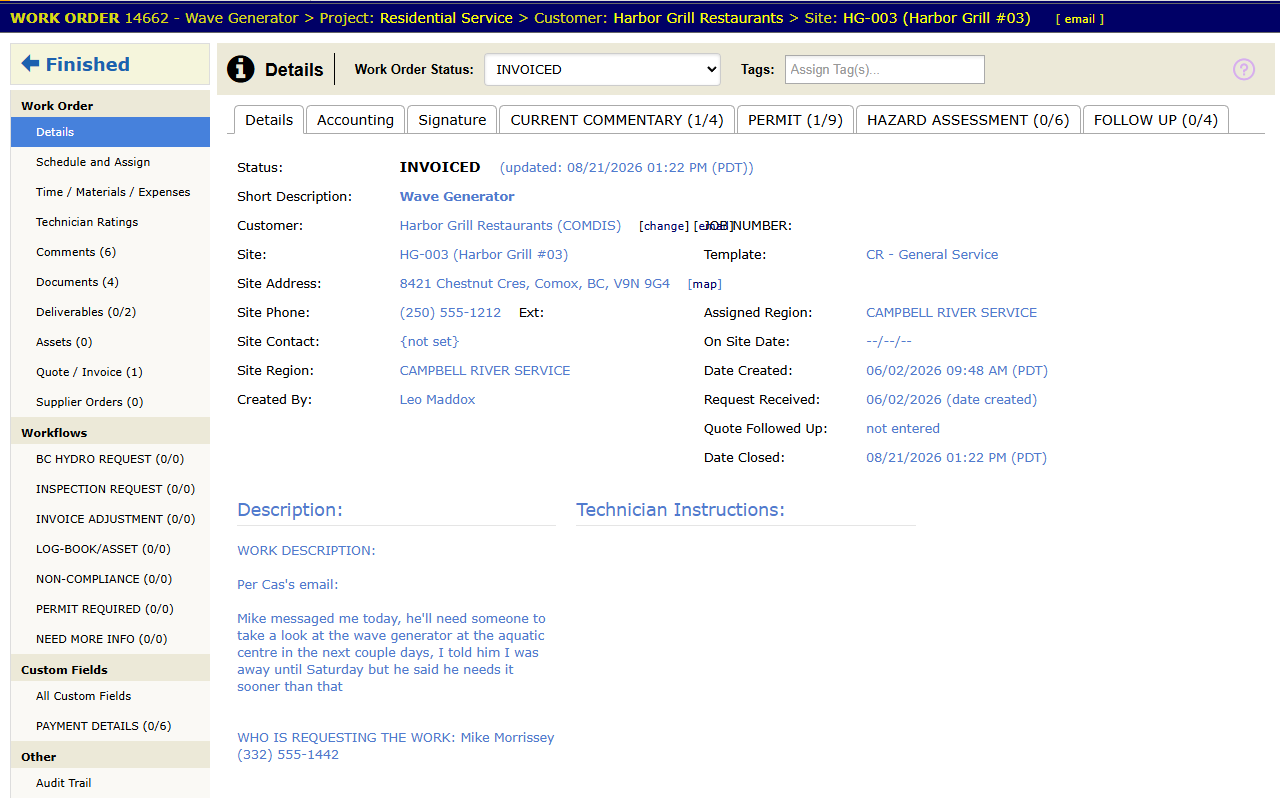
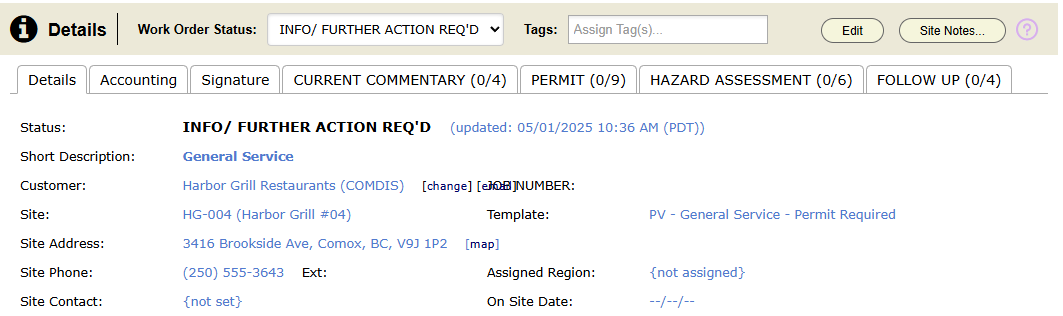
Details holds the job’s main facts: status, description, customer, site and key dates. If the customer, site or template has standing notes, buttons appear in the panel header: Customer Notes…, Site Notes… and Dispatcher Notes…. A warning saved on a site months ago shows on every job at that site.
When a work order’s status has the type Closed, such as Invoiced, the work order is locked. The header buttons, such as Edit and Site Notes…, are hidden.
Schedule and Assign sets when the job happens and who does it. Chapter 3.2 covers it.
Time / Materials / Expenses records hours, parts and costs. Prices come from the rates and materials in chapter 2.7. Technicians enter these from the field (chapter 3.3), and chapter 3.5 bills them.
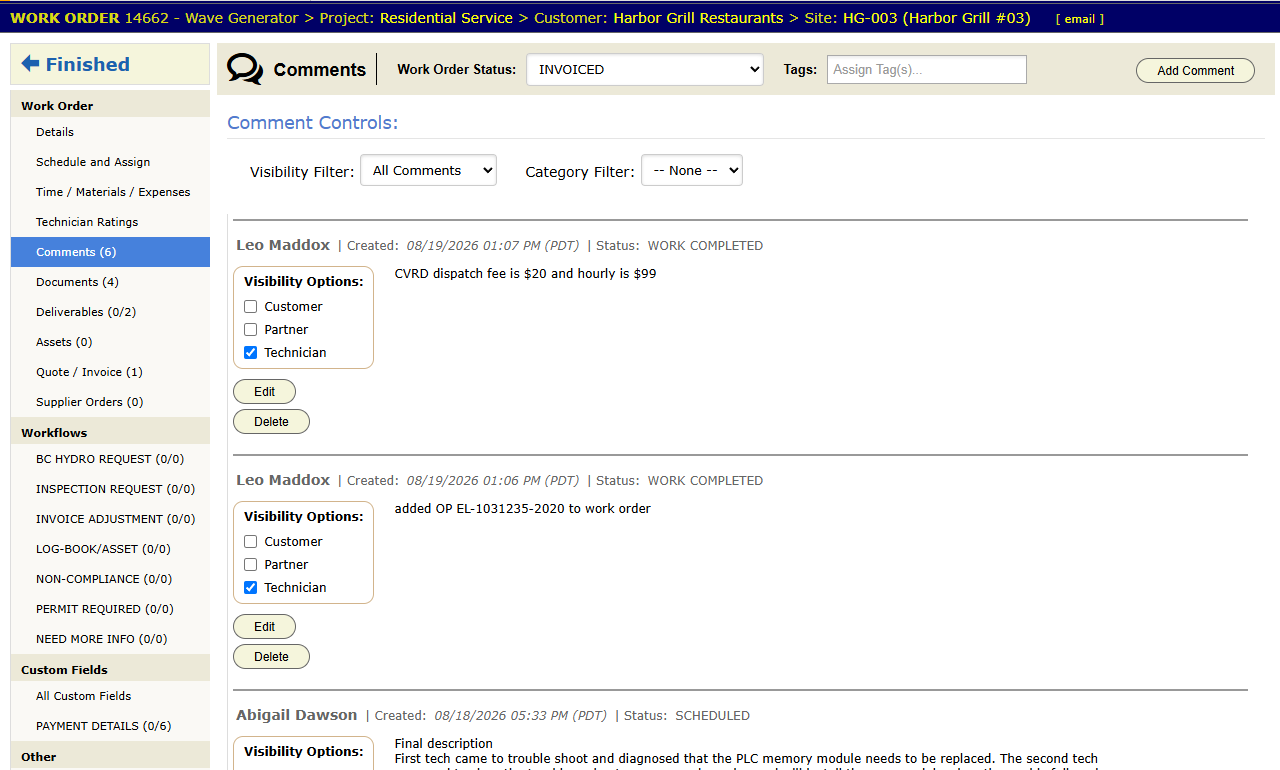
Comments is the job’s written history. Each comment shows who wrote it and when. Put anything about the job here, not in a text thread, because this is where the next person will look. Comment prefills (chapter 2.1) save typing on comments you write often.
Documents holds every file on the job, sorted into your folders from chapter 2.8. Add Document… uploads a file. Photos from the field land here too. Generate… fills in a document template.
Deliverables lists the documents the job must produce. The panel list shows progress, such as Deliverables 2/3.
Assets appears when your license includes asset management. It links the job to the equipment it serviced, which builds each asset’s history (chapter 3.6).
Quote / Invoice holds the line items and creates quotes and invoices. Only your own staff see it. See chapters 18 and 19.
Supplier Orders holds purchase orders for parts bought for this job (chapter 3.7).
Technician Ratings scores the assigned technicians, if you use rating categories.
Workflows shows any workflows from chapter 2.3 that run on this work order, such as a permit application.
Custom Fields shows your fields in their groups. When the project allows it, the site’s custom fields show too. Audit Trail records every change, with who made it and when.
Role note: this is the office view. A technician sees the panels for field work (chapter 3.3). A customer sees details, status, the documents you share and approved invoices (chapter 2.10).
Statuses in practice
- Change the status when the event happens. Alerts, timers, the portal and pipeline counts all depend on the time of the change. A status set at the end of the day gives them the wrong time.
- Add a comment when you move a status backward. “Back to Scheduled: customer postponed, panel on backorder” tells the next person why.
- Work from status queues. Priya keeps an All Work Orders view for each status she owns (chapter 1.3), and works through each list.
Commercial (Harbor Grill): a store requests a repair through the portal. The work order starts in New and an alert goes to Priya. When she opens it, the Site Notes… button shows the gate code and the note about the breaker room by the back entrance.
Habits
- One job, one work order. A job that needs two visits gets two schedule entries on the same work order (chapter 3.2).
- Write the description so a technician can read it on a phone in a parking lot.
- Add photos and documents the day you take them.
- Read the panel counts first. Comments, Documents and Deliverables counts tell you the state of the job before you open anything.