Part 1 — Understand BigWave · Chapter 1.3
Grids, Views, and Controls
Most lists in BigWave are grids. Work orders, customers, sites, assignments and invoice lines all use the same grid, so they all work the same way. Grids are also how you report in BigWave. Chapter 3.9 builds on this chapter.
How a grid works
A grid is a table of records.
- Sort. Click a column header.
- Open a record. Blue text is a link. Click a customer name, site or work order number to open that record.
- Move through pages. Use Prev and Next above the grid, or drag the slider. Page Size sets how many rows each page shows.
Most grids have a Filter Results area above them. Its fields depend on the screen. On All Work Orders, for example, you can filter by status, tag, region, customer or date.
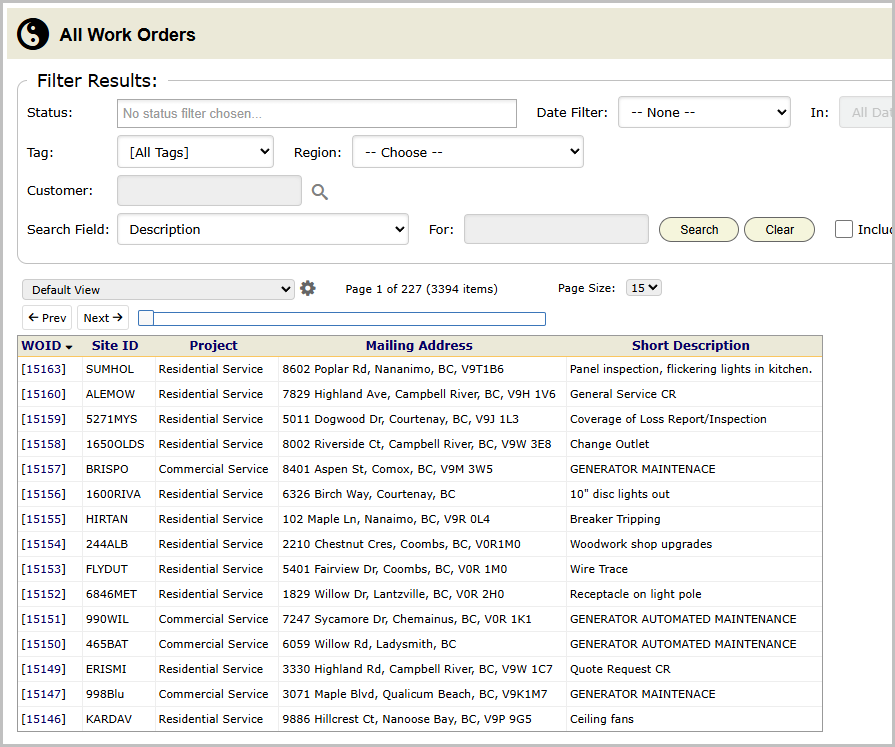
Views
A view sets which columns a grid shows. It holds a name, a list of columns in order and a default sort. The list above the grid switches between views. A view from someone else shows their name, for example [owned by Marcus C].
To create a view:
- Click the gear next to the view list. The View Options menu opens.
- Click Create New, or Create Copy to start from the current view.
- Type a Name of View, such as “Dispatch board” or “Billing review”.
- Move fields from Available Fields to Selected Fields. Use the up and down arrows to set the column order. Your custom fields are in the list too.
- Pick a Default Sort.
- Check Shared View if other users need it. They can use it, but only you can change it.
- Check Show This View By Default to make it the view this grid opens with.
- Click Save.
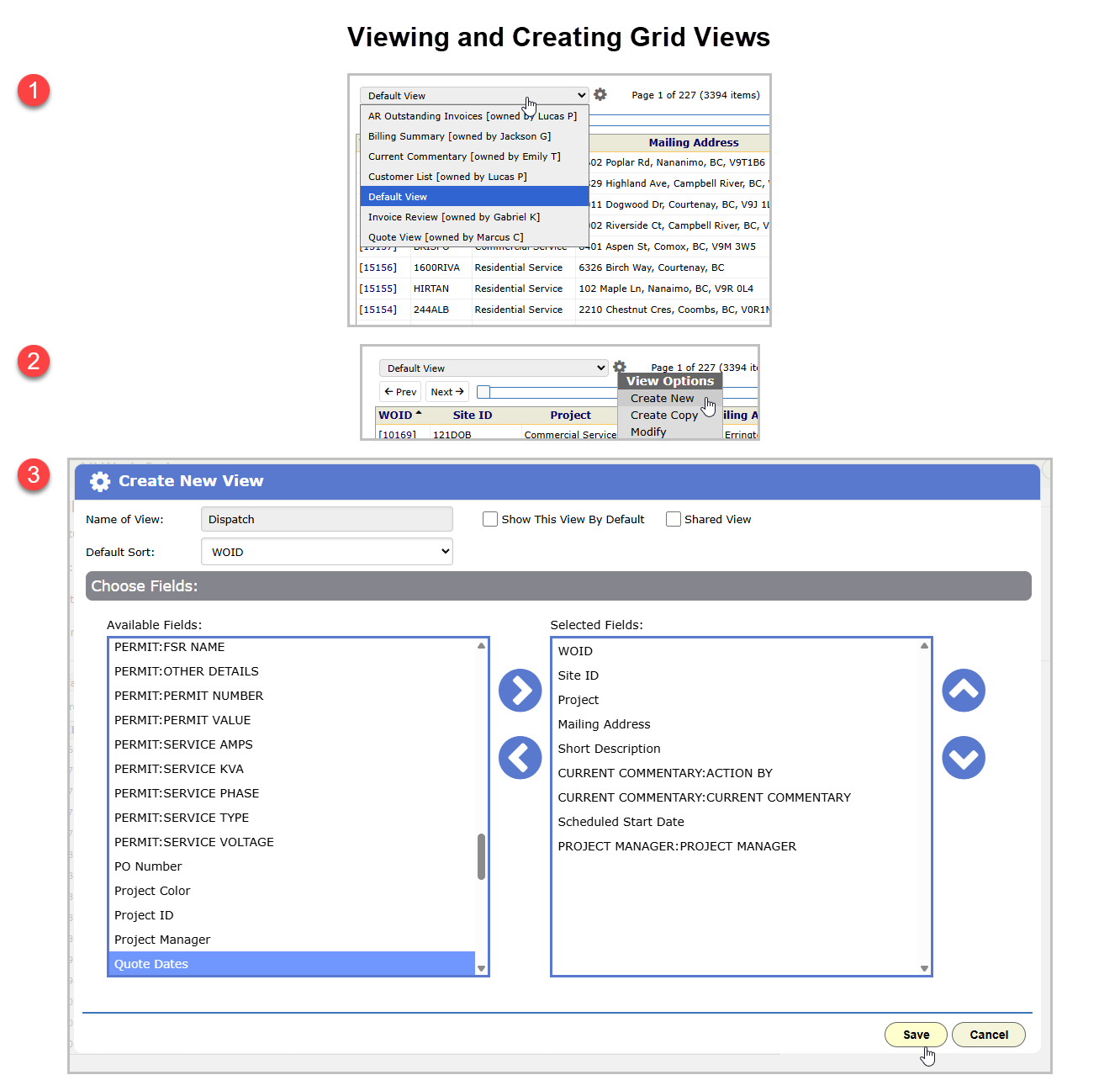
A view saves columns and sort order. It does not save filters. Your filters stay in place until you log out.
Ask an admin to build a few shared views for each role and set the right default on each grid. New staff then start with useful columns. At Beacon Electric:
- Priya uses a shared “Inspections this month” view on All Work Orders. It shows site, status, scheduled date and technician, sorted by date.
- Grace uses a “Ready to invoice” view. It shows completed work orders with the customer, completion date and unbilled total.
Exporting
To export a grid, click the gear and pick Export. BigWave builds a spreadsheet and downloads it. The file has the columns of the current view and every row that matches your filters, on all pages.
So to export the data you want, build the view first, then export it.
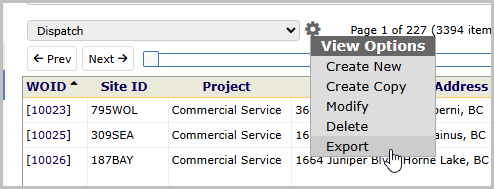
For bulk imports and recurring exports, see chapter 3.8 and chapter 5.1.
Date and time fields
All date fields use the same control. Type a date, or click the calendar icon and pick one.
Shortcuts:
- Type a day number alone to pick that day in the current month.
- Use dots as a short form.
3.3.26means March 3, 2026. Times accept dots too. - In a date field, the up and down arrow keys move one day at a time.
- In a time field, the arrow keys move 15 minutes at a time.
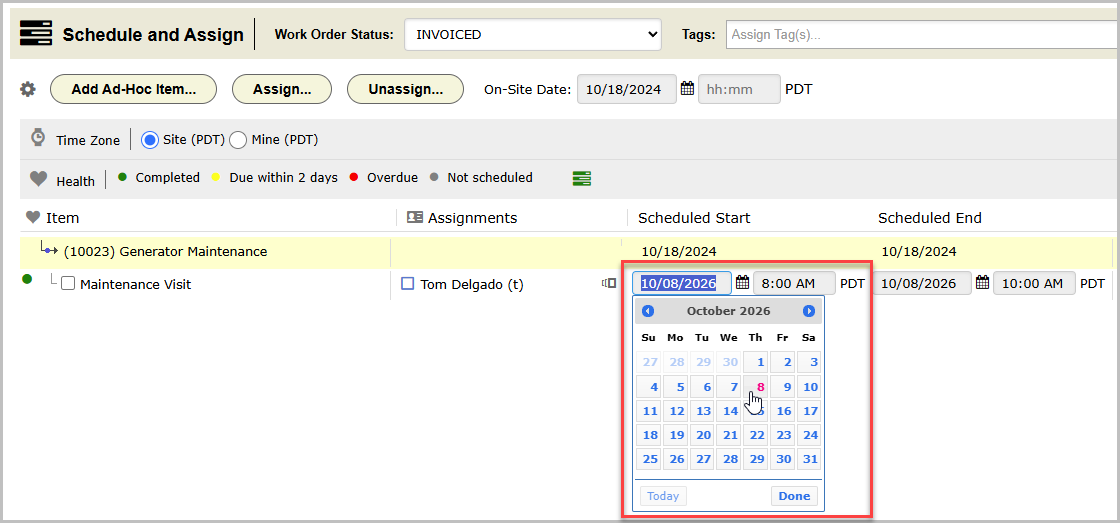
Chapter 3.2 explains how schedule dates work, including time windows and actual times.
Next, chapter 1.4 shows who uses these screens and what each role sees.