Part 2 — Set Up Your Company · Chapter 2.5
Projects: Your Lines of Work
Chapter 1.1 explains the idea: a project is a line of work, and each project holds the rules for its work orders. This chapter shows you how to build them. Plan to spend time here during onboarding.
Deciding what projects to create
For each line of work, ask if the work runs differently from your other work. Look at the statuses, the paperwork, the rates and the fields you need to capture. If those differ, make a separate project. If they are the same, use one project, even across hundreds of customers.
Most companies need three kinds of project:
- A shared service project for each broad type of ad-hoc work. Beacon’s Residential Service holds every homeowner job. Commercial Service holds ad-hoc business calls.
- A dedicated contract project when one customer’s work has its own rules. Beacon has Harbor Grill Annual Inspections because that contract has its own statuses, close-out paperwork and rates.
- A rollout project for a large, fixed program of work across many sites. Chapter 3.8 runs one from start to finish.
Creating a project
Go to Home, then Projects under Manage, and click Add Project…. Give the project a name. If the project is for one customer, connect it to that customer. A shared project such as Residential Service shows [All Customers], and each work order picks its customer and site when someone creates it.
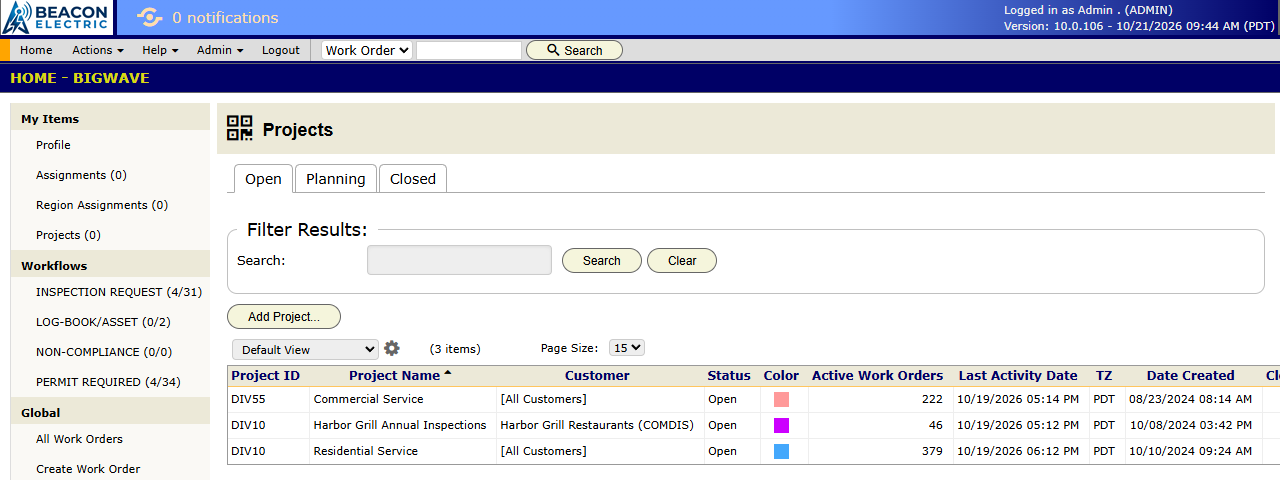
Click a project to open it. The tabs across the top are Site Tracking, Tags, Workflows, Reporting, Details and Setup. You build the project on the Setup tab.
Project Setup
The left panel on Setup has two groups. Initialization holds the tools that create work orders. Other holds the rules that every work order in the project follows.
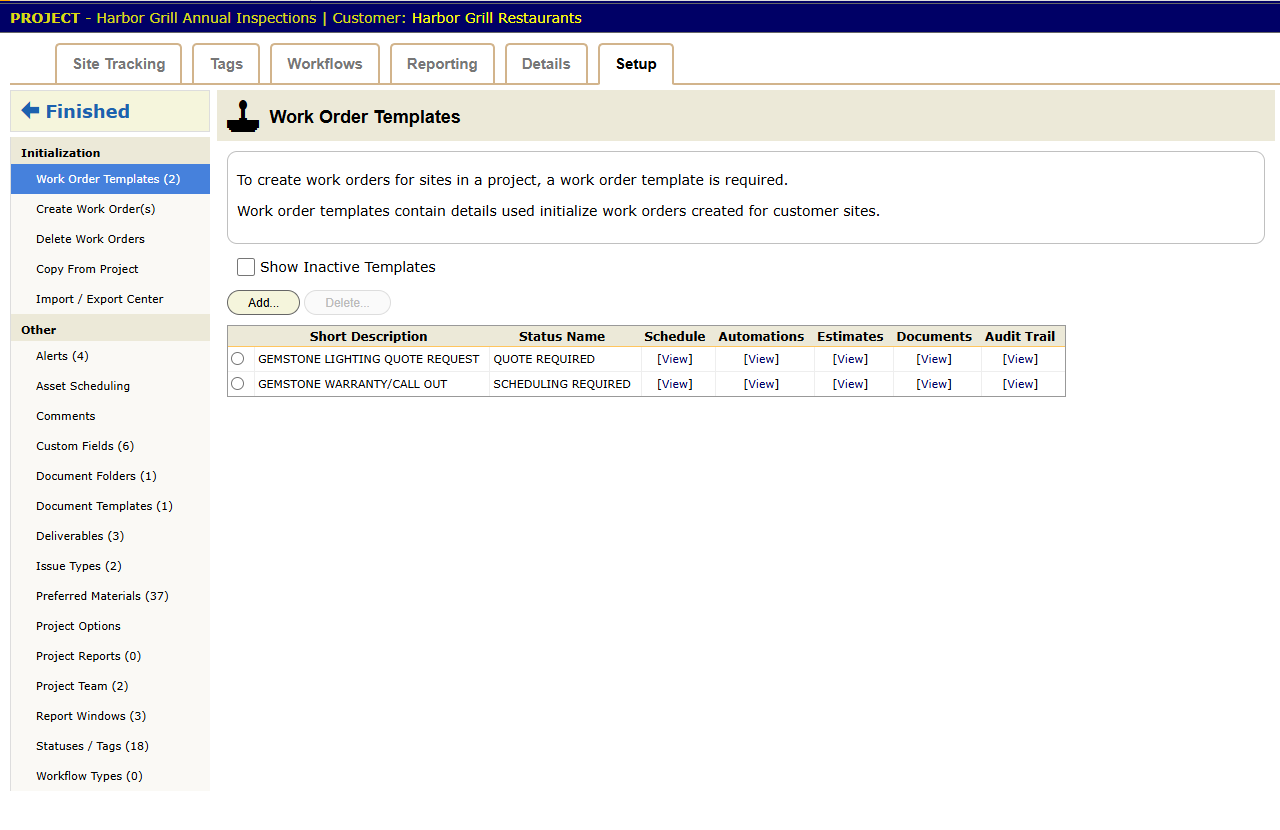
Initialization
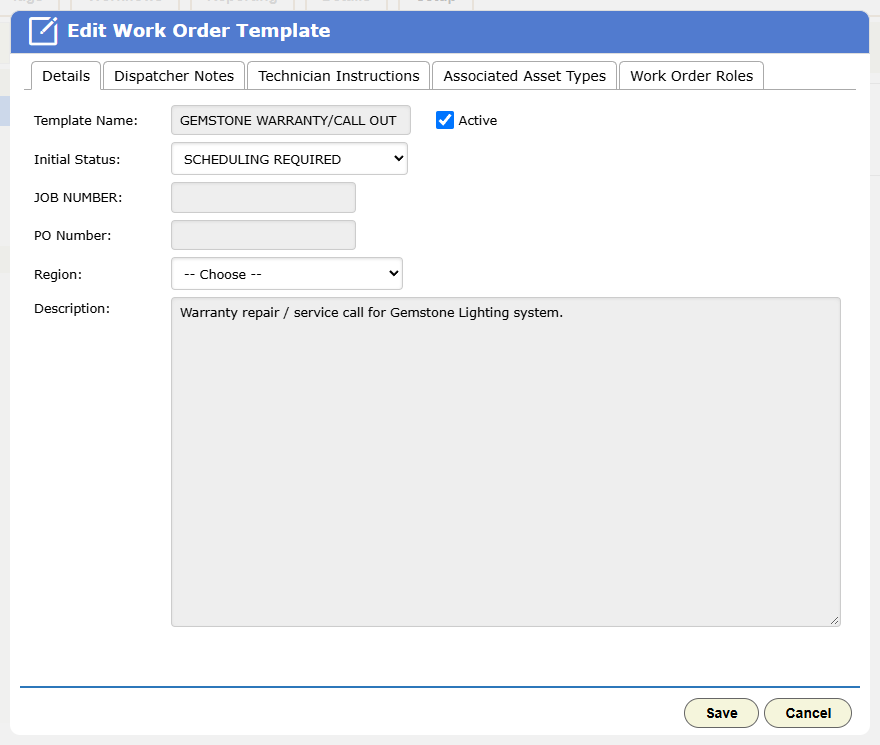
Work Order Templates. A template fills in a new work order for you. It holds the description, Dispatcher Notes, Technician Instructions, the starting status and any attached documents. Make one template for each job you repeat. Beacon’s inspection project has an inspection template, so every inspection work order starts complete.
Create Work Order(s). Creates work orders in bulk. Pick the sites, pick a template, and BigWave creates one work order for each site. This is how Beacon creates all twelve Harbor Grill inspections at once.
Delete Work Orders. Removes work orders in bulk. Use it to clean up after a bad import.
Copy From Project. Copies setup from another project into this one. You pick the source project and tick what to copy: statuses, tags, custom fields, alerts, templates, deliverables, the contract, the project team and more. Some items need others. Ticking Alerts also ticks Statuses and Issue Types. Ticking Work Order Templates also ticks Statuses.
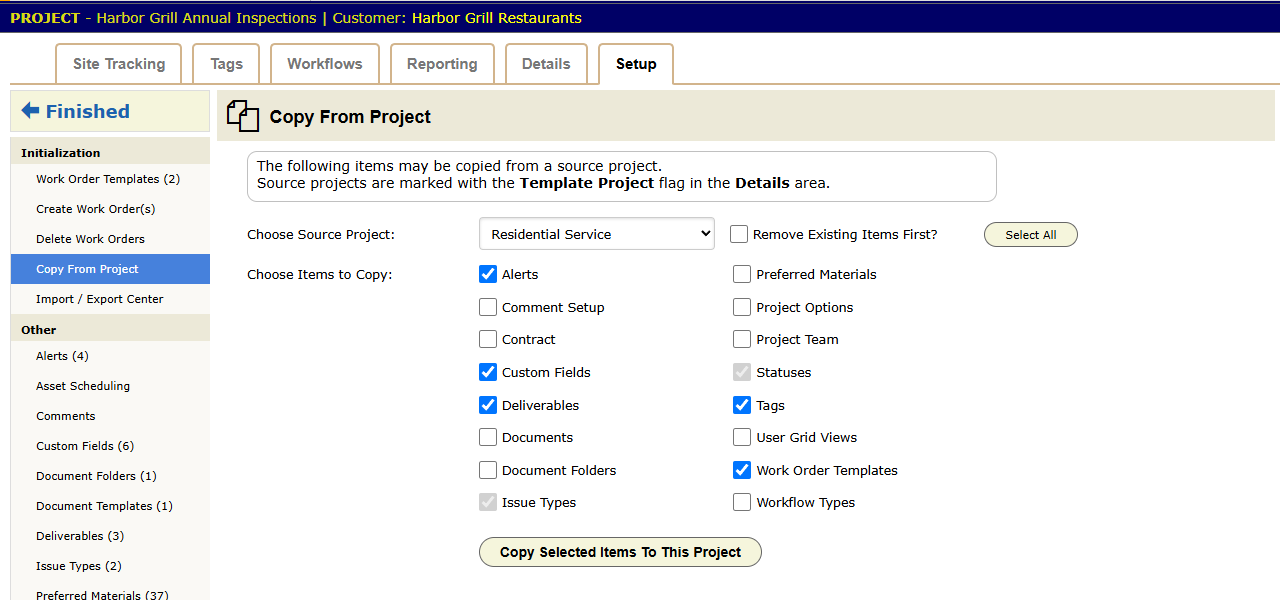
The source list shows only projects that have the Template Project flag set. Use this to keep a template project. Build one project that you never use for real work, such as TEMPLATE - Rollout, set the Template Project flag, and set it up carefully. When a new contract starts, create the project and copy from the template.
Import / Export Center. Imports into this project: sites, work orders, schedules, assignments, custom field values and pricing. Chapter 3.8 shows how.
Other
- Statuses / Tags. The project’s status list and its project tags. New projects start from Status Defaults (chapter 2.3).
- Custom Fields. Work order fields for this project only. See chapter 2.6.
- Alerts. Who gets an email, and when. Alerts belong to the project, so Harbor Grill’s facilities manager can get a completion email while homeowners get none. See chapter 2.9.
- Document Templates and Document Folders. The documents this project generates, such as the inspection report, and the folders that hold its files. See chapter 2.8.
- Deliverables. The documents each work order must have before it is done. Each work order shows how many it has, such as 3 of 5, and you can report on the gaps across the project. Harbor Grill’s signed report is a deliverable. See chapter 2.8.
- Issue Types. The categories for punch-list issues. See chapter 3.8.
- Preferred Materials. A short list of the parts this project uses, taken from the materials database. See chapter 2.7.
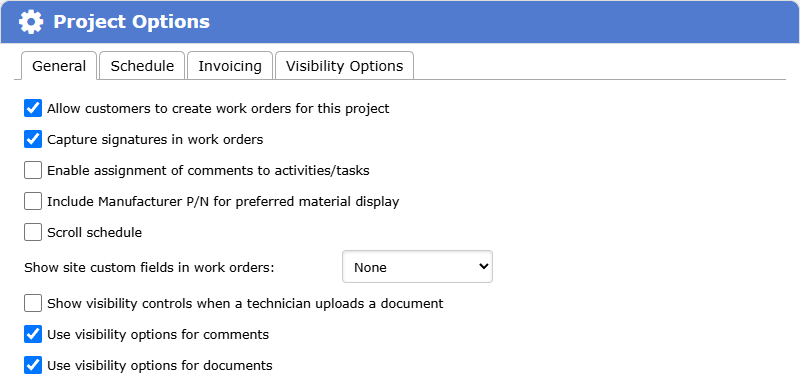
- Project Options. The project’s settings. The panel opens read-only. Click Edit to open the dialog, with the General, Schedule, Invoicing and Visibility Options tabs. They set defaults for new work orders, what portal users see, how invoicing works, and if jobs schedule as one block or as activities and tasks. Most settings link to a chapter later in this manual.
- Project Reports. Saved work order exports. Each one has a status filter, a date filter and a list of export fields. A report can run on set days and times and email the file to a list of recipients. Send Report Now sends it at once.
- Report Windows. The date periods that report filters offer, such as Last 7 Days. See chapter 3.9.
- Project Team. The people who run this project. The project shows in each member’s My Projects. Team members can receive workflow items, and one member is the project manager.
- Comments, Asset Scheduling and Workflow Types. See chapters 15, 20 and 7.
The other project tabs
Setup is one of six tabs on a project.
- Details holds the project’s information, its Contract (rates and billing, chapter 2.7), its documents and its audit trail.
- Site Tracking counts the project’s work orders by status.
- Tags counts work orders by tag.
- Reporting holds the project’s operational reports.
- Workflows lists the workflows on this project.
Chapters 22 and 23 use these tabs.
Beacon example
Commercial (Harbor Grill): Marcus creates Harbor Grill Annual Inspections and connects it to the Harbor Grill customer. He uses Copy From Project to bring in the setup from Beacon’s template project. Then he changes two statuses, turns on the PO requirement, attaches the inspection report template, adds the signed-report deliverable and builds the work order template. He puts Priya and himself on the team, with himself as project manager. The job takes about twenty minutes.
The Okafors’ work order needs no setup. Residential Service was set up months ago, and each new work order takes its rules from there.
Checklist
- List your lines of work on paper. You probably need fewer projects than you think.
- Design Status Defaults (chapter 2.3) before you create a real project.
- Build one project completely. Copy it into a TEMPLATE project before it gets real work orders.
- Make a work order template for each job you do more than once a week.
- Give every project a project manager, shared projects included.