Part 4 — Report Details · Chapter 4.21
Unbillable Visits
This chapter explains the Unbillable Visits report. The rules every report shares are in chapter 4.1.
What it shows
How many unbillable visits fell in each month, quarter or year: trips you made but could not charge for. Split it by customer, technician or project to see where they come from.
What you need to do to make it work
-
Give unbillable visits their own activity name. BigWave has no unbillable box on a visit. It knows a visit was unbillable only from its activity name, such as Unbillable Site Visit. The billable checkbox on time cards and line items does not feed this report.
-
Classify those names as unbillable visits. An administrator opens Reports > Setup > Activity Classification, ticks each unbillable activity name, presses Classify Selected…, picks Unbillable visit under Counts As and presses Classify. Until then, the report is empty.
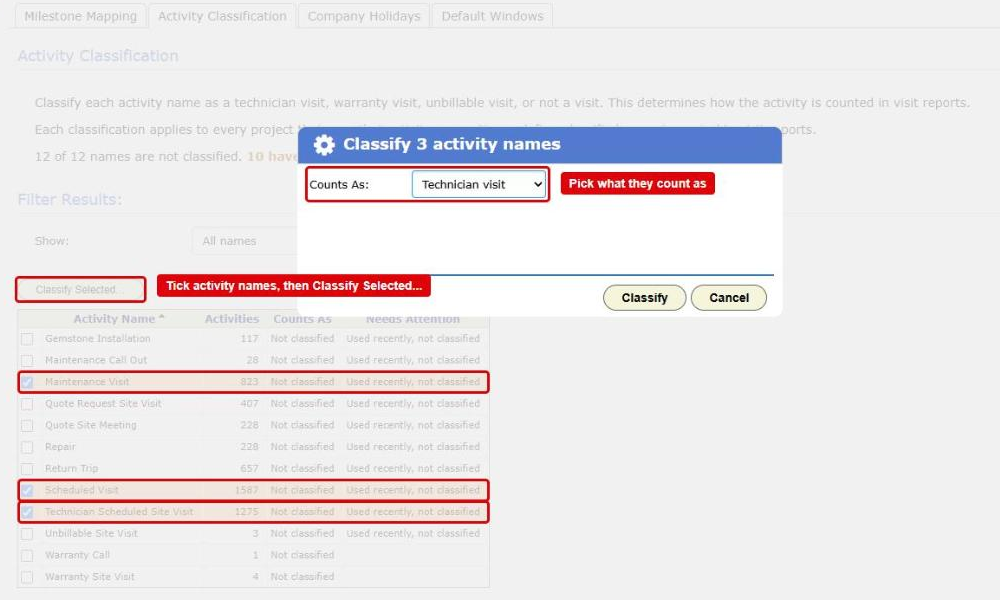
The Activity Classification tab in Reporting Setup with the Classify dialog open. The Classify Selected... button, three ticked activity names and the Counts As list are boxed in red -
Schedule each visit, or record when it started. The visit counts in the month it started. With no actual start, it counts in the month it was scheduled. With neither, it falls back to the month the work order was made.
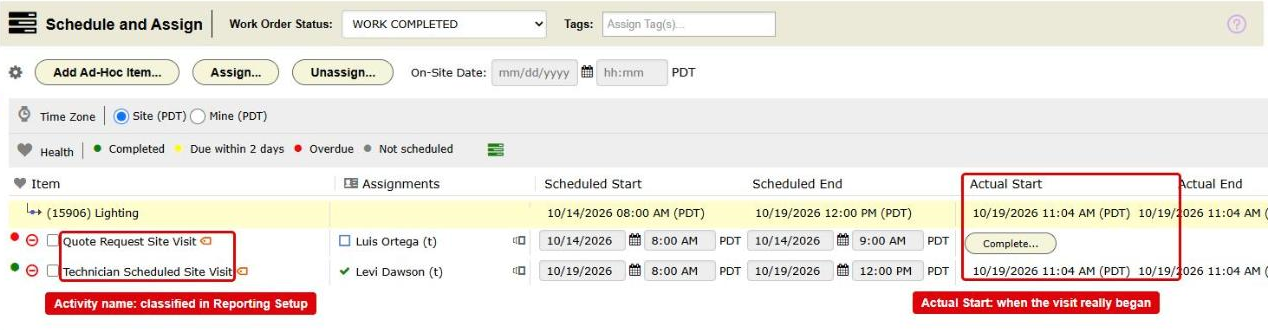
A work order's Schedule and Assign page. The activity names and the Actual Start column are boxed in red
Where the data comes from
The activities on your work orders: their names, scheduled starts and actual starts.
How it is worked out
Each activity whose name is classified Unbillable visit counts as 1. The figure is the number of them in the period.
What counts
- Only names classified Unbillable visit.
- A deleted activity does not count. Neither does an activity on a deleted or cancelled work order.
- Projects narrows the report to the work orders in the projects you tick.
Which date puts it in a period
The visit’s actual start. If it has none, its scheduled start. If it has neither, the day the work order was made.
Options
- Group By splits the count by Customer, Region, Technician or Project.
- Show Top keeps the biggest groups over the whole date range.
- Compare to last year and Show trend appear for the whole company.
Checking a figure
Double-click a column, or press Chart Data, then View records on a row. The grid lists each work order with an unbillable visit in that figure, once even if it had several. Its date column is the day the work order was made, not the visit date. Open the work order’s Schedule and Assign page to see the visits.