Part 1 — Understand BigWave · Chapter 1.2
A Tour of the UI
Every BigWave screen uses the same layout. Learn it on the home page and you can find your way around every other screen.
Logging in
Your company’s BigWave has its own web address, for example yourcompany.bigwavesoftware.com. Your company can also use its own domain name instead.
The login page asks for your User Name and Password. If you forget your password, click I forgot my password and BigWave emails you a reset.
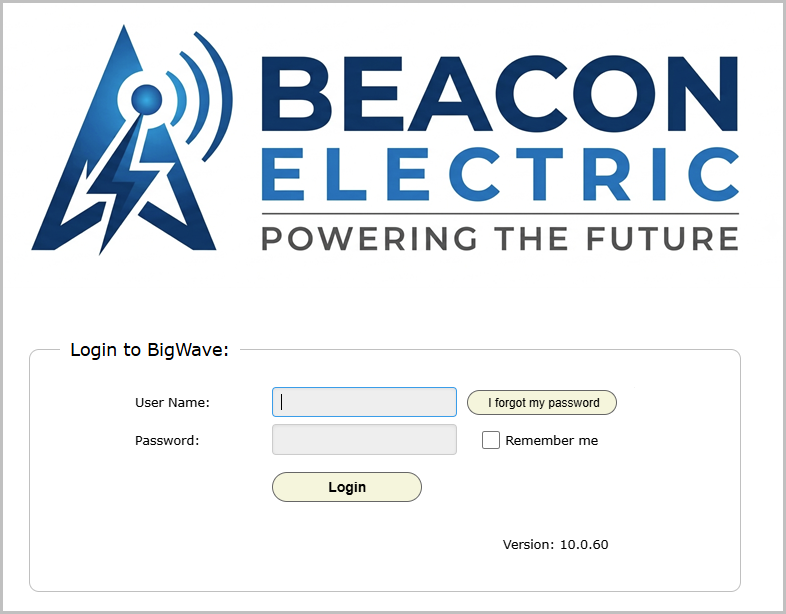
Your company can turn on two-step verification. Then BigWave sends you a 4-digit code at login, and you type it in to continue. After that, a browser asks again only after a set number of days. The login page shows the number. Your admin sets it.
Role note: What you see after login depends on your access level. This chapter shows the office view. Technicians see a version of the home page made for field work. Portal users see only their own records. Chapter 1.4 explains who sees what.
The layout of every screen
Most screens have three areas:
- The top of the screen. The menu bar holds Home, the Actions menu, Help, Logout and quick search. Under it, a title bar names the record you are on.
- The left panel. It lists the sections of the current screen, in groups. Many show a count, such as Sites (13). Click a name to open that section.
- The main area. It shows the open section, usually a grid or a form. Buttons for that section, such as Edit, sit at the top right.
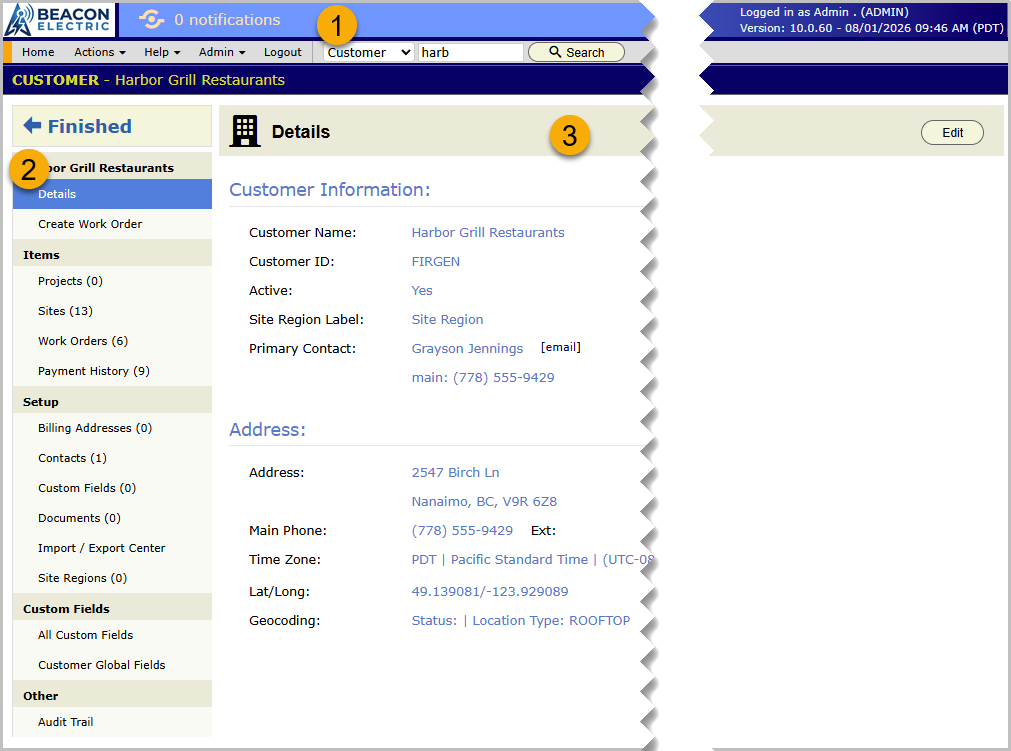
The left panel is the table of contents for the record you are on. On a record screen, such as a customer or a work order, the Finished button above it takes you back to where you came from.
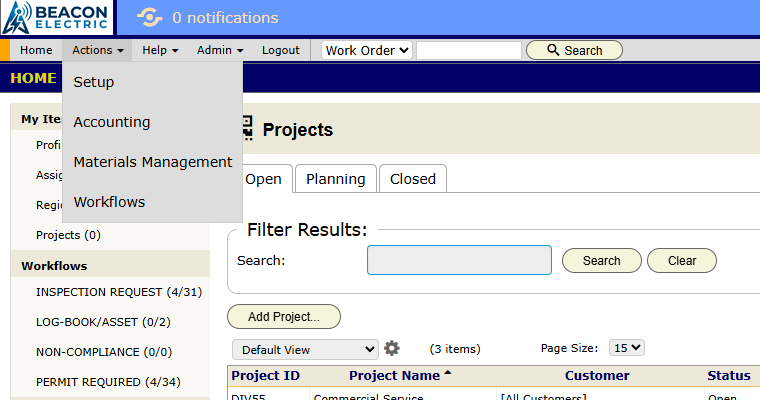
The Actions menu holds the company-wide screens. You see only the items your access allows:
- Setup for company settings (chapter 2.1)
- Accounting for invoices and payments across all jobs (chapter 3.5)
- Materials Management for the materials database and suppliers (chapter 2.7)
- Workflows, for admins (chapter 2.3)
The Reports area (chapter 3.9) opens from its own link when it is available to your company.
Most daily work does not need the Actions menu. You move around through the home page and quick search.
The home page
The home page’s left panel has four groups.
My Items holds your own work:
- Profile is your user record.
- Assignments lists the jobs assigned to you.
- Region Assignments lists work orders in the regions you cover.
- Projects lists the projects whose team you are on.
Workflows lists each workflow type. The count shows items assigned to you, then all active items, for example (3/20). An Attention Required entry appears when a workflow needs action. Companies that do not use workflows do not see this group.
Global covers the whole company. It holds All Work Orders, Create Work Order, Deliverables, Resource Calendar and Scheduled Events. Dispatchers spend most of their day here.
Manage holds the master lists: Customers, Projects, Partners and Technicians. Asset Types also appears if your license includes asset management.
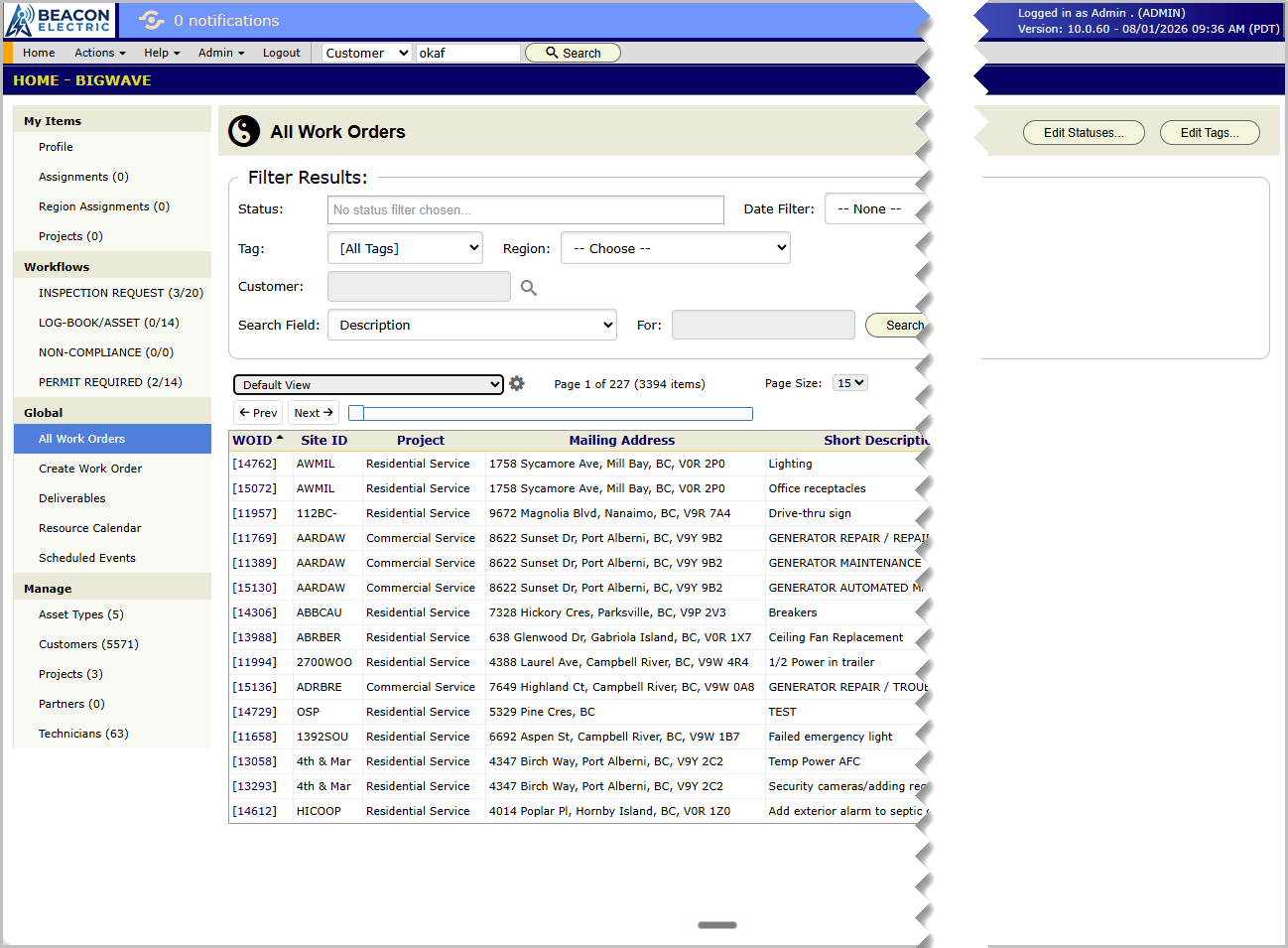
Role note: Admins see extra buttons on some sections. On All Work Orders, Edit Statuses… sets which statuses the grid shows by default.
Quick search
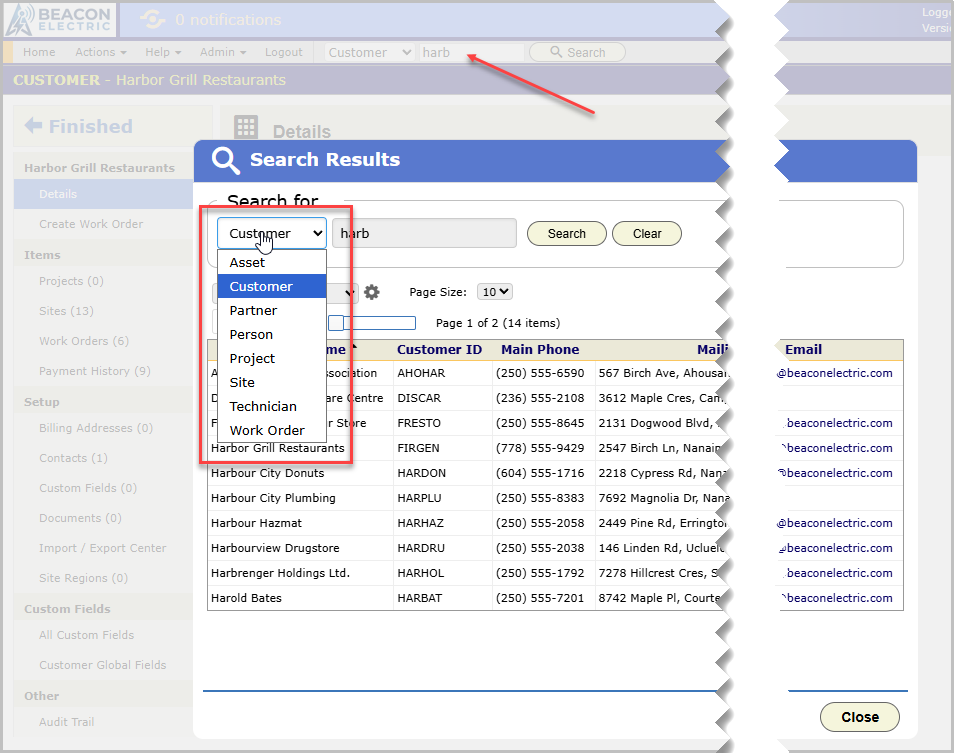
Quick search sits in the menu bar on every screen. It is the fastest way to reach a record.
- Pick a record type, such as Customer, Site or Work Order.
- Type part of a name, an address or a work order number.
- Click Search.
BigWave shows the matches in a Search Results window. Click one to open it. Experienced users find most records this way.
Your profile
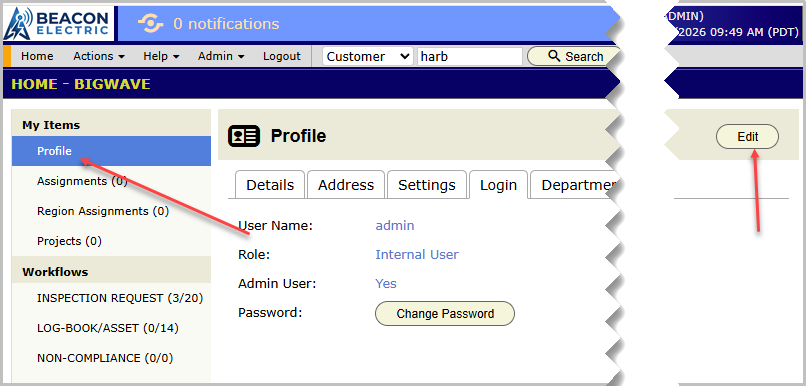
Click Profile under My Items to see your own record. Click Edit to change it. The Details and Address tabs hold your contact information. The Settings tab holds your theme. Change your password on the Login tab.
If your company allows it, the Settings tab can also connect your Google Calendar. After you connect it, your BigWave assignments appear on that calendar.
Habits that save time
- Read the counts. Documents (3) tells you there are three documents before you click.
- Search first. A work order number in quick search beats paging through a grid.
- Use Learn More. Where a section has a Learn More link, it opens help for that section.
- Click names in grids. Customer names, site names and work order numbers in a grid open that record.
Next, chapter 1.3 explains the grids that most sections use.