Part 2 — Set Up Your Company · Chapter 2.2
Users, Technicians & Access
BigWave has two overlapping kinds of people. A user is anyone with a login: office staff, customer contacts and partner contacts. A technician is anyone you can assign to work. This chapter sets up both.
Creating office users
Add office staff under Setup › Contacts. For each person, set:
- Name and contact details.
- A username, so they can log in.
- Role, the permission set from chapter 1.4.
- The Admin flag. Admins can change company-wide settings. Most companies need two or three.
- Time zone. Each user sees schedule times in their own zone.

The Inactive tab holds people you have switched off. Their records stay.
Creating technicians
Add technicians from the home page: Manage › Technicians, then Add Technician. A technician has a login like any user, plus the details you need to send them into the field.

Role note: partner companies bring their own technicians. You create those on the partner’s record (chapter 3.7). You assign them like your own technicians, but their access comes through the partner.
The technician record
Open a technician from the Technicians grid. The left panel holds:
- Contact Information. Their details, which you can edit in place.
- Assignments. Their current and upcoming work. The technician sees the same list when they log in.
- Ratings. Their scores in each rating category. See below.
- Services. The services this technician provides and their rates. BigWave uses these to price their labor.
- My Badge. An ID page with their photo, name and credentials. Technicians show it on their phone when a customer site asks for ID.
- Documents. Licenses, certifications, tax forms and insurance certificates.
- Work History. Every work order this technician has worked on.
- Out Of Office. Personal time off. The resource calendar marks them unavailable on those days.
- Custom Fields and Audit, as on other records.

Ratings
To score technicians job by job, first define the categories under Setup › Rating Categories. Choose ones you will act on, such as workmanship or punctuality. The office then rates each job on the work order’s Technician Ratings panel. Each technician’s record shows their scores. If nobody will act on the scores, skip ratings.
Departments and regions
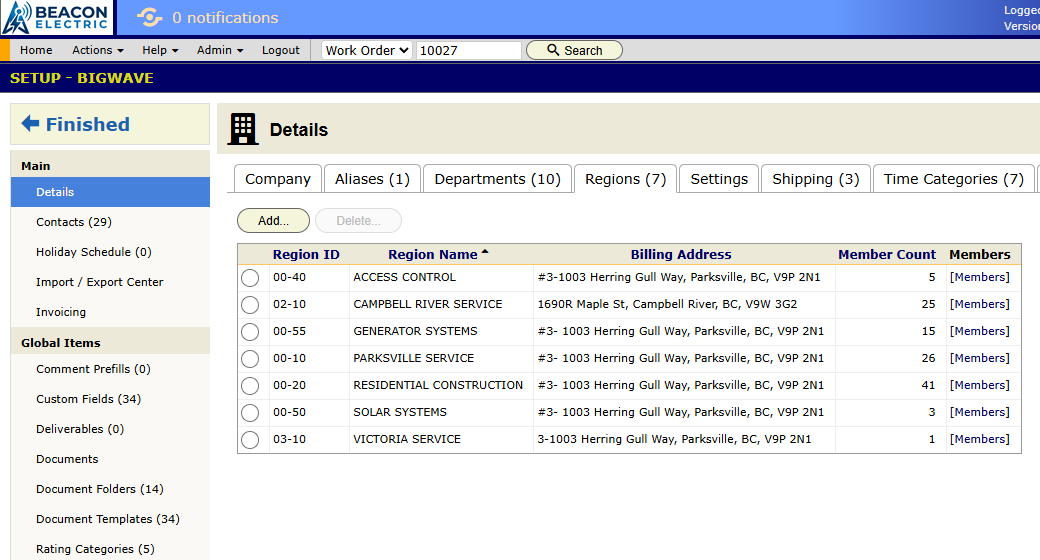
Both lists live on tabs of Setup › Details. Each department and each region has its own list of members.
- Departments route workflows. A workflow sent to a department waits there until someone in it picks it up (chapter 2.3).
- Regions split your territory. A person assigned to a region sees that region’s work orders under Region Assignments on their home page. Use this so each dispatcher sees their own area.
When someone leaves
Deleting a person does not delete their history. They still appear on every record and job they worked on. To switch someone off for a while, make them inactive instead.
Checklist
- Give a login to every contact who needs one.
- Set the role when you create the user.
- Load each technician’s licenses and insurance while you have them to hand.
- Enter approved vacations in Out Of Office as soon as they’re approved.