Part 2 — Set Up Your Company · Chapter 2.4
Customers & Sites
A customer is who you work for. A site is a place where you do the work. Every work order points at one site, and every site belongs to one customer. This chapter creates both and shows the tools that keep the customer list free of duplicates.
Creating a customer
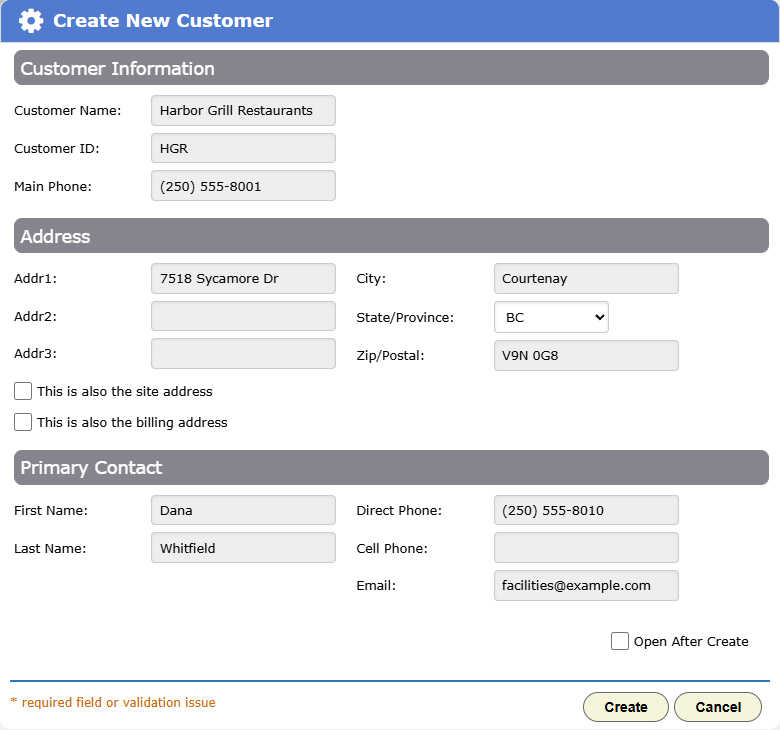
On the home page, open Manage › Customers and click Add Customer. The Create New Customer dialog asks for:
- Customer Name, Customer ID and Main Phone.
- The address. Tick This is also the site address to create the first site at the same address, with its own Site ID. Tick This is also the billing address to bill there.
- The Primary Contact: name, phones and email.
Commercial (Harbor Grill): the customer is “Harbor Grill Restaurants” at the head office address, with the head of facilities as primary contact. Leave This is also the site address clear. The restaurants become sites in the next step.
Residential (the Okafors): enter the home address and tick both boxes. One save creates the customer, their first site and their billing address.
The duplicate check
When you save a new customer, BigWave compares it with every customer on file. It checks four things:
- The address, allowing for spelling differences.
- The customer ID.
- The name. It knows common nicknames, so Bill Okafor matches William Okafor.
- The phone number.
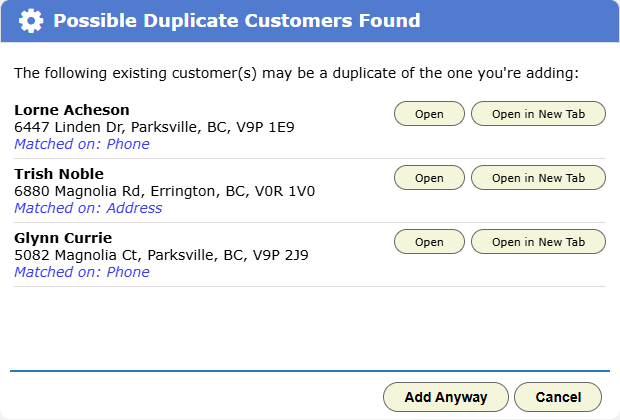
Any match opens Possible Duplicate Customers Found. Each candidate shows its address and which checks matched. Click Open to use the existing customer instead, or Add Anyway to create the new one. The choice is yours.
The customer screen
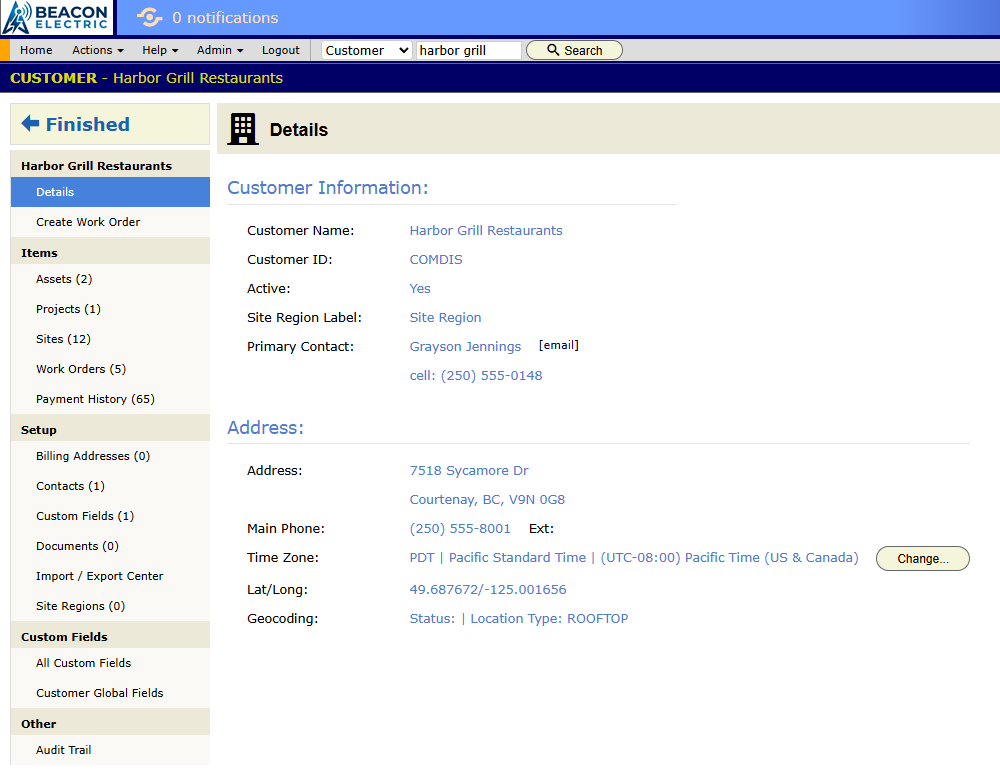
Open a customer to see the whole account. The left panel has three groups:
- The top group: Details and Create Work Order.
- Items: Projects, Sites, Work Orders, Payment History (office staff only), and Assets once the customer has any.
- Setup: Billing Addresses, Contacts, Custom Fields, Documents, Import / Export Center and Site Regions.
Custom Fields here defines the fields every site of this customer carries (chapter 2.6). The Audit Trail sits at the bottom.
Three of the Setup panels need a word now:
- Billing Addresses. A customer can have more than one. A franchise can be billed at its head office for work done at a store.
- Contacts. The people at the customer: who to call, who gets documents by email, who can have a portal login. Each site has its own Contacts panel too, for store managers.
- Site Regions. A customer with many sites can group them into regions. You choose the label for each customer, such as Districts or Zones. Customers with a handful of sites don’t need regions.
Sites
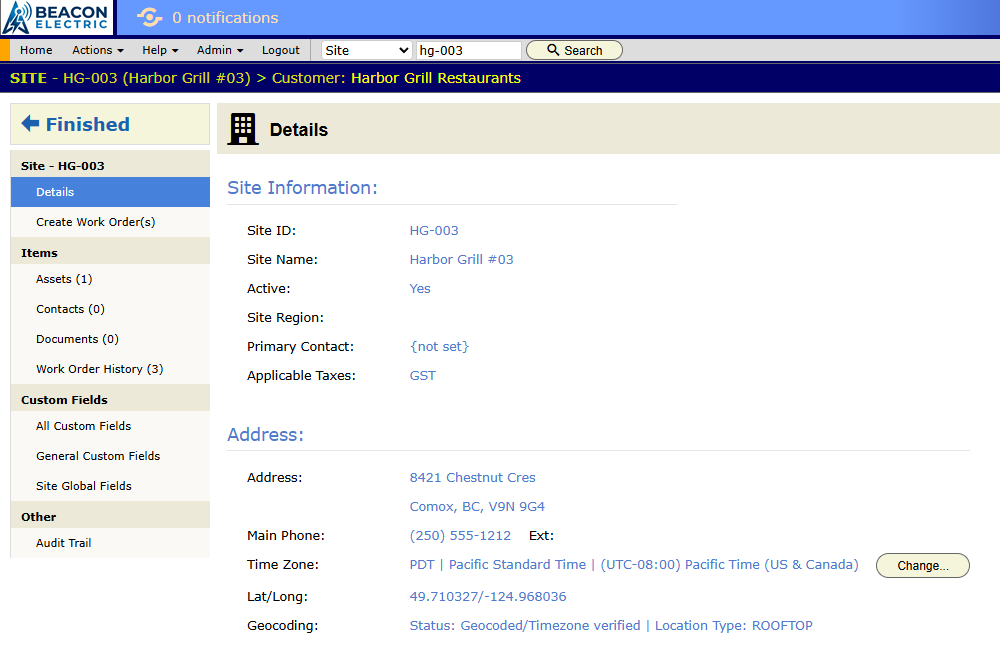
Add sites from the customer’s Sites panel. Each site is one physical place. It has its own address, contacts, documents, assets, work order history, custom fields and audit trail.
Give each site a Site ID. Use the customer’s own store number, like HG-014. Imports match rows to sites by this ID.
Add a dozen sites by hand. For hundreds, import a spreadsheet through the Import / Export Center. Chapter 3.8 shows how.
When the Okafors buy a lake house, add a second site to their existing customer. Their payment history stays in one place, and each property keeps its own work history.
Combining duplicate customers
The duplicate check doesn’t stop every duplicate. Two spellings or an overlapping import can still create one. Combine fixes that.
- Open the customer you want to keep.
- Choose Actions › Combine Customer.
- Pick the duplicate. The dialog lists possible duplicates and what each one matched on.
- For each of the duplicate’s sites, choose Keep as a separate property or Fold into existing site.
- Check the list of what will move, then confirm.
Work orders, projects, assets, payments, billing addresses, documents and contacts all move to the customer you kept. Contacts that clearly match one already there are dropped, and the confirmation lists them. Your kept customer’s own details never change. The duplicate is then removed.
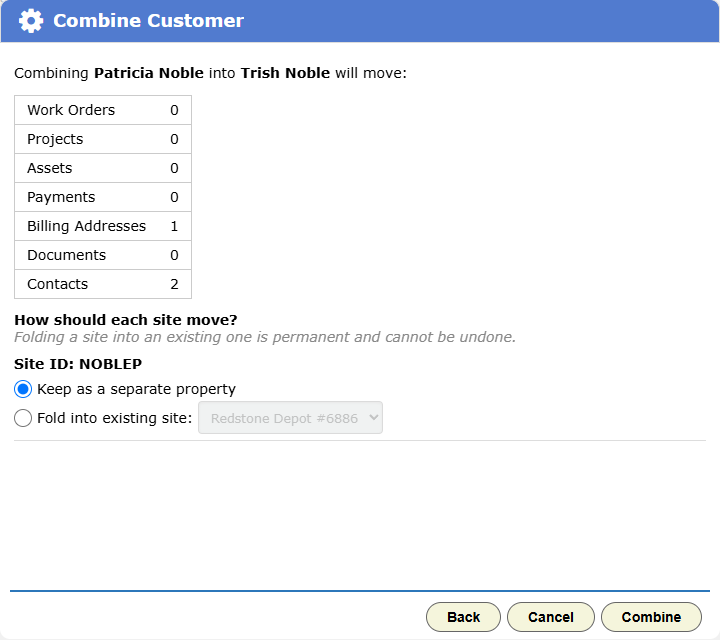
To undo a combine, open the kept customer and choose Actions › Reverse Combine. It brings the removed customer back with its records. Folding a site into an existing one is permanent, so choose that only when the two sites are the same place.
Deleting a customer or site
Delete Customer and Delete Site are on the Actions menu. Use them for records made in error. A customer can be deleted only if it has no work orders and no payments. A site can be deleted only if it has no work orders. For anything with history, combine instead. If a record can’t be deleted, BigWave tells you why before it asks you to confirm.
Checklist
- Choose who enters new customers, and train them on the duplicate check.
- Use the customer’s own location numbers for Site IDs.
- Set up regions only for customers with many sites.
- Add billing addresses before the first invoice.
- Look for duplicates now and then, and combine them.