Part 3 — Run Your Operation · Chapter 3.10
QuickBooks Online
Grace keeps Beacon Electric’s books in QuickBooks Online. Before the connection, she typed every customer, invoice and payment twice. Payments she recorded in QuickBooks never reached BigWave, so Priya sometimes chased a customer who had already paid.
With QuickBooks connected, BigWave sends customers, invoices, credit memos, payments and locked time cards to QuickBooks on its own. Payments Grace records in QuickBooks come back into BigWave. This chapter is for the administrator who sets the connection up, and for the bookkeeper who works with it every day.
What syncs, and which way
One rule governs everything: every record has one owner. You edit a record in the system that owns it. The other system holds a copy, and that copy follows the owner.
| Record | Direction | Where you edit it |
|---|---|---|
| Customers | From the Customer Owner to the other system | The system you name as Customer Owner |
| Invoices and credit memos | BigWave to QuickBooks | BigWave. With QuickBooks as Invoice Sender, QuickBooks once the invoice is In QuickBooks |
| Payments | Both ways | The system where someone entered the payment |
| Time cards | BigWave to QuickBooks, as Time Activities | BigWave |
There is no two-way sync for customers or invoices. Two-way sync needs a winner when both sides change, and the loser’s work disappears. One owner per record means that never happens.
BigWave also keeps its own features. It sends only what QuickBooks can hold:
- A Site is not a QuickBooks customer. Its address travels on each invoice as the service location.
- A quote never goes to QuickBooks. It moves no money.
- A material is not a QuickBooks item. The invoice line’s description carries the detail.
Changes go across in the background, usually within minutes. BigWave also checks QuickBooks for changes at least every ten minutes.
Turning it on
QuickBooks Online is a paid add-on. BigWave switches it on for your company. Contact BigWave support to start.
After that, the QuickBooks page appears on the Setup screen. Open Actions > Setup, then pick QuickBooks under Integrations in the left panel. Anyone who can open Setup can use the QuickBooks page. There is no separate permission.
The page has these tabs:
- Settings: the connection, and how each kind of data syncs.
- Customer Pairing: matching your customers on first connect.
- Employee Pairing: matching technicians to QuickBooks employees, for time cards.
- Item Mapping: which QuickBooks products and services your invoice lines post to.
- QuickBooks Sync: everything that has not reached QuickBooks, and why.
- Tax Mapping: shown only for a Canadian QuickBooks file.
Connecting your QuickBooks file
- Open the QuickBooks page and stay on the Settings tab.
- Click Connect to QuickBooks….
- Sign in with Intuit and pick your company file. Intuit asks you to allow the connection. BigWave never sees your QuickBooks password.
- Intuit sends you back to the QuickBooks page. A message says whether the connection worked.
BigWave then reads the company’s name and country, and checks one QuickBooks setting: Custom transaction numbers. It must be on, so that QuickBooks uses BigWave’s invoice numbers. If it is off, BigWave still connects, and the page tells you how to fix it:
- In QuickBooks, select Settings (the gear icon), then Account and settings, then Sales.
- Under Sales form content, turn on Custom transaction numbers, then select Save.
- Back in BigWave, click Check Again.
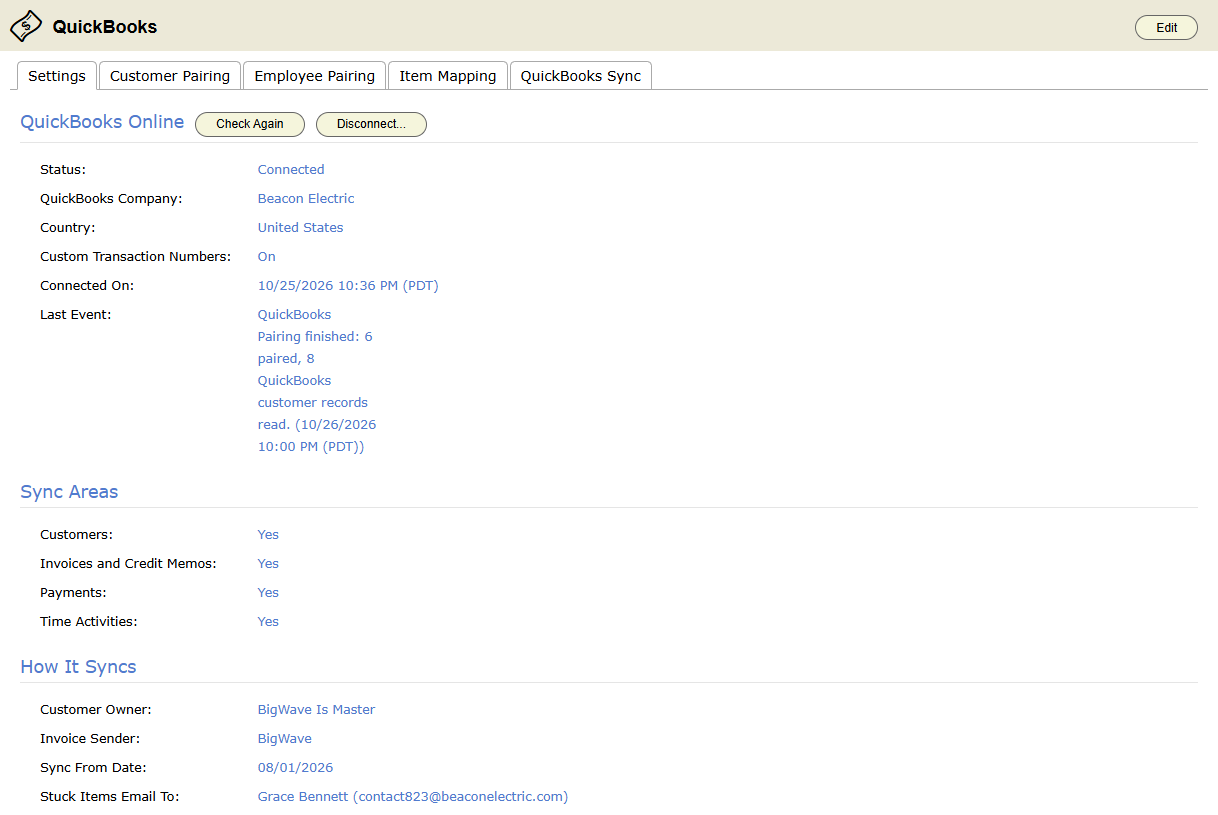
Connecting does not start the sync. Nothing moves until you finish Customer Pairing.
Your connection belongs to one QuickBooks company. To switch to a different company file while records are already linked, contact BigWave support.
The settings
Click Edit at the top right of the QuickBooks page.
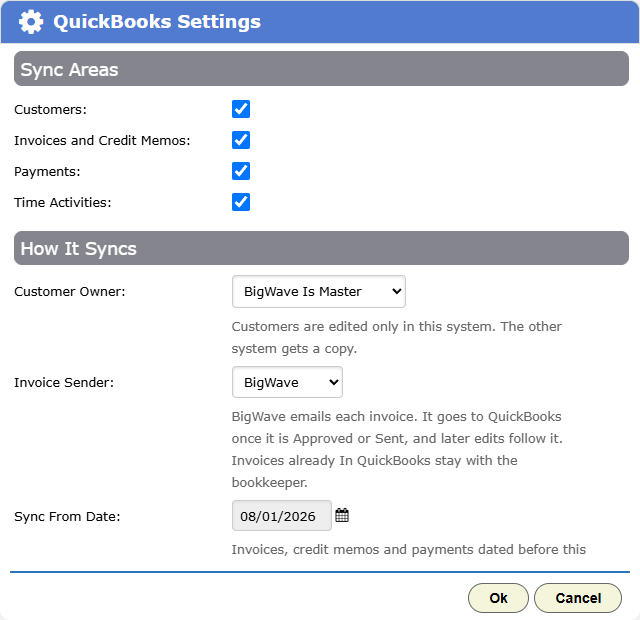
- Sync Areas. Turn each kind of data on or off: Customers, Invoices and Credit Memos, Payments and Time Activities. Start with only what you are ready for.
- Customer Owner. Pick BigWave Is Master or QuickBooks Is Master. Customers are edited only in the owner. The other system gets a copy.
- Invoice Sender. Pick BigWave or QuickBooks. This decides which system sends invoices to customers. The section on invoices below explains both.
- Sync From Date. The first date that goes to QuickBooks. Invoices, credit memos and payments dated before it stay in BigWave only, because your bookkeeper already entered them. Time cards worked before it stay too. Your first connect sets it to that day.
- Stuck Items Email To. One office person with an email address. That person gets the daily stuck-items email and the email when QuickBooks disconnects. Leave it empty, and nobody gets either email.
You must set a Sync From Date before you turn on Invoices and Credit Memos, Payments or Time Activities. Pick the day after the last invoice your bookkeeper entered by hand.
You can change Customer Owner or Invoice Sender later. The dialog explains what each choice does. Decide both before you finish pairing, because pairing creates customers in the owner’s direction.
Role note: At Beacon, Marcus connected QuickBooks and Grace is named in Stuck Items Email To. She owns anything that does not reach the books.
Customer pairing
Your customers already exist in both systems. Pairing tells BigWave which BigWave customer is which QuickBooks customer, so the first sync does not create every customer twice. Nothing syncs until pairing is finished.
- Open the Customer Pairing tab. You can also click Pair Customers… on the Settings tab.
- BigWave reads your QuickBooks customers and proposes a BigWave customer for each one. Why Proposed shows what matched: Account Name, Address, Name or Phone.
- Confident matches come ticked. Check them anyway.
- Tick each proposal that is right, and untick any that is wrong.
- To pair a QuickBooks customer with a different BigWave customer, click Choose….
- Read the When You Finish line. It says what finishing will create.
- Click Finish Pairing….
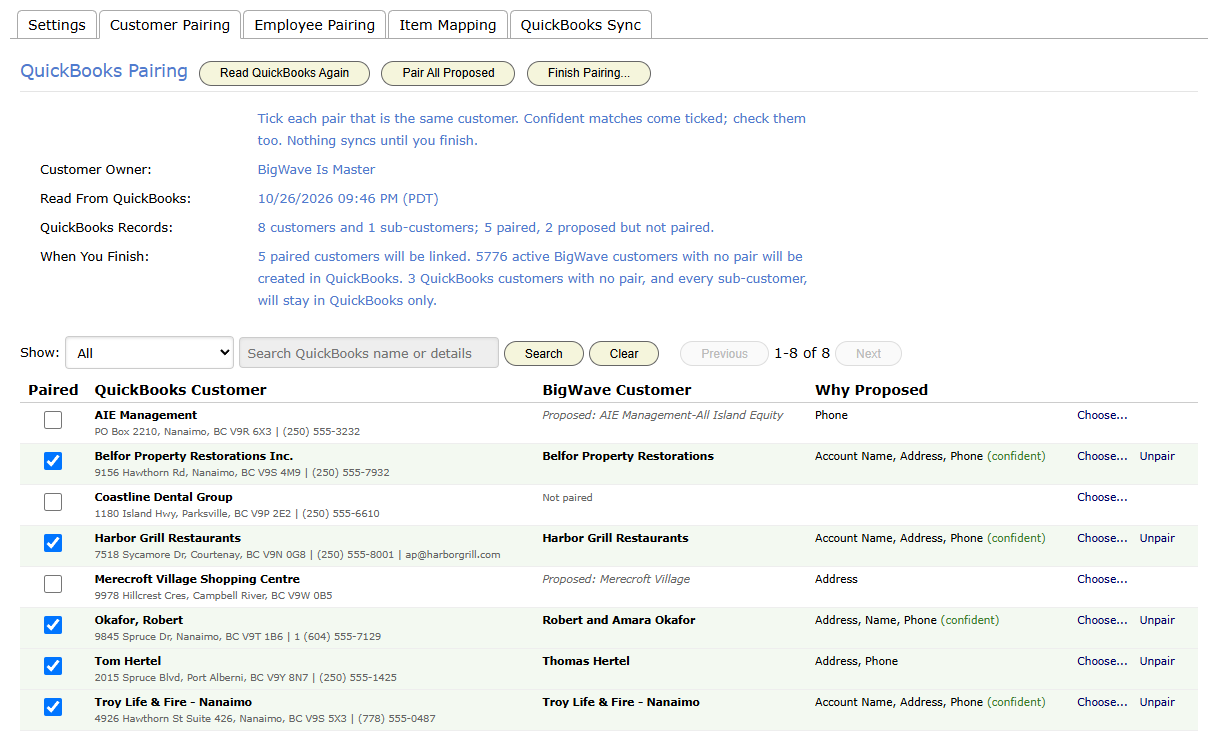
Use Show and the search box to work through a long list. Pair All Proposed ticks every proposal at once, so use it only after you have checked them. Read QuickBooks Again reads the QuickBooks list again and keeps the ticks you made.
Finishing links each ticked pair. Then the Customer Owner fills the gaps on the other side:
- BigWave Is Master. Every active BigWave customer with no pair is created in QuickBooks. QuickBooks customers with no pair stay in QuickBooks only.
- QuickBooks Is Master. Every active QuickBooks customer with no pair is created in BigWave, with a Site at its address. Each QuickBooks sub-customer becomes a Site under its top-level customer.
A few rules:
- A BigWave customer pairs with one QuickBooks customer.
- You cannot pair a sub-customer by hand.
- BigWave reads only active QuickBooks customers.
- After you finish, the tab says pairing is finished, and the Sync Areas you turned on start to run.
How customers stay in step
With BigWave Is Master, edit customers in BigWave. Each change goes to QuickBooks. Changes made in QuickBooks do not come back, and BigWave’s next change overwrites them.
With QuickBooks Is Master, edit customers in QuickBooks, and the changes come into BigWave. Your dispatcher can still add a customer in BigWave when a call comes in. BigWave sends that new customer to QuickBooks once. After that, QuickBooks owns it.
Under QuickBooks Is Master, BigWave locks the fields QuickBooks owns:
- the account name, and whether the customer is active
- the main and other phone numbers
- the default billing address
- the primary contact’s name, company, cell phone and email
The rest stays editable in BigWave: the Customer ID, notes, other billing addresses, other contacts and every Site.
Commercial (Harbor Grill): Harbor Grill is one QuickBooks customer, not twelve. Each invoice carries its Site’s address as the service location, so Grace sees which restaurant the work was for.
Item Mapping
In QuickBooks, each invoice line posts to a product or service, and that item decides the income account. Item Mapping tells BigWave which existing QuickBooks item each kind of line uses. BigWave never creates QuickBooks items.
- Default Items. One item each for Labor, Material, Fee and Other lines. A line with no more specific mapping uses its default. Leave Other empty to use the Material item.
- Services. Map a service to its own item. Labor for an unmapped service uses the default Labor item.
- Material Rate Categories. Map a category to its own item. Materials in an unmapped category use the default Material item.
Individual materials never go to QuickBooks as items. The line’s description carries the material, the quantity, the service and the hours. An Assembly Line posts as its labor part and its materials part, on the default Labor and Material items.
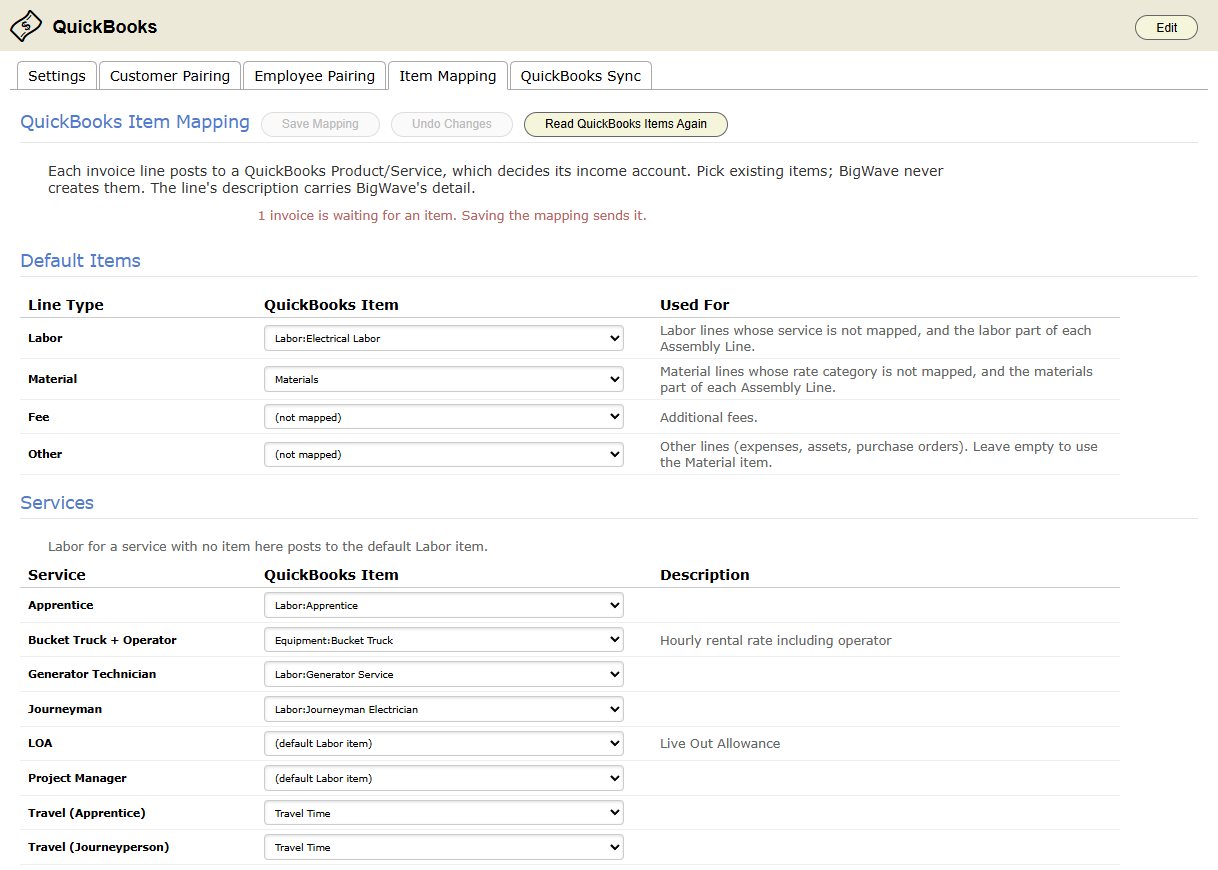
- Open the Item Mapping tab.
- Pick a QuickBooks item in each row you want to map.
- Click Save Mapping.
An invoice line with no item to post to cannot go to QuickBooks. Its invoice waits as Not in QuickBooks, and the tab shows how many invoices are waiting. Saving the mapping sends them.
Set the Labor and Material defaults first. Then no invoice waits for a mapping. If your bookkeeper adds an item in QuickBooks, click Read QuickBooks Items Again to see it here.
Tax Mapping (Canada)
BigWave’s sales tax is the tax that counts. How it reaches QuickBooks depends on the country of your QuickBooks file.
A US file needs no setup. BigWave marks each line taxable or not, and sets the invoice’s tax total to BigWave’s figure. Your books show the tax the customer was billed.
A Canadian file taxes each line by tax code (GST, HST, PST), and QuickBooks works out the tax itself. The Tax Mapping tab appears for a Canadian file.
- Open the Tax Mapping tab.
- For each BigWave Sales Tax Rate (one per province), pick the QuickBooks tax code your bookkeeper uses there.
- For Lines BigWave does not tax, pick a code such as Exempt or Zero-rated.
- Click Save Mapping.
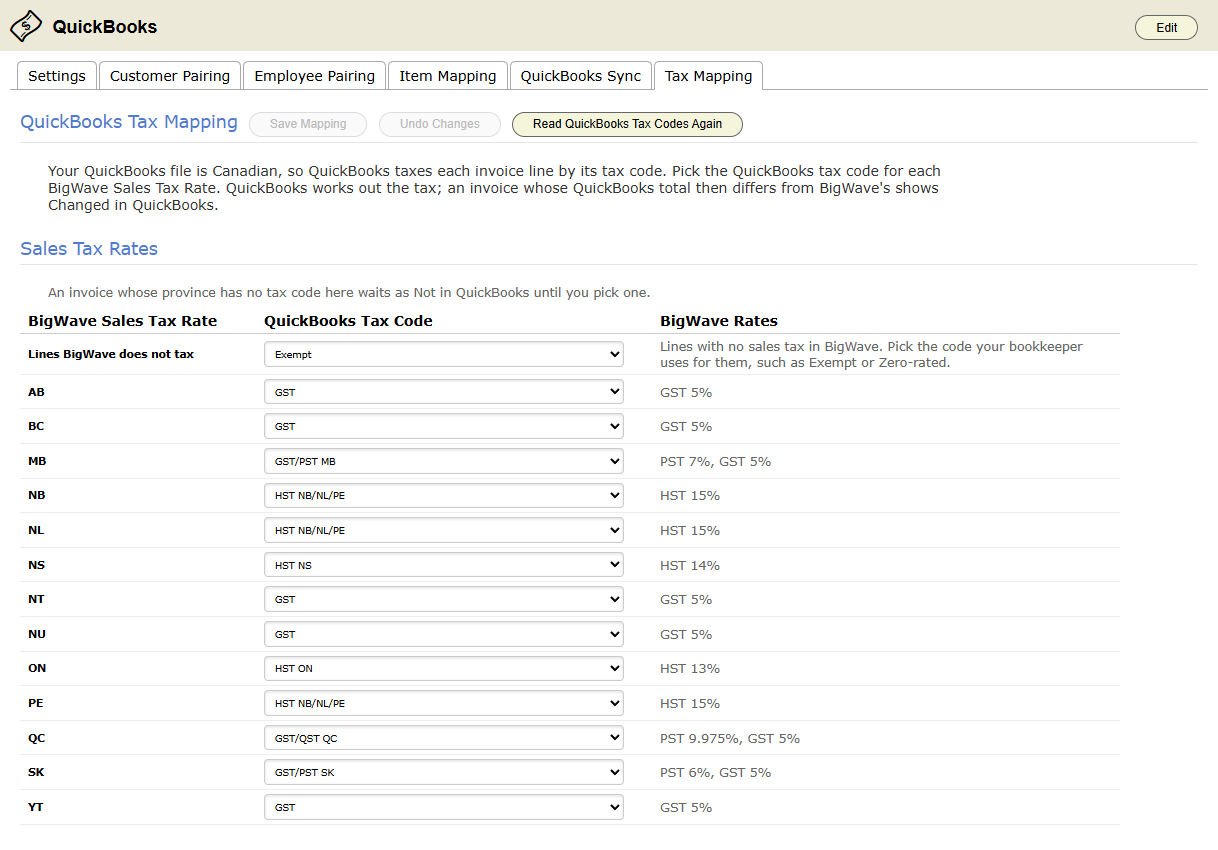
An invoice whose province has no tax code waits as Not in QuickBooks until you pick one. If QuickBooks works out a different tax than BigWave, the invoice shows Changed in QuickBooks. This can happen when a work order switches off one of its province’s taxes, because the line still gets the province’s code.
Invoices and credit memos
BigWave builds every invoice from the work order and sends it to QuickBooks with:
- the BigWave invoice number, unchanged
- the invoice date and due date
- the customer
- the invoice’s billing address
- the Site’s address, as the shipping (service location) address
- the PO number and the work order number, in the message to the customer and in the memo
- every line, with its mapped item and BigWave’s description
- the tax, as set out under Tax Mapping
A credit memo goes to QuickBooks as a QuickBooks credit memo, under the same rules. When you apply credit to an invoice in BigWave, QuickBooks gets the same application. Both systems then show the same amount due.
Quotes never go to QuickBooks. Invoices someone creates in QuickBooks never come into BigWave. Invoices dated before the Sync From Date stay in BigWave only.
BigWave as Invoice Sender
- An invoice goes to QuickBooks once it is Approved, Sent or Send Failure.
- BigWave emails it to the customer, the same as before you connected.
- Every later change in BigWave goes to QuickBooks too, and overwrites what QuickBooks holds. BigWave is where the invoice changes.
QuickBooks as Invoice Sender
Some bookkeepers want to check every invoice and send it from QuickBooks. With Invoice Sender set to QuickBooks:
- The office approves the invoice in BigWave.
- BigWave sends it to QuickBooks and sets its status to In QuickBooks. This status takes the place of Sent.
- The bookkeeper reviews it, changes it if needed, and sends it from QuickBooks.
An invoice that is In QuickBooks is locked in BigWave. Edit… and Email… tell you why they will not work. You can still record payments against it, and you can delete it. Its total and paid status come back from QuickBooks. Its lines do not.
While QuickBooks is the sender, BigWave emails no invoice or credit memo that goes to QuickBooks. The customer never gets two copies.
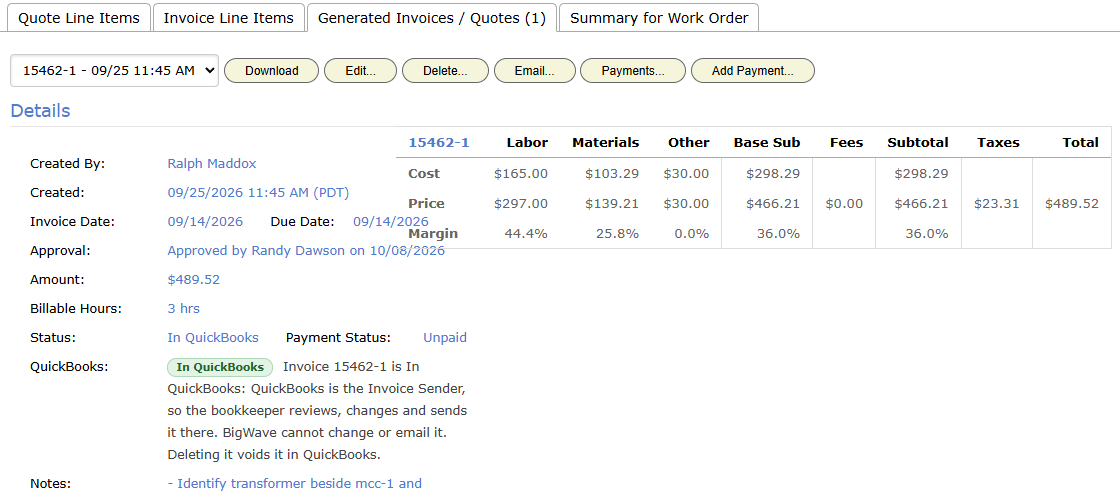
If you switch from BigWave to QuickBooks, approved invoices already in QuickBooks become In QuickBooks. Invoices already sent stay as they are, but BigWave does not email them again. If you switch back, invoices that are In QuickBooks stay with the bookkeeper.
Changed in QuickBooks
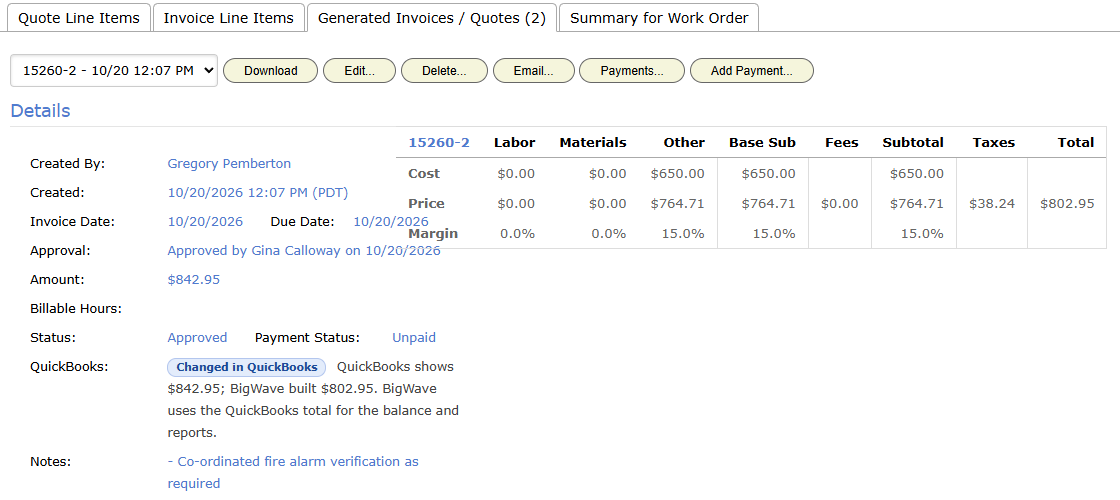
Sometimes the total in QuickBooks no longer matches the total BigWave sent. The bookkeeper edited or voided the invoice in QuickBooks, or QuickBooks worked out a different Canadian tax. BigWave then marks the invoice Changed in QuickBooks.
BigWave uses the QuickBooks total for the balance due, the payment status and reports. It keeps its own lines, so the pricing summary still shows BigWave’s figure. The QuickBooks row on the invoice shows both totals. When the two agree again, the mark clears.
With BigWave as Invoice Sender, the next real change to the invoice in BigWave goes to QuickBooks and puts BigWave’s version back.
Invoice numbers: 21 characters at most
QuickBooks holds at most 21 characters in an invoice number. While QuickBooks is connected, BigWave refuses:
- an invoice or credit memo Naming Pattern that can make a longer number
- a manual invoice number longer than 21 characters
BigWave counts each number field in a pattern as 7 digits. A pattern that uses a text field, such as the customer’s name or a custom field, has no fixed length, so BigWave refuses it too. Quote patterns are not checked.
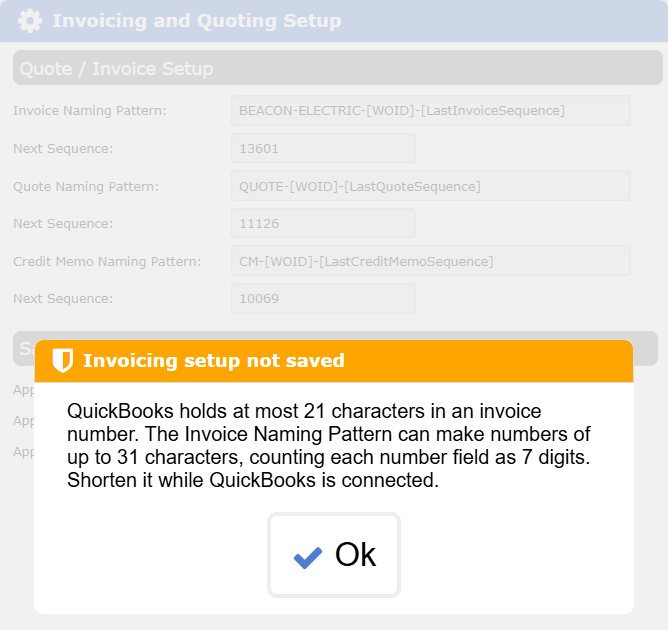
If a pattern saved before you connected is too long, the QuickBooks page warns you until you shorten it. An invoice that gets a number over 21 characters waits as Not in QuickBooks.
Deleting an invoice
When you delete an invoice that is in QuickBooks, BigWave voids it there. QuickBooks keeps it at zero, with its number, as cancelled. QuickBooks cannot void a credit memo this way, so BigWave sets a deleted credit memo to zero and marks it “Voided”. A payment applied to either one comes back to BigWave as customer credit.
If the bookkeeper has closed that period in QuickBooks, the void fails. BigWave still deletes the invoice, and the failure waits on the QuickBooks Sync tab for the bookkeeper.
When you create an invoice again in BigWave to replace one, QuickBooks updates the same invoice. Nothing is voided.
Payments, both ways
Each payment is edited only in the system where someone entered it. The copy in the other system follows.
From BigWave to QuickBooks. Check, cash, credit card, bank transfer and E-Transfer payments go to QuickBooks. So do online card payments taken through BigWave. Each goes against the same invoices, split the same way. Money left over stays unapplied in QuickBooks. Payments land in QuickBooks’s Undeposited Funds, with no payment method. If you change or delete the payment in BigWave, QuickBooks follows. If someone changes it in QuickBooks, BigWave puts its own version back.
From QuickBooks to BigWave. When the bookkeeper records a payment in QuickBooks against an invoice BigWave sent, it comes into BigWave with the payment type QuickBooks Payment, split the same way. You cannot pick QuickBooks Payment by hand. In BigWave the payment is locked: change or delete it in QuickBooks, and BigWave follows.
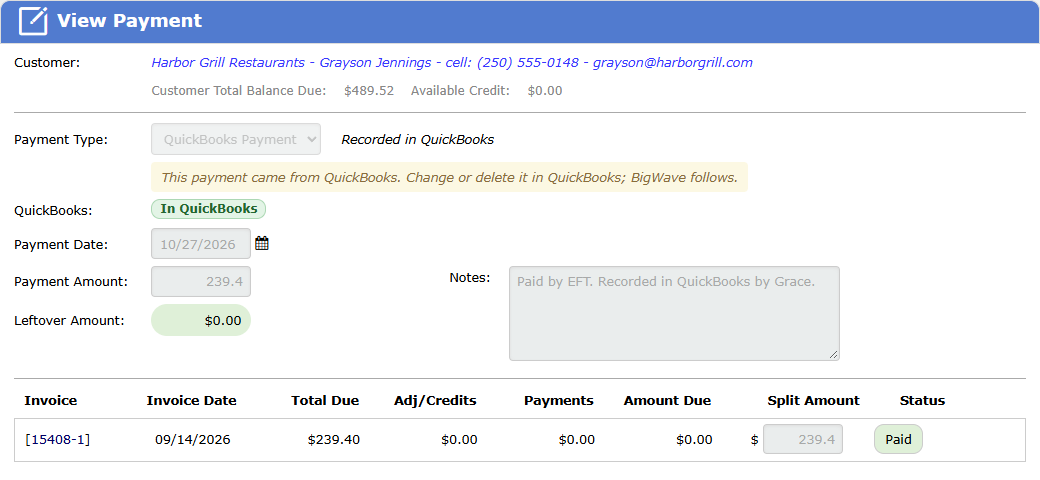
Credit works the same way in both directions:
- Money the bookkeeper leaves unapplied in QuickBooks comes into the customer’s credit pool in BigWave as Customer Credit.
- A payment on an invoice the bookkeeper voids comes back as Customer Credit too, so no money goes missing.
- Credit memo credit the bookkeeper applies in QuickBooks comes in as a separate, locked Customer Credit.
- A Customer Credit spent in BigWave reaches QuickBooks as the same application. BigWave spends overpayments first, then credit memos, oldest first.
Two kinds of payment never go to QuickBooks: refunds and Adjustment to balance payments. Record them in QuickBooks by hand, then dismiss them on the QuickBooks Sync tab. Payments dated before the Sync From Date stay in BigWave only.
Residential (the Okafors): Amara pays by card online. BigWave records the payment and sends it to QuickBooks against the same invoice. Grace never types it.
Time cards for payroll
With Time Activities turned on, each locked time card goes to QuickBooks as a Time Activity, for payroll. A lock marks the hours as final. The Time Activity carries:
- the paired QuickBooks employee
- the work date and the hours
- the work order’s customer
- the item from Item Mapping for the card’s service, or the default Labor item
- a description with the work order number, the service and the times
Every Time Activity is sent as not billable. The labor is already on the BigWave invoice, so it is never billed twice.
Turning on Time Activities sends every locked time card from the Sync From Date on.
Employee Pairing
A time card goes only once its technician is paired with an existing QuickBooks employee. BigWave never creates employees.
- Open the Employee Pairing tab.
- BigWave proposes a technician for each QuickBooks employee, by name and email.
- Tick each employee who is the same person as the technician beside them. Use Choose… to pick a different technician.
Each tick saves the pair at once. There is no Finish step, and nothing is ticked for you. You can pair at any time, and pairing holds up no other part of the sync.
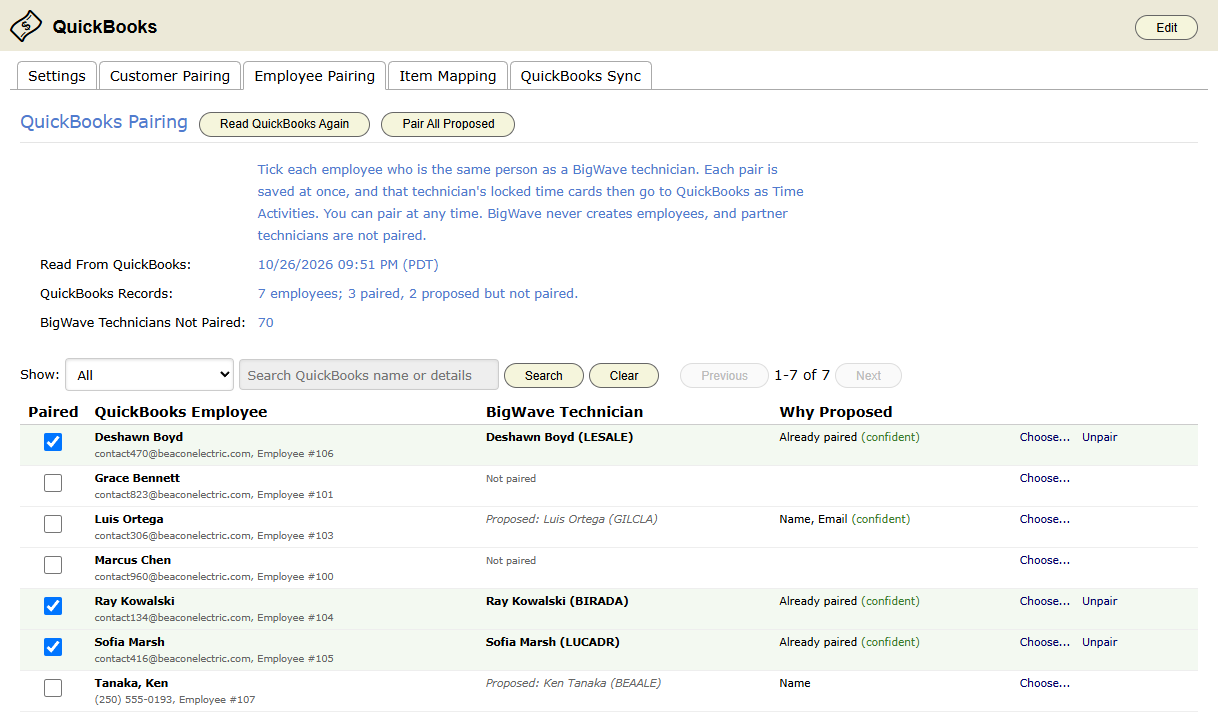
Until a technician is paired, their locked time cards wait as Not in QuickBooks. They go as soon as you save the pair.
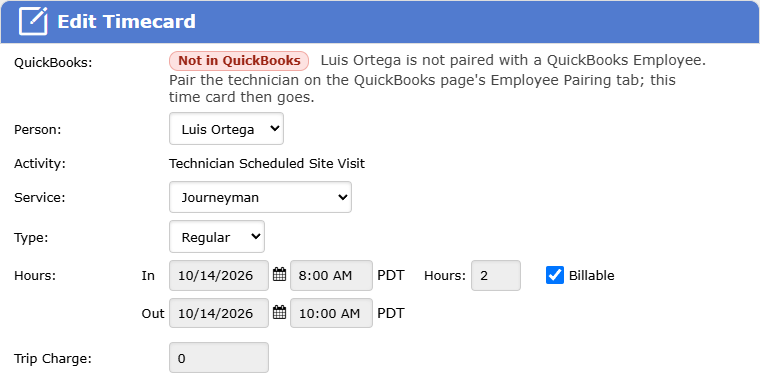
Some time never goes to payroll:
- Partner technicians’ time. Partners are not your employees.
- A card with no hours.
- A card for someone with no technician record. It waits as Not in QuickBooks. Enter it in QuickBooks by hand, then dismiss it.
If you unlock a card that has gone, QuickBooks keeps what it was sent. Lock it again, and the change goes. Delete the card, and BigWave deletes its Time Activity.
When a record does not reach QuickBooks
If QuickBooks does not answer, BigWave tries again on its own for up to six hours. It waits a little longer between each try. If QuickBooks refuses a record outright, for example for a missing item, BigWave stops at once. Either way, the record is then marked Not in QuickBooks, with the reason.
Badges
Each record shows its QuickBooks state where your team works:
- invoices, on the work order’s Generated Invoices / Quotes tab and on the Accounting screen
- payments, in the payment dialog
- customers, on the customer’s Details panel
- time cards, in the time card dialog
The badges are Not in QuickBooks, Waiting for QuickBooks, Changed in QuickBooks, In QuickBooks and Dismissed. A badge for a problem shows its reason beside it.
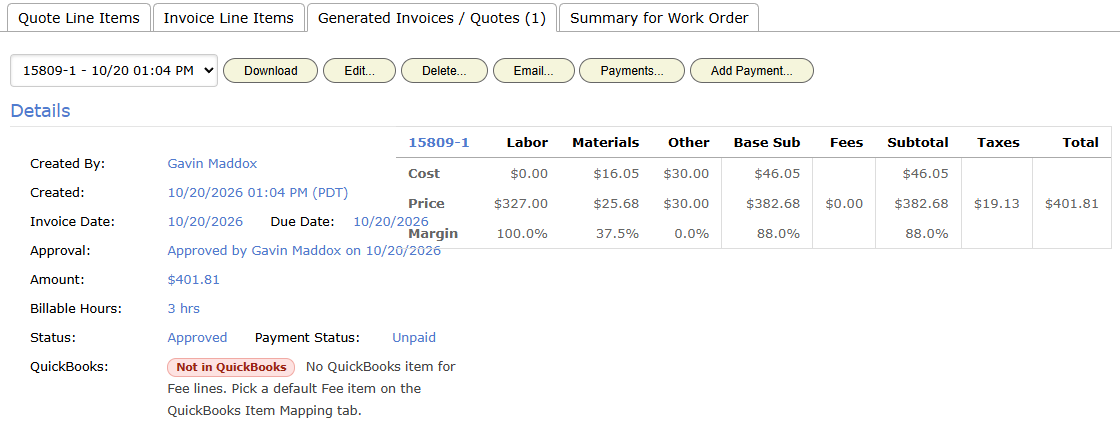
The invoice grid can also show a QuickBooks column. Add it to a view with the field selector (chapter 1.3).
The QuickBooks Sync tab
The QuickBooks Sync tab lists every record that has not reached QuickBooks. It also lists every invoice the bookkeeper changed or voided in QuickBooks, and every change in QuickBooks that BigWave could not bring in. Each BigWave record links to where it lives.
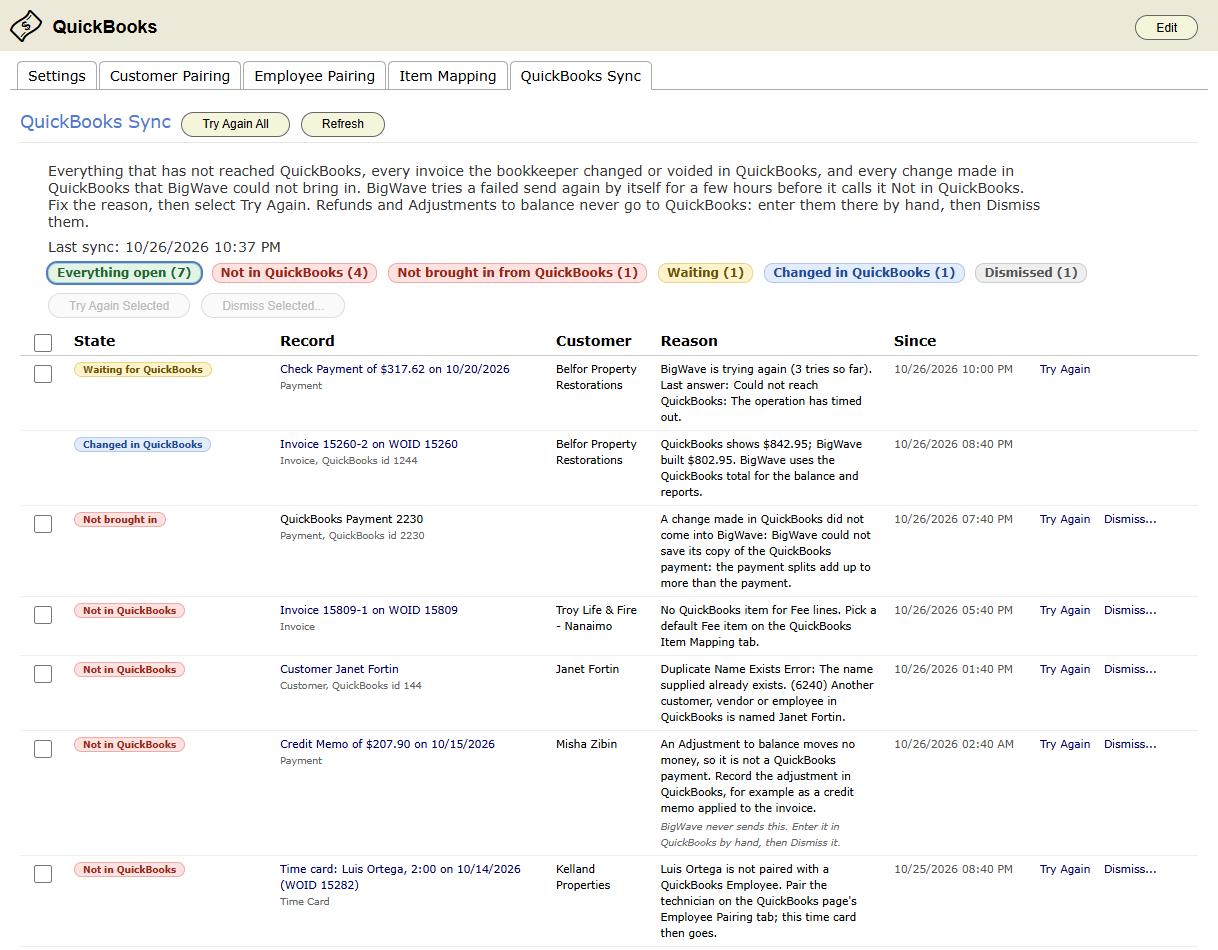
The filters across the top are Everything open, Not in QuickBooks, Not brought in from QuickBooks, Waiting, Changed in QuickBooks and Dismissed. To clear a problem:
- Read the reason.
- Fix what it names. For example, map the missing item, or pair the technician.
- Click Try Again on the row. To retry several at once, tick them and click Try Again Selected, or click Try Again All.
Saving Item Mapping or Tax Mapping retries the records that waited for it on its own.
Some records never go by design, such as refunds and Adjustment to balance payments. The tab marks these as records BigWave never sends. Enter each one in QuickBooks by hand, then click Dismiss…. A dismissed record leaves the open list and the daily email. It comes back only if it fails for a new reason, or someone clicks Try Again.
Changed in QuickBooks rows have no Try Again. They are not stuck. They show where the bookkeeper’s figure differs from BigWave’s.
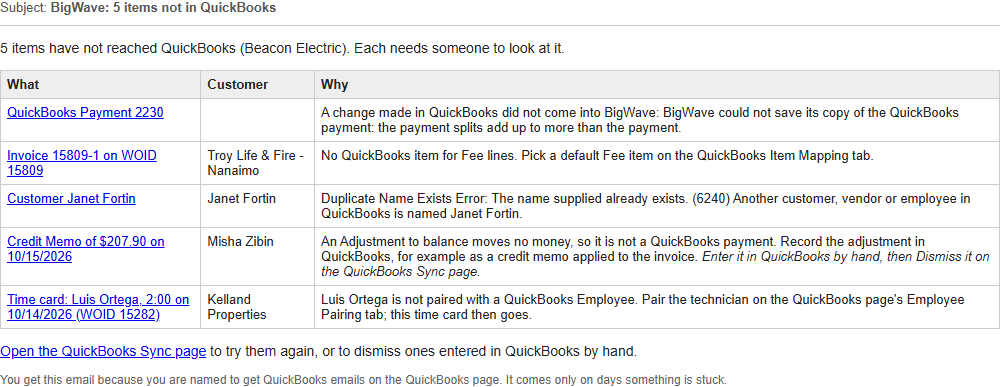
The daily email
Each morning, the person named in Stuck Items Email To gets an email that lists every stuck record, with the reason. The email comes only on days something is stuck. Records still waiting for a retry, and Changed in QuickBooks invoices, are not in it.
QuickBooks Disconnected
QuickBooks sometimes stops accepting BigWave’s sign-in. The sign-in can expire, or someone can revoke it in QuickBooks. The connection is then QuickBooks Disconnected, and nothing syncs.
- Administrators see a banner at the top of every page.
- The person named in Stuck Items Email To gets one email when it starts.
- Work done in BigWave waits. Nothing is lost.
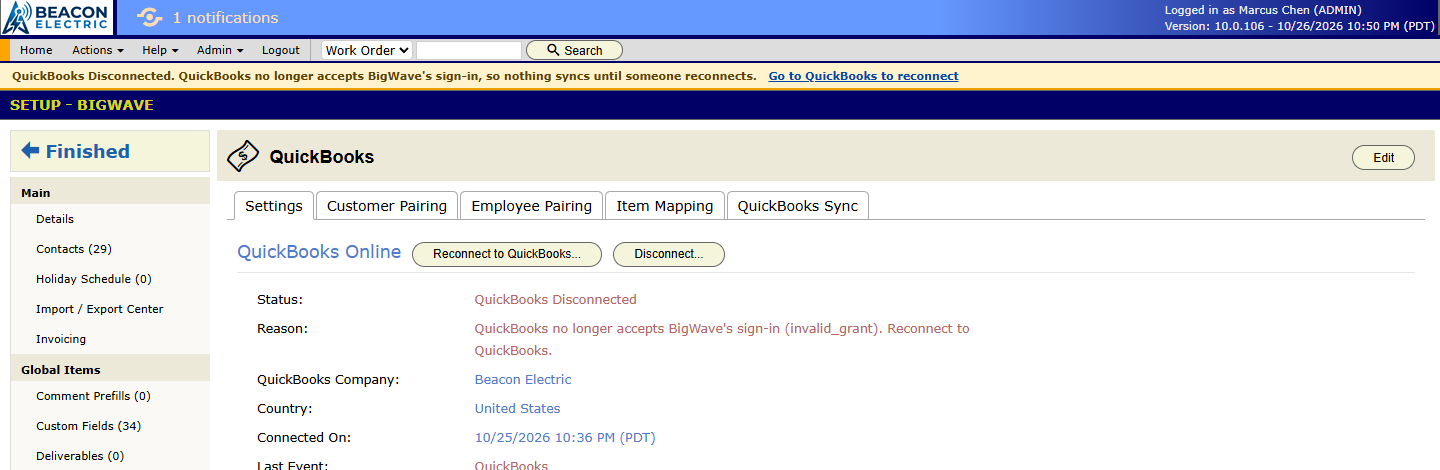
To reconnect:
- Click the link in the banner, or open the QuickBooks page.
- Click Reconnect to QuickBooks….
- Sign in with Intuit and pick the same company file.
Everything that waited goes in the next sync. BigWave also reads the changes made in QuickBooks while it was disconnected. QuickBooks keeps that list for 30 days only, so reconnect quickly.
To stop the sync on purpose, click Disconnect… on the Settings tab. There is no banner and no email. Your settings and links are kept, and work that waits syncs after you reconnect the same company.
What does not sync
- Quotes.
- Invoices created in QuickBooks, and line changes made to invoices in QuickBooks. Only an invoice’s total and paid status come back.
- Sites, as QuickBooks customers or sub-customers.
- Materials, as QuickBooks items. BigWave never creates QuickBooks items or employees.
- Refunds and Adjustment to balance payments.
- Payment methods and deposit accounts. Payments land in Undeposited Funds.
- Anything dated before the Sync From Date.
- An invoice approved or sent before you turned on Invoices and Credit Memos, until someone saves it again.
- Partner technicians’ time, partner bills and credit card expenses.
- Changes made to a Time Activity in QuickBooks.
- QuickBooks Desktop. BigWave connects to QuickBooks Online only.
Checklist
- Ask BigWave to switch on the add-on.
- Connect your file, and turn on Custom transaction numbers in QuickBooks.
- Set Customer Owner, Invoice Sender, Sync From Date and Stuck Items Email To.
- Set the default Labor and Material items. Map your main services.
- In Canada, map each province’s tax code.
- Pair your customers, read When You Finish, then click Finish Pairing….
- Turn on the Sync Areas you are ready for.
- Pair your technicians before you turn on Time Activities.
- Check the QuickBooks Sync tab each week, and act on the daily email.