Invoice Numbering in BigWave
BigWave generates invoice numbers using a configurable pattern. However, sometimes you need the ability to override auto-generated invoice numbers. This article covers how invoice numbering works.
How BigWave numbers invoices normally
Every invoice, quote and credit memo gets its number from a naming pattern you set once. Go to Setup and open Invoicing.
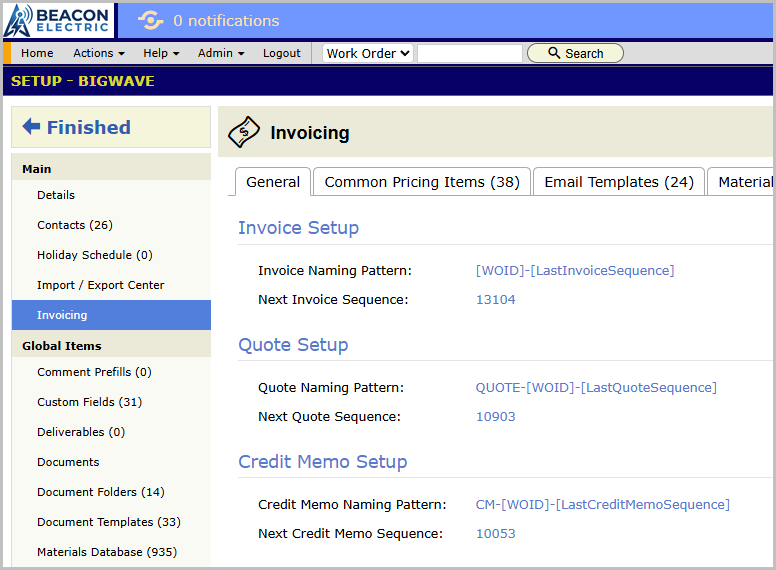
Click edit and you get three patterns and three counters, one set each for invoices, quotes and credit memos.
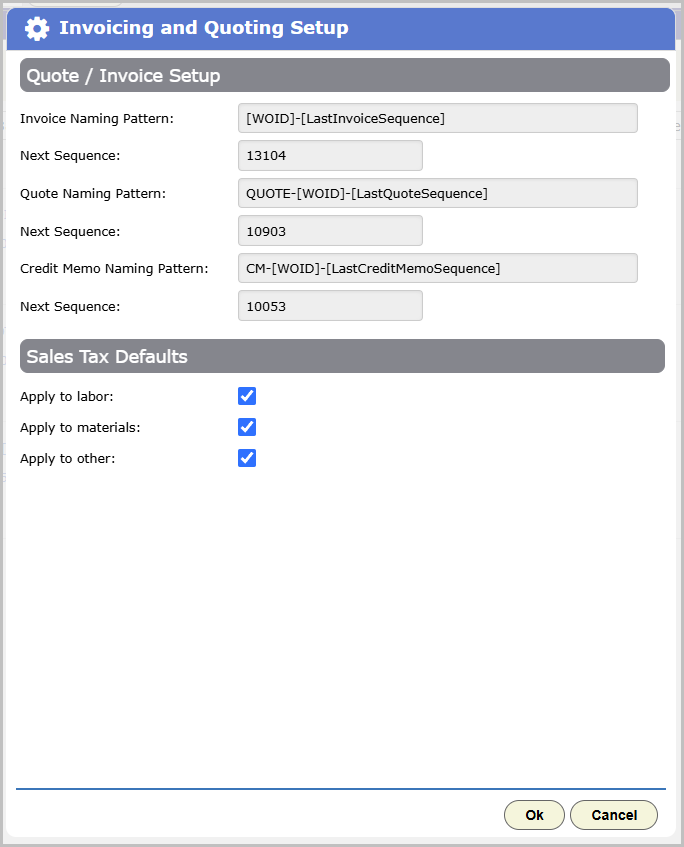
The Invoice Naming Pattern is plain text with merge fields dropped in. [LastInvoiceSequence] pulls the number off the Next Sequence counter. Anything else in square brackets pulls from the work order, so INV-[WOID]-[LastInvoiceSequence] and [SiteName]-[LastInvoiceSequence] both work. Set the pattern, set the starting number, and every document from then on names itself.
The counter moves forward by one each time a new invoice is created.
Typing your own number
Open a work order, go to the Quote/Invoice tab, and start an invoice as you always have. The dialog now has an Invoice Number field near the top, right under the template picker, with an Override checkbox beside it.
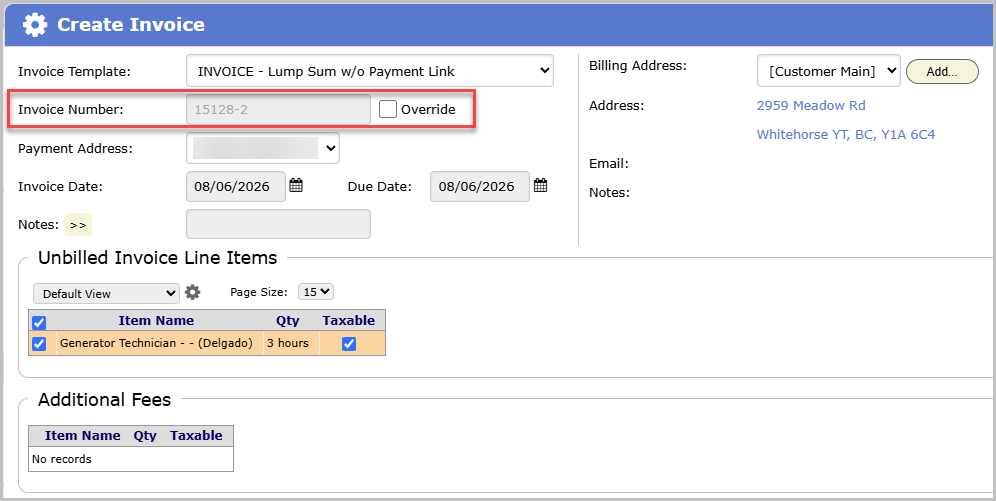
Leave Override unchecked and the field shows you the number BigWave is about to assign, resolved from your pattern, greyed out. Looking at it doesn’t burn the number, so you can open the dialog, change your mind, close it, and the number will stay the same.
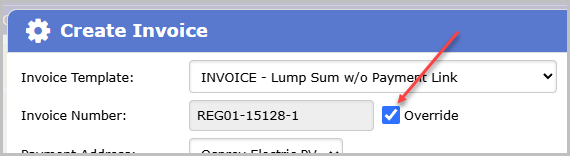
Click Override and the field becomes editable with that generated number already in it and selected, so you type straight over it. Put in whatever you need.
Tab out of the field and BigWave checks the number against every invoice, quote and credit memo in your company, then tells you underneath the field. If you see a green checkmark, the number is unique. If the number is already being used, an amber message will appear telling you so with the work order number where it can be located.
Uncheck Override and your generated number comes straight back into the field. BigWave keeps a copy of what the pattern produced when the invoice was first created, so there’s always something to fall back to.
The same Number field and Override checkbox appear on quotes and credit memos. The label changes to match.
The counter keeps counting
Overriding one invoice doesn’t disturb the numbers on any other invoice. Every new invoice still takes its turn from Next Sequence, override or not.
When a number is already taken
If that number is already sitting on another document, you find out before you create anything. The indicator turns amber and names the work order that has it.
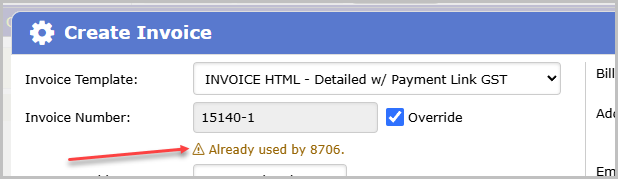
Take the work order number, go look, and decide. Maybe you fat-fingered a digit. Maybe head office really did send the same number to two divisions and it’s fine. BigWave doesn’t block the save either way.