Reverse a Customer Combine
Somebody combines two customers, and an hour later a dispatcher says wait, those were two different accounts. Same company name, two divisions, separate billing. It happens. Before, the only way back was to rebuild the customer by hand and hope you remembered every work order that had moved.
Reverse Combine puts it back for you.
Start from the customer you kept
Open the customer, the one everything got merged into, and go to Actions. Under Combine Customer you’ll see Reverse Combine.
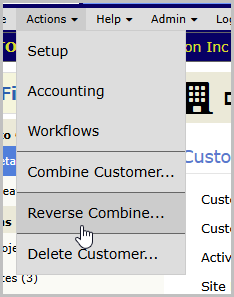
That menu item only shows up when there’s actually something to undo.
Pick the combine
A customer can have more than one duplicate merged into it over the years, so the first screen lists every combine merged into this customer that hasn’t been reversed yet. Each row gives you the name of the customer that got folded in and the date it happened.
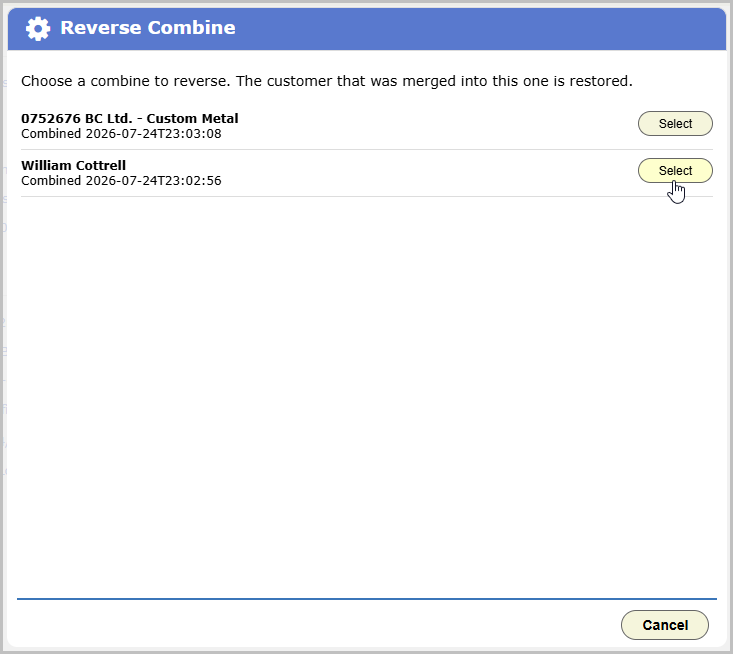
Pick the one you want undone and click Select.
Combines run before this feature existed don’t appear here. There’s no record of what moved for those.
Read the summary before you commit
The next screen tells you what reversing will do, plus anything that’s happened since the combine that you should look at first.
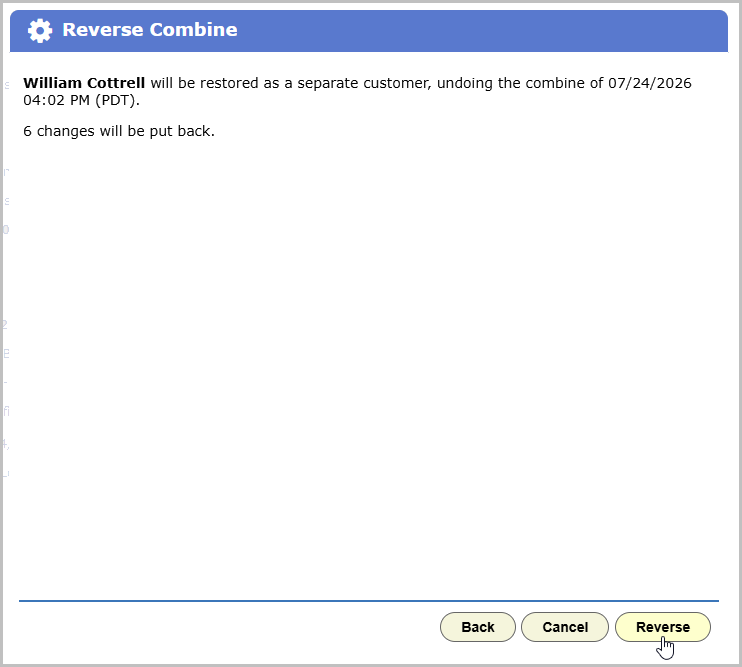
At the top you get the plain version: this customer will be restored as a separate customer, undoing the combine from that date, and here’s how many changes get put back. Work orders go back where they came from. So do sites, contacts, assets, documents, billing addresses and payments. All of it lands back on the customer that’s returning.
Below that, three things can show up.
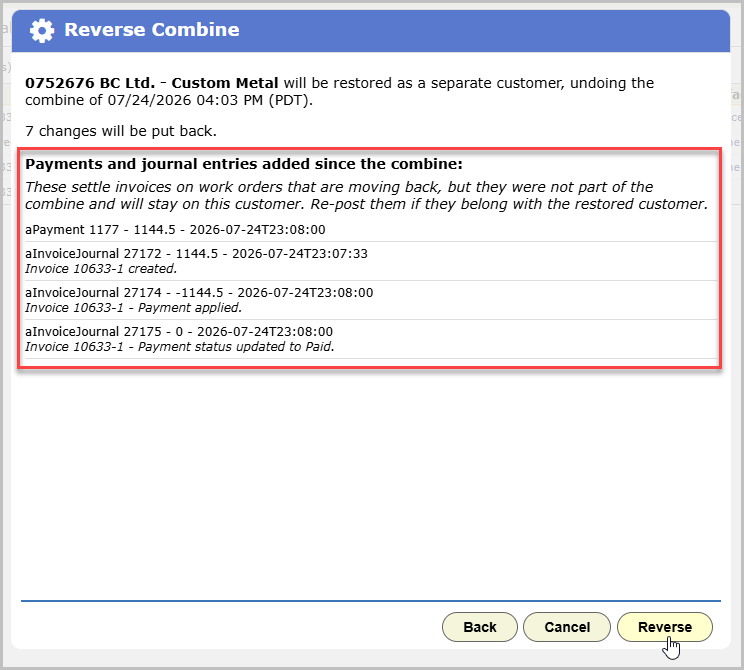
Payments and journal entries added since the combine. If money was posted to the surviving customer after the combine, and it was settling an invoice on a work order that’s about to move back, that payment does not follow the work order. It stays where it is. BigWave lists each one with its amount and date so you can go re-post it against the restored customer if that’s where it belongs.
Other records added since the combine. Work orders, contacts, whatever got created on the surviving customer after the merge. You get a count per record type. These were never part of the combine, so they stay on the customer you’re viewing.
Records edited since the combine. If someone changed something on a record that the combine had touched, reversing puts back the value from before the combine and overwrites that later edit. Each one is listed with what it is now and what it’s going back to.
You’ll sometimes see a note about rows that no longer exist. Something got deleted between the combine and now, so there’s nothing to put back, and BigWave skips it and tells you how many.
Reverse it
Click Reverse. It runs as one operation, so either the whole thing goes back or nothing does. There’s no state where half your work orders moved. The page reloads and the customer that was folded in is a live customer again, with its own record, its own history, and its own place in your customer list.
Two things that will stop you
A combine can only be reversed once. Reverse it, and it drops off the list.
And if the customer you’re standing on was itself combined into some other customer after the combine you’re trying to undo, BigWave refuses and names the combine you have to reverse first. Undo them newest first.
Reverse Combine is staff-only, on the same permission that lets someone run a combine in the first place. If you can combine customers, you can undo it.