The tables in our invoice template guide cover several commonly used fields, but BigWave itself can generate the complete, always-current list for any document type, along with real sample data so you know exactly what each one resolves to.
1. Open Download Merge Fields
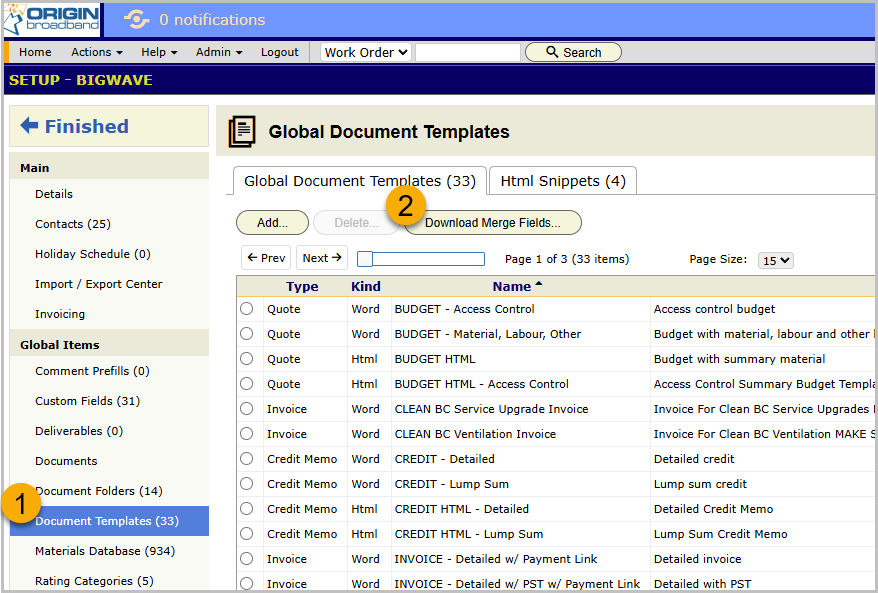
Under the Actions / Setup menu, go to the Document Templates section and click the Download Merge Fields… button.
Document Templates section with the Download Merge Fields button
2. Choose a type and sample work order
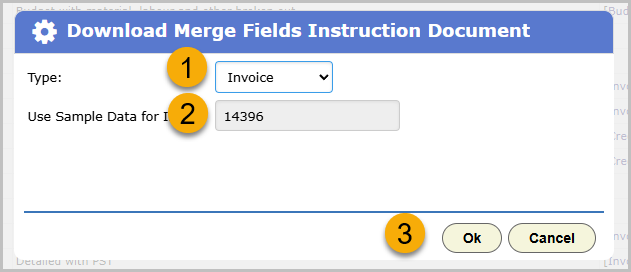
Choose Invoice (or another document type), and optionally enter a real work order ID to pull real sample data. Click Ok and a PDF downloads with every field code available for that type.
Download Merge Fields Instruction Document dialog
3. Read the PDF
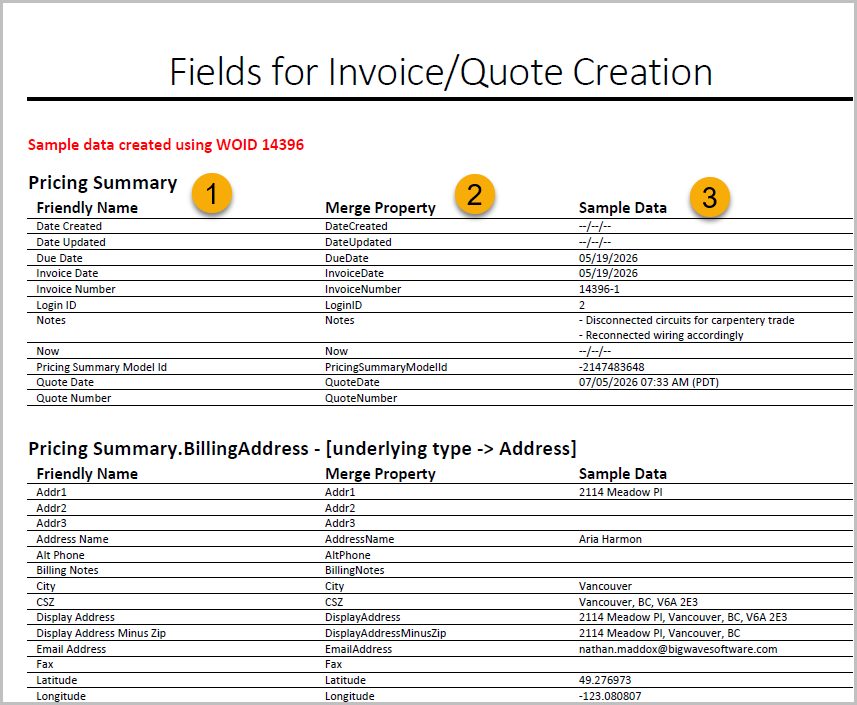
The PDF lays out every field in three columns:
Friendly Name is the name of the field as labeled inside BigWave. It typically matches the merge property name, but not always. For example, the merge property will never have spaces.
Merge Property is the actual field name to put inside brackets.
Sample Data, for the work order you entered (in this case 14396), is the actual information that resolves from the merged property. If you’re unsure which field to use, you can use the sample data to find the exact field you need.
PDF showing Friendly Name, Merge Property, and Sample Data columns