Copy Data From Another Work Order
Sometimes a work order lands in the wrong project. A work order cannot change its project or its template. So until now you had to start over and retype the work.
Now you do not. Create the new work order in the right project. Then pull the data from the old one with Copy From Another Work Order.
The old work order does not change. BigWave only reads from it.
Start from the work order you want to fill
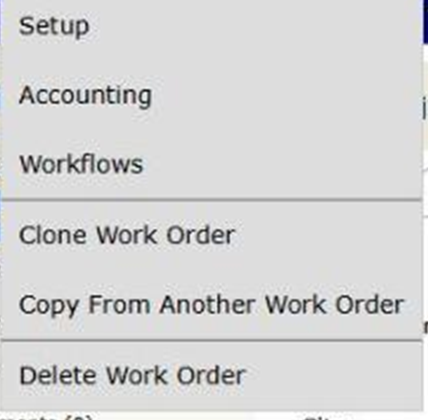
Open the new work order. Under Actions, click Copy From Another Work Order. It sits below Clone Work Order.
You need permission to update the work order. The action does not show on a template or on a deleted work order. A closed work order still shows it.
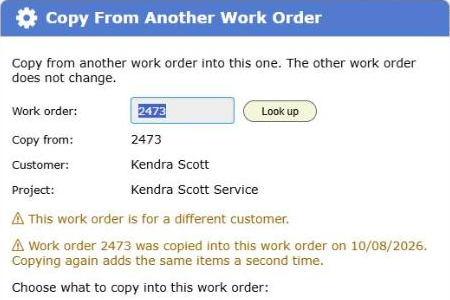
Look up the work order to copy from
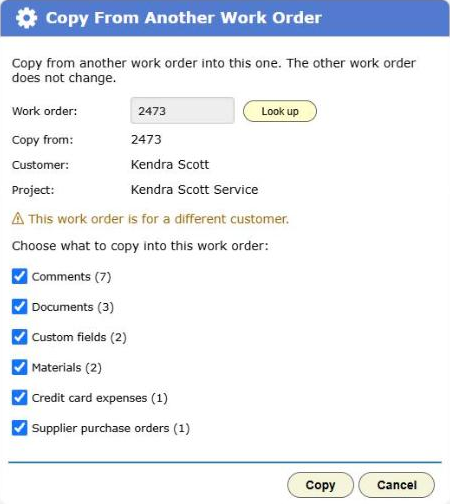
Type the number of the old work order and click Look up.
BigWave shows the work order’s number, customer and project. Under that, it lists what the work order holds, with a count for each:
- Comments
- Documents
- Custom fields
- Materials
- Credit card expenses
- Supplier purchase orders
Every box starts ticked. Untick what you do not want. A piece with nothing in it is greyed out.
BigWave warns you in two cases:
- A different customer. The old work order belongs to another customer. You may copy anyway.
- A copy you made before. If you already copied from this work order into this one, BigWave tells you the date. Copying again adds the same items a second time.
If you type a number that does not exist, or one you cannot see, BigWave says it was not found. If you type the number of the work order you are on, it asks for a different one.
What each piece does
Comments keep their author, their date, their type and who can see them. An issue stays tied to its resolution. Copied comments do not send “comment added” alerts.
Documents are the work order’s own files, photos and links. Documents it inherits from the project, the site or the template do not copy. Files copy in the background and appear after a sync process completes. A document goes into the folder of the same name in the new project. If the project has no such folder, the document will still be copied, but without a folder assignment. BigWave tells you how many.
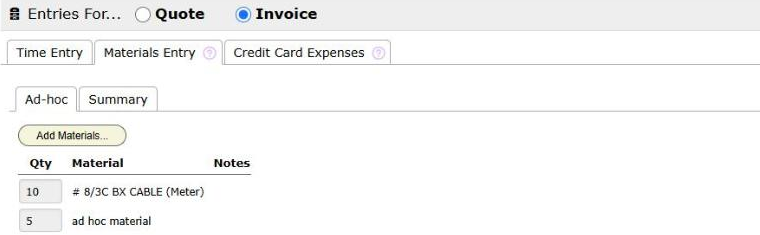
Materials copy from both the quote side and the invoice side. The new work order’s own rates set the price, the cost and the sales tax, so you never carry old prices into the new project. A material the new project does not list becomes an ad hoc line.
Credit card expenses copy with their receipts. Each expense keeps the person who received it, even if that person is not assigned to the new work order.
Supplier purchase orders copy as they stand. They keep their PO number, supplier, amounts, status and tracking.
Custom fields match by name and type. A value fills in only when the new field is empty, so nothing you already entered gets overwritten. A field with no match does not copy. BigWave lists it, with its value, so you can enter it by hand.
See what happened
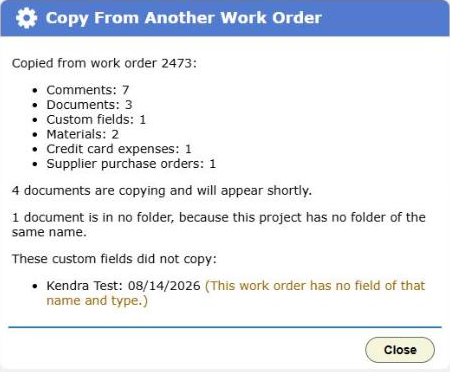
When the copy ends, BigWave shows a short report:
- How many of each piece copied.
- How many documents are still copying.
- How many documents have no folder.
- Which custom fields did not copy, with their values.
The comments now sit on the new work order with their original authors and dates.

BigWave also writes one line to the new work order’s Audit Trail. It says what came over, for example: “Copied from work order 2473: 7 comments, 3 documents, 2 materials, 1 expense, 1 purchase order, 1 custom field.” The old work order gets no audit line.
If you run the copy a second time, BigWave warns you first.
What does not copy
Some things belong to the old job and stay with it:
- Labor lines
- Additional fee lines and other lines
- Quote and invoice lines as such. They rebuild from the materials and the rates.
- Time cards
- Assignments and schedule items
BigWave also does not link the two work orders. The new one stands on its own.
Want to make a new work order in the same project instead? See Clone a Work Order.