Clone a Work Order
Over the life of a job, a single work order can grow large and unwieldy, especially from a billing perspective. As time, materials, and expenses pile up, it can become difficult to invoice cleanly or to draw a line and start fresh. The new Clone Work Order feature solves this.
Cloning takes an existing work order and creates a brand-new one from it. The new work order carries over the information you want to keep, comments, documents, and custom field values, while starting clean for scheduling and invoicing. This makes it easy to break a sprawling work order into more manageable pieces without re-keying all of the supporting details.
Here’s how it works…
1. Start the clone
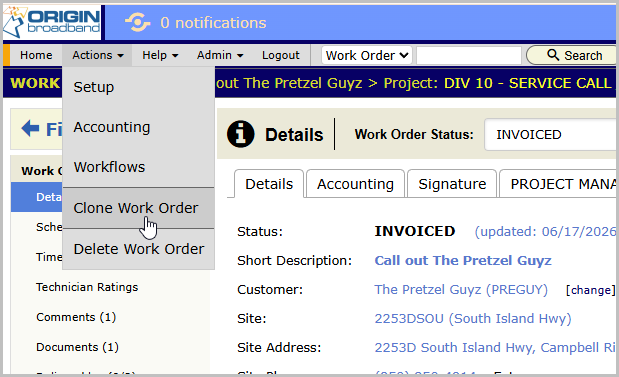
From an existing work order, hover over the Actions menu and choose the new Clone Work Order option.
2. Choose what to copy
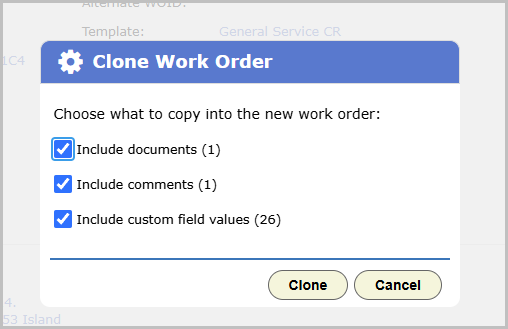
A dialog appears where you choose which items to copy into the cloned work order. In this example you can carry over documents, comments, and custom field values. Many of the work order fields, such as the description, technician instructions, and similar details, copy over automatically.
3. Your new work order opens
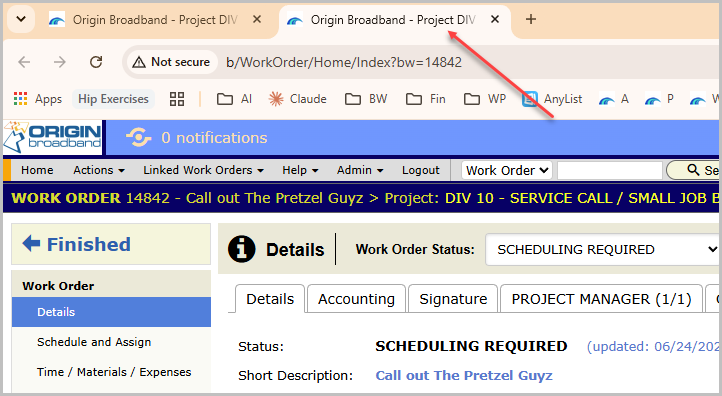
Once you click Clone, the newly created work order opens in a new tab so you can keep the original handy for reference. Notice the new work order starts with a status of Scheduling Required, a clean slate for scheduling and invoicing.
4. Documents finish in the background
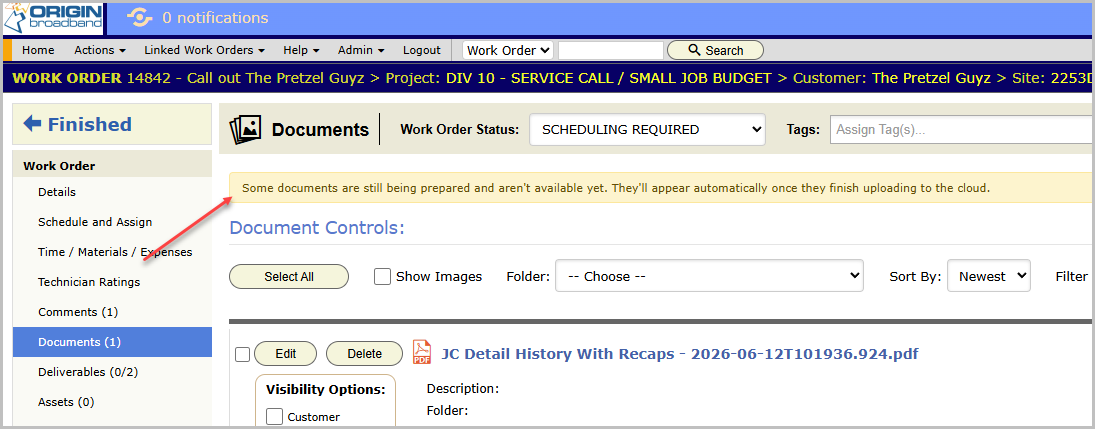
Documents are copied over in the background. Until they finish uploading to the cloud, you’ll see a message letting you know they’re still being prepared. They’ll appear automatically once they’re ready to access.
5. Cloned work orders stay linked
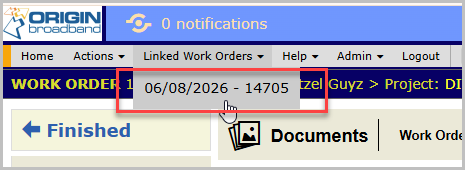
A new Linked Work Orders menu appears, giving you easy access to any of the work orders that were cloned from one another. In the picture below you can see a link back to the original work order this new one was cloned from. (A work order becomes unlinked if it is deleted.)
Cloning is a quick way to keep a job moving without losing the context you’ve already built up. As always, we appreciate any feedback or suggestions you have around this feature or any other!