Assemblies: Quote a Whole Job in One Line
Every new receptacle takes the same five things. A receptacle, fifteen feet of cable, a box, a cover plate and three quarters of an hour of labor. Until now you added all five to the quote, every time.
Now you add one Assembly.
What an Assembly is
An Assembly is a recipe. It holds materials, labor and even other Assemblies, each with a quantity. You build it once. Then anyone quoting the job adds it in one step and types how many.
It holds no price of its own. BigWave prices each part on the work order’s rates, the same way it prices a loose part or an hour of labor, and adds them up. When your supplier raises the price of cable, the next quote picks it up. You don’t edit a thing.
Build one
Open Actions, then Materials Management, then Assemblies. Click Add…, give it a name your office will search for, and a Customer Description your customer will read. Put it in a category so people can find it later.
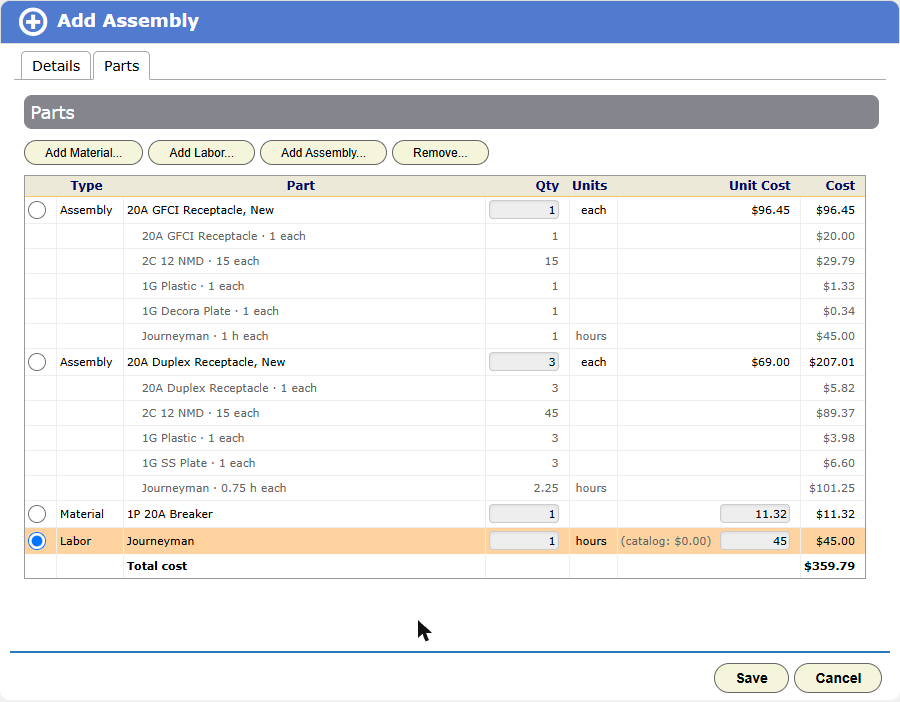
On the Parts tab, add what the job uses: Add Material…, Add Labor… or Add Assembly…. Set each quantity. If you want a fixed cost for a part, type it in Unit Cost. Otherwise the part follows the catalog.
Small Assemblies nest inside bigger ones. A kitchen counter circuit can hold four receptacle Assemblies, a breaker and an hour to run the home run.
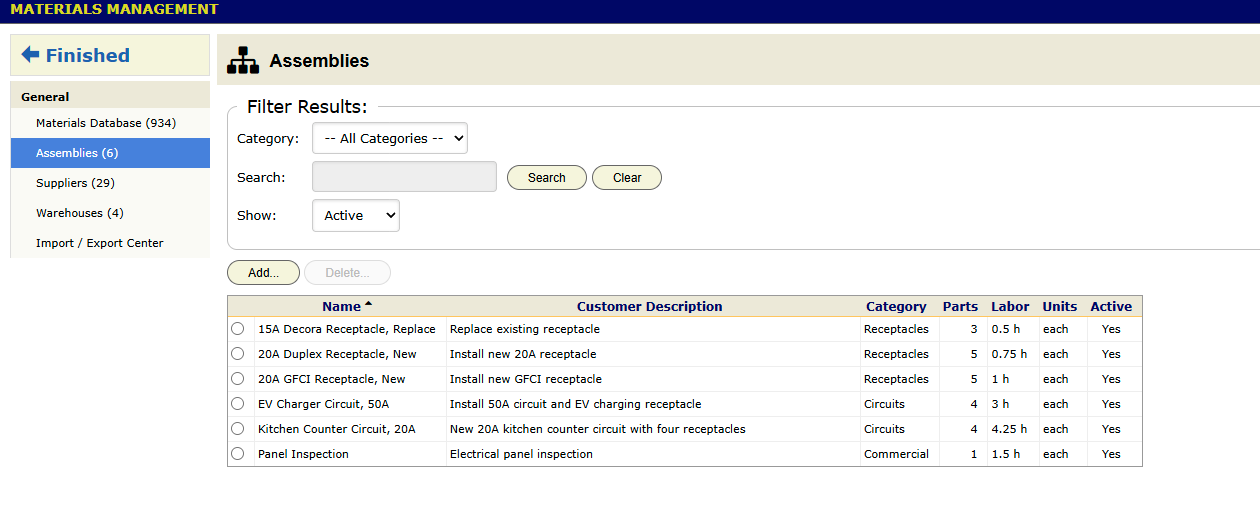
The list shows each Assembly with its parts count and its labor hours.
Put it on a quote
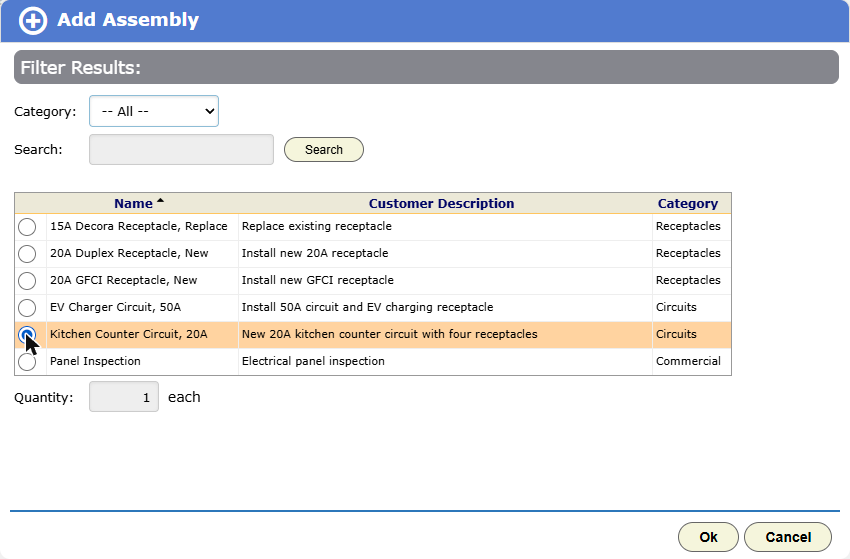
On the work order, open Time / Materials / Expenses, pick Quote, then Materials Entry and the Assemblies tab. Click Add Assembly…, pick it, type the quantity, click Ok.
Adjust it for this job
This kitchen needs 25 feet of cable to each receptacle, not 15. Click the line and change it. The changed part is highlighted with the recipe’s value beside it, and the price follows as you type. The Assembly in your catalog stays as it was.
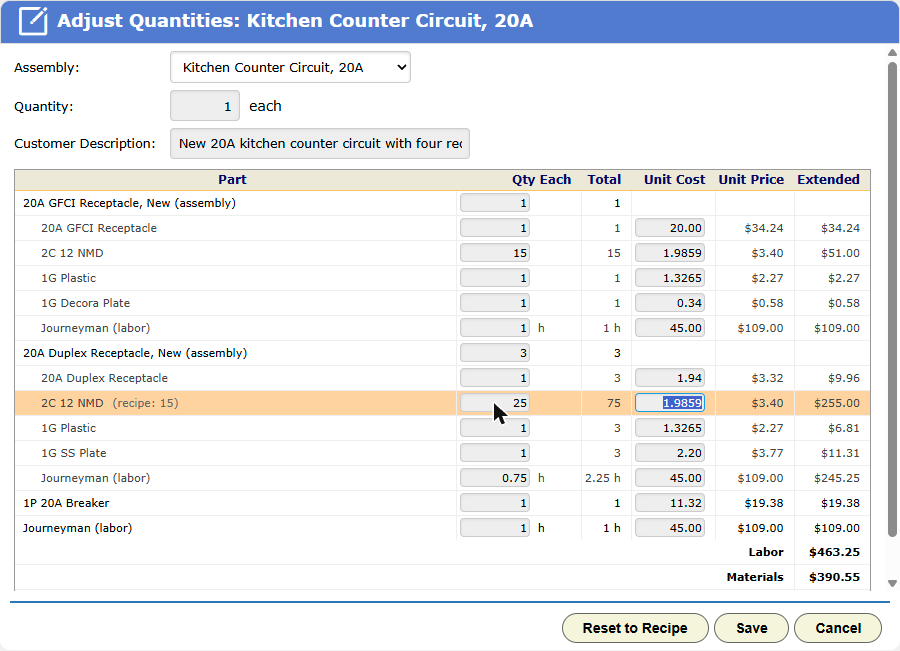
You can’t add or remove parts here. It’s still the same Assembly. Reset to Recipe puts it all back.
What your customer sees
The customer sees your Customer Description, not a list of boxes and wire nuts. The labor portion goes in the labor section and the parts in the materials section, so your totals and tax work as they always have.
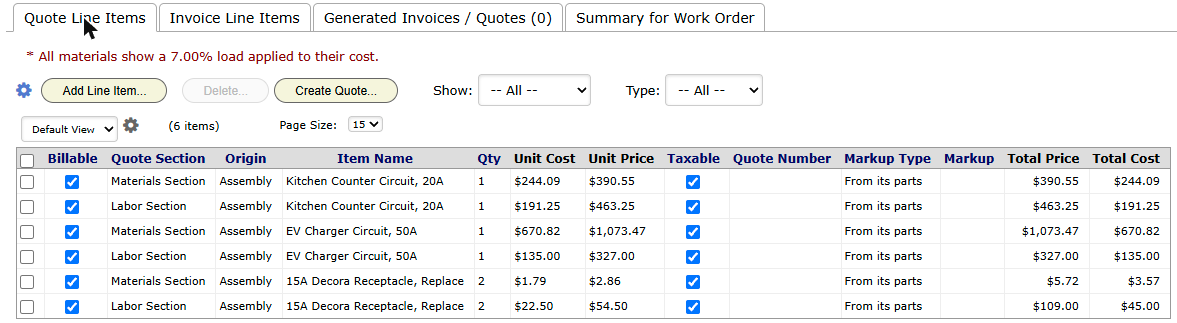
Behind the scenes, your office still sees everything. The Summary tab’s Parts only view adds up every part across every Assembly, which is the list you take to the supplier. Quoted hours show the labor inside the Assemblies too.
A few more things
- Technicians can use them too. On the phone, + Add Assembly works on the quote and the invoice. The phone deals in quantities only, and BigWave prices the line when it syncs.
- Quotes don’t change under you. Each line keeps its own copy of the recipe. Improve an Assembly tomorrow and only new quotes get the change.
- Swap a part everywhere. When a supplier drops a part, Replace Part… swaps it in every Assembly that uses it.
- Bring your recipes with you. Import Assemblies from a spreadsheet in the Import / Export Center, one row for each part.
The full walkthrough, with every screen, is in the user manual: setting up Assemblies and quoting with them.